
SSL/SSH/Proxy
Protect or route around your database connection's transport layer using SSL/TLS with certificates, SSH tunnels, and proxies.
SSL/TLS Connection
Encrypt communication with the database for a secure connection. Enable the SSL/TLS toggle on the SSL/SSH tab of the connection settings to display the configuration panel.
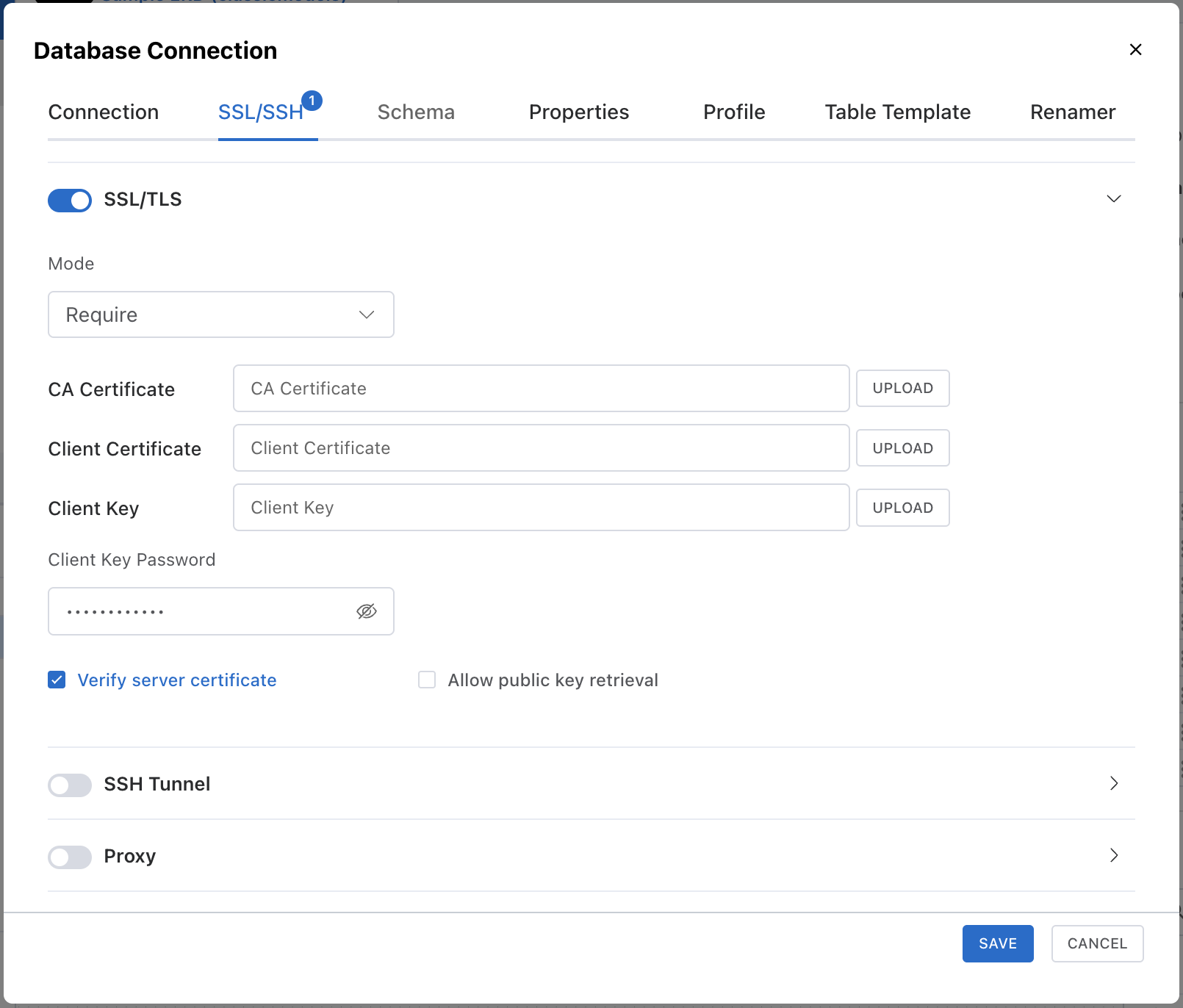
| Field | Description |
|---|---|
| Mode | SSL connection level. Supported modes differ per DBMS, and only the selectable ones are shown. require only encrypts and does not verify certificates — choose verify-ca or stronger when you need actual protection. |
| CA Certificate | CA certificate file for verifying the server certificate. Supports .pem, .crt, .cer formats. |
| Client Certificate | Used when the server requires client authentication. Click the upload button to select a file. |
| Client Key | Private key file corresponding to the client certificate. |
| Client Key Password | Enter the password if the client key file is encrypted. |
| Allow Public Key Retrieval | Allow automatic retrieval of public key from server for MySQL/MariaDB caching_sha2_password authentication. |
SSL Mode Behavior
| Mode | Encryption | Server Cert Verification | Description |
|---|---|---|---|
disable | None | None | SSL is not used. |
prefer | If possible | None | Uses SSL if the server supports it, otherwise connects without encryption. |
require | Required | None | Always uses encrypted connection, but does not verify the server certificate. |
verify-ca | Required | CA only | Verifies that the server certificate was issued by a trusted CA. |
verify-full | Required | CA + Hostname | In addition to CA verification, verifies that the certificate hostname matches the actual server. |
When connecting to cloud DBs such as AWS RDS, download the CA certificate from the cloud provider and upload it to the CA certificate field. Bundle files (many regional CAs in one file) work as-is. If you connect by IP, alias, or SSH tunnel so the host name differs from the certificate, use <code>verify-ca</code>.
SSH Tunnel Connection
Securely connect to databases not directly accessible from outside via SSH tunnel. Enable the SSH Tunnel toggle to display the configuration panel.
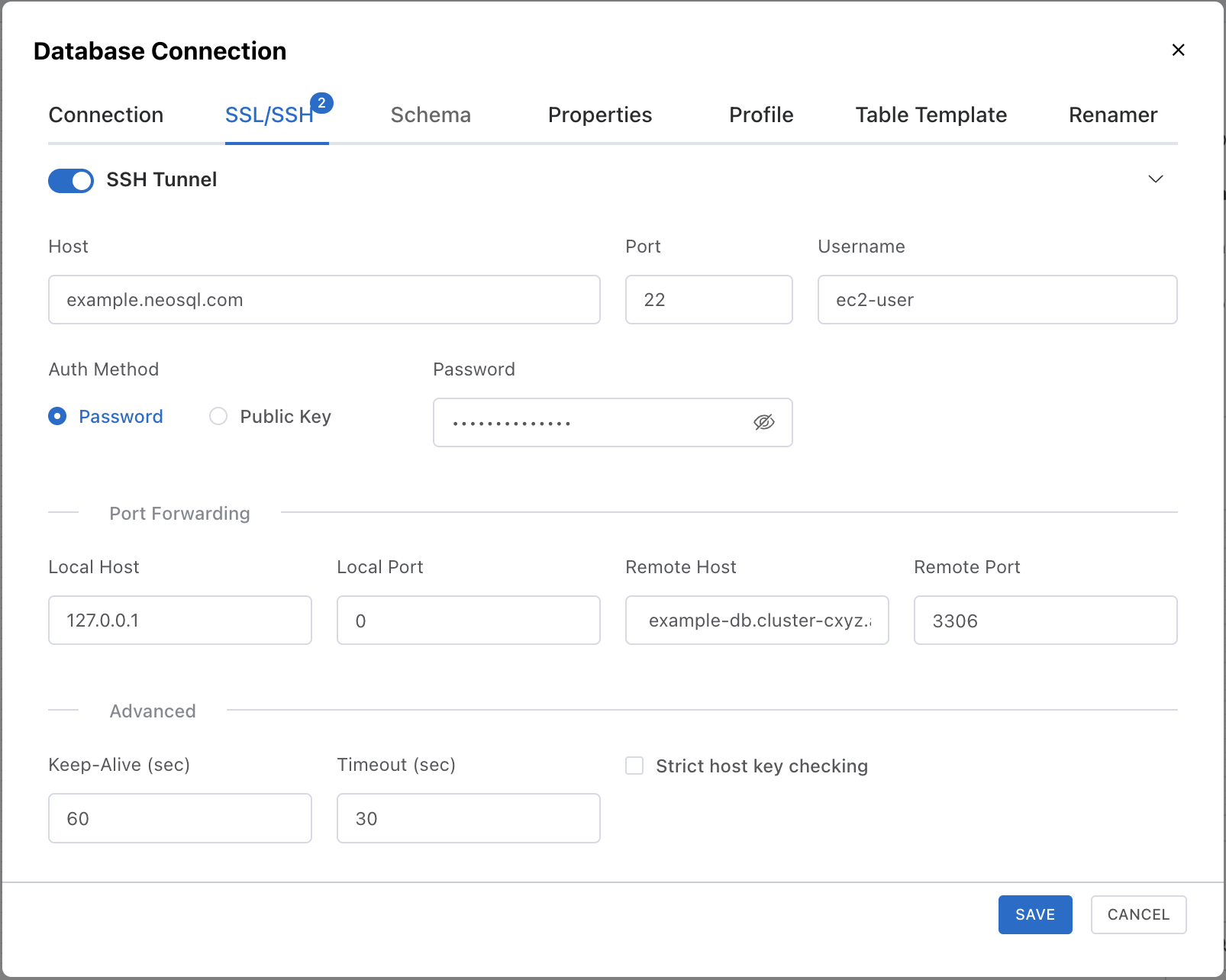
SSH Server Info
| Field | Description | Default |
|---|---|---|
| Host | SSH server (Bastion Host) address | - |
| Port | SSH service port | 22 |
| User | SSH login account | - |
Authentication Method
Choose one of two authentication methods:
- Password — Enter the SSH account password directly.
- Public Key — Upload an OpenSSH-format private key file. Enter the passphrase if one is set on the key file.
Port Forwarding
Port forwarding settings for the SSH tunnel. Generally, default values work fine.
| Field | Description | Default |
|---|---|---|
| Local Host | Local binding address | 127.0.0.1 |
| Local Port | Local binding port (0 for auto-assign) | 0 |
| Remote Host | DB host accessible from the SSH server (uses connection host if empty) | - |
| Remote Port | DB port accessible from the SSH server (uses connection port if 0) | 0 |
Advanced Settings
| Field | Description | Default |
|---|---|---|
| Keep-Alive (sec) | Packet interval to keep SSH connection alive (0 to disable) | 0 |
| Timeout (sec) | SSH connection timeout | 30 |
| Host Key Verification | Whether to verify the SSH server's host key (Strict Host Key Checking) | Disabled |
When connecting to cloud DBs like AWS RDS, use a Bastion Host as an SSH tunnel to maintain security. Enter the RDS endpoint as the remote host and the DB port as the remote port.
Proxy Connection
Connect to the database through a proxy server. Enable the Proxy toggle to display the configuration panel.
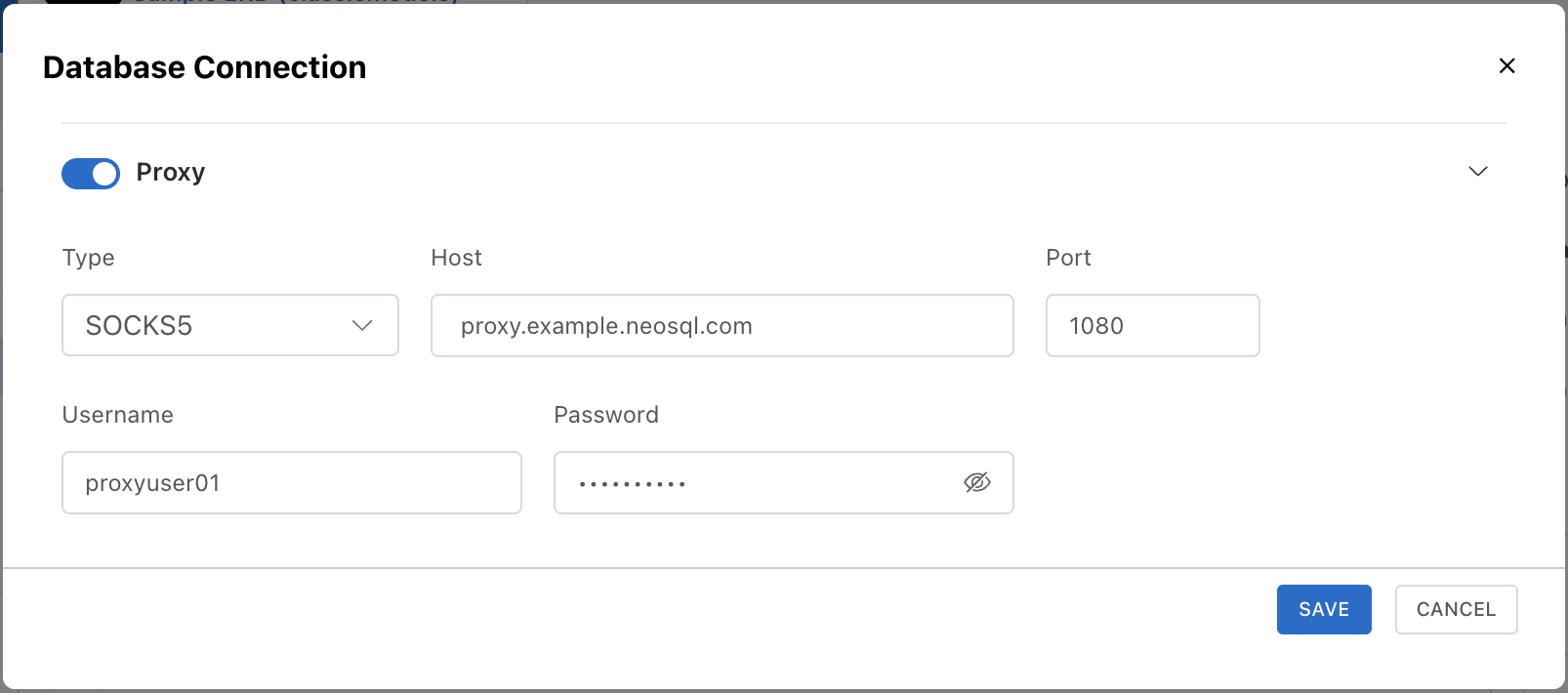
| Field | Description | Default |
|---|---|---|
| Type | Proxy protocol: SOCKS5, SOCKS4, HTTP | SOCKS5 |
| Host | Proxy server address | - |
| Port | Proxy server port | 1080 |
| User | Username if proxy authentication is required | - |
| Password | Password if proxy authentication is required | - |