
NeoSQL ERD Overview
Summarizes ERD fundamentals and the broad scope NeoSQL covers across data modeling, schema design, and database application workflows.
What an ERD Is
An Entity Relationship Diagram is a visual blueprint of the tables, columns, keys, indexes, constraints, and relationships that make up a database. It helps you review where data is stored, which rules protect it, and how tables reference each other.
| Element | Meaning | What to Review |
|---|---|---|
| Table | The largest unit that stores business data. | Check whether each table has a clear responsibility and is not carrying too many unrelated roles. |
| Column | An individual data field stored inside a table. | Check whether data type, nullability, default value, and comments match the actual meaning of the data. |
| Key | A rule used to identify rows or reference another table. | Check whether the PK is a stable identifier and each FK points to the correct parent table and columns. |
| Index | A structure that supports query performance, sorting, and lookup patterns. | Check whether it matches frequent query conditions and whether duplicate indexes can be removed. |
| Constraint | A database-level expression of rules that data must follow. | Check whether rules such as UNIQUE and CHECK are represented in the database, not only in application code. |
| Relation | A visual representation of reference direction and connection structure between tables. | Review relation direction, required/optional references, and the impact of update/delete actions. |
Logical vs. Physical Model
A data model is usually described in two layers. The logical model captures what the business needs to store, in business terms; the physical model pins that down to the tables, columns, and types of one specific DBMS.
| Aspect | Logical Model | Physical Model |
|---|---|---|
| What it covers | Entities, attributes, and business rules | Tables and columns, keys, indexes, and constraints |
| Names | The words the business uses — Order Timestamp | The identifier that goes into the database — ord_dtm |
| Types | Conceptual only — a timestamp, an amount | A concrete DBMS type and length — DATETIME, DECIMAL(15,2) |
| DBMS dependency | None. You can draw it before the target database is chosen | Yes. Types and options are final only once the target DBMS is known |
| Primary audience | Business owners, analysts, design reviewers | Developers and DBAs |
NeoSQL keeps a single model
There is no separate logical canvas and physical canvas in NeoSQL. An ERD is always one physical model, and every table and column carries a logical name alongside it as metadata. Which name you see is a display mode in the right-hand info panel — logical mode draws logical names on the nodes, physical mode draws physical names.
Split the model in two and every edit on one side has to be mirrored on the other; in practice that sync is left broken. Keeping one model and switching only the names means the diagram for a business review and the diagram for developers come from the same source. The display mode also carries over to image export, the embed viewer, and shared snapshots.
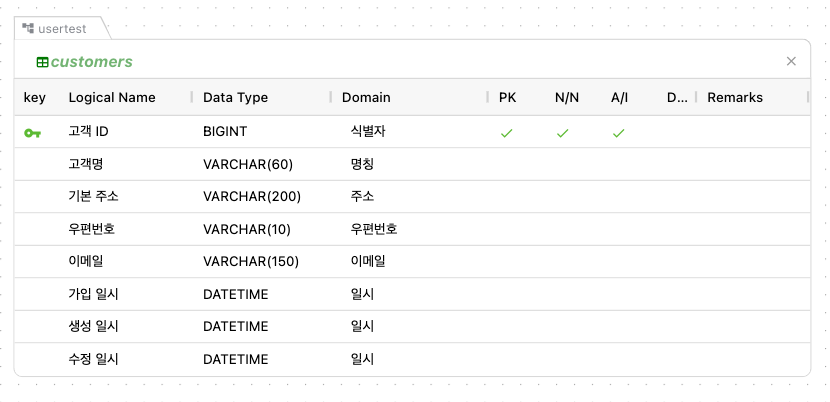
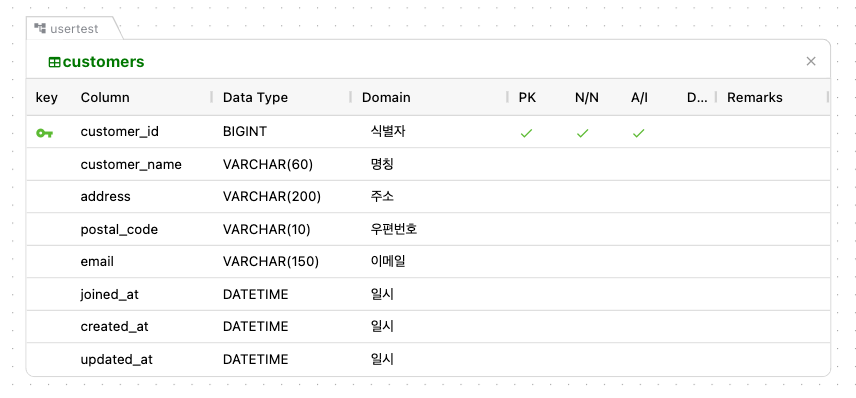
A logical name is metadata with no effect on DDL. Typing one on a column that already exists in the database does not rename the column or change its type. Logical mode also has nothing to show while logical names are empty, so it works best together with a data dictionary.
Three Ways to Use It
The same ERD screen works at three depths. The further down you go, the less you type by hand and the stronger the naming and typing standards become. You raise or lower the depth in connection settings, and changing it never means redrawing the ERD.
① Physical model only
You type tables, columns, and types yourself. Nothing to prepare, so you can start right away.
② Physical model + domains
Pick a domain on a column and its type, length, nullability, and default are filled in at once. That gives you a type standard.
③ Physical model + domains + dictionary
Type a logical name and the physical name is assembled from it, with the domain attached to the matched word applied too. Naming and typing standards land together.
| Aspect | ① Physical model only | ② Physical model + domains | ③ Physical model + domains + dictionary |
|---|---|---|---|
| Column physical name | You type it. | You type it. | Assembled from the logical name by joining registered abbreviations. |
| Type and length | You pick from the DBMS type list. | Copied onto the column when you pick a domain. | Applied or suggested from the domain attached to the matched word. |
| Logical name field | You may fill it in, but it does not produce a physical name. | Same as ①. | It becomes the input. Type it and the physical name and domain follow. |
| Domain field | Hidden. | Shown. | Shown. |
| What to prepare first | Nothing. | A domain asset. | A domain asset and a dictionary asset. |
| Where it fits | A schema you own alone, or documenting an existing database quickly. | When names stay up to each team but types have to be uniform. | When a standard-word definition sheet exists, or a public-data standard has to be followed. |
① Physical model only
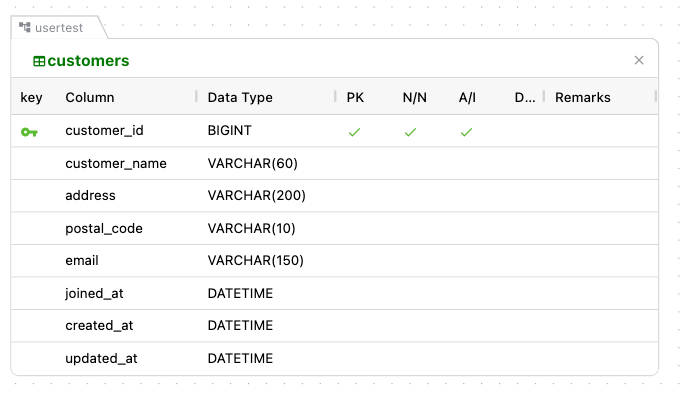
This is the default for a connection with neither a domain nor a dictionary assigned. You add tables and type column names and types yourself. The Domain field stays hidden in the column display settings, and you can still record logical names, but they will not produce physical names. For reverse-engineering an existing database to review or document its structure, this is enough.
② Connecting domains
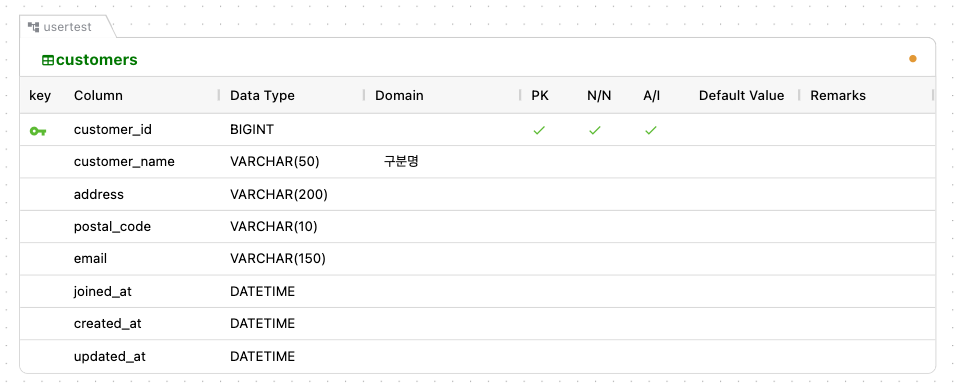
Assign a domain asset and version on the Data Dictionary tab of connection settings and a Domain field appears on columns. Pick the "Amount" domain and DECIMAL(15,2), nullability, and the default are written onto the column. Domain values are copied onto the column, so ERD rendering and DDL generation keep working even if the asset can no longer be opened. Edit a value the domain governs by hand and that column's domain assignment is released.
③ Connecting the dictionary as well
Add a dictionary and the logical name becomes the input. Type 주문일시 as a column's logical name and the dictionary joins the registered abbreviations into ord_dtm, while the domain attached to the trailing word 일시 fills in the type and length. Segments the dictionary could not read, and mismatches against the current physical name, collect under Needs review on the logical-name cell for a person to confirm. Table logical names work the same way.
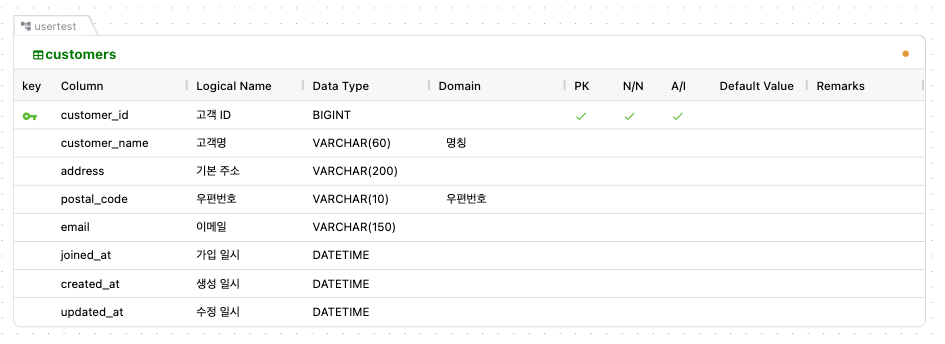
Assignment is per connection, so a production connection can stay at ① while only a new project's connection moves up to ③. Desktop local projects can use ② and ③ as well, with the official packs and assets stored on this device.
What NeoSQL Covers
NeoSQL ERD is not just a drawing tool. It is a design, review, and application tool connected to real database schemas. The tables and properties arranged on the canvas become the basis for DDL generation, Reverse/Forward Engineering, and change tracking.
| Scope | Description |
|---|---|
| Logical / Physical Modeling | Design tables, columns, data types, keys, indexes, constraints, and relations from the ERD canvas and detail panels. |
| DBMS-Specific Schema Representation | Handle types and selected special attributes for MariaDB, MySQL, Oracle, PostgreSQL, SQL Server, H2, and other supported DBMS targets. |
| Reverse / Forward Engineering | Import schemas from an existing database into an ERD, or generate DDL from ERD changes and apply it to a real database. |
| Save and Change Tracking | Track and review design changes through ERD save behavior, change detection, and revision-based review. |
| Outputs | Create shareable or actionable outputs such as ERD images, DDL, and schema change comparison results. |
| Not Covered on This Page | Button locations, shortcuts, table/column editing steps, and detailed index/constraint settings are covered step by step in the detailed ERD guides. |
Key Points
These concepts are useful to distinguish before working with NeoSQL ERD.
| Point | Description |
|---|---|
| Difference from General Diagram Tools | NeoSQL ERD is not just a drawing surface. It is a schema design screen connected to table structure, constraints, DDL, and database application workflows. |
| Main Managed Objects | NeoSQL ERD manages tables, columns, PK, FK, indexes, UNIQUE/CHECK constraints, relation lines, categories, and memos. |
| Supported DBMS | NeoSQL represents types and schema attributes for multiple DBMS targets including MariaDB, MySQL, PostgreSQL, Oracle, SQL Server, and H2. |
| Reverse and Forward | Reverse imports an existing database schema into an ERD. Forward generates DDL from ERD changes and applies it to a real database. |
| Save and Change Tracking | ERD edits are separated into save, change detection, revision review, and database application steps so changes can be reviewed before being applied. |
Main Screen Areas
The NeoSQL ERD screen is divided into the left navigation panel, central canvas, tool bar, mini map, and right detail panel.
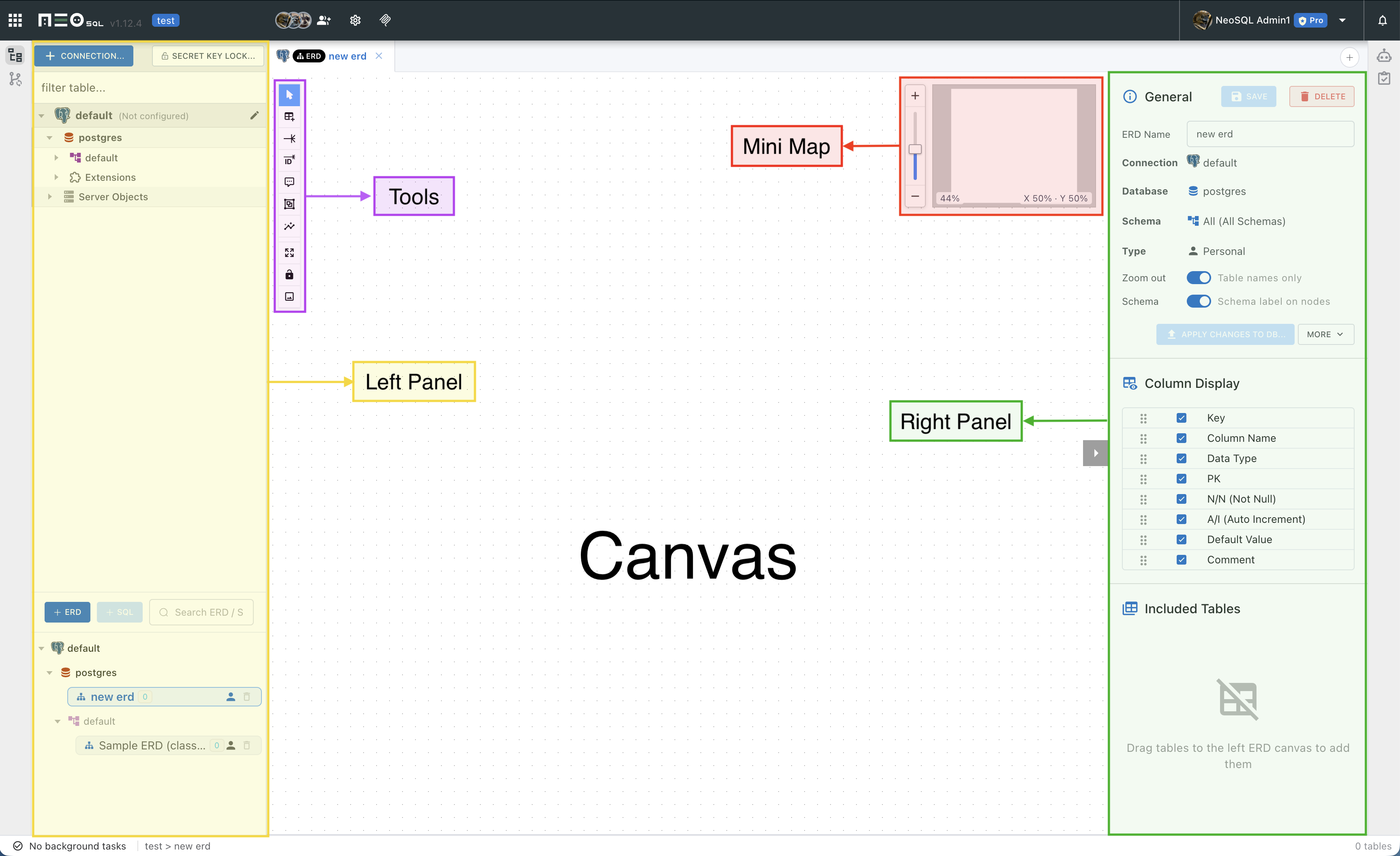
| Area | Description |
|---|---|
| Left Panel | The starting point for database connections, schema/table lists, ERD lists, and dragging tables onto the canvas. |
| Canvas | The main workspace where table nodes are placed and relationship lines are reviewed. Pan, zoom, selection, and layout actions happen here. |
| Tools | Provides canvas tools such as select, add table, create relation, memo, zoom, fit view, and lock. |
| Mini Map | Shows a reduced view of the full ERD layout so you can quickly understand the current position in a large diagram. |
| Right Panel | Shows ERD information, display options, included tables, and detailed properties for the selected table. |
Features Covered in This Guide
The ERD guide is organized around the workflow from screen controls to database application.
Create ERDs and Control the Canvas
Create and open ERDs, then use canvas controls such as pan, zoom, selection, and auto-layout.
Design Table Nodes and Columns
Add tables and edit names, descriptions, columns, data types, default values, and nullability.
Manage Keys, Indexes, and Constraints
Manage PK/FK, Unique, regular indexes, Check, Exclusion, and related rules from the detail panel.
Define and Visualize Relations
Create Foreign Key based relationships and inspect the table reference structure through relation lines.
Import and Export
Import existing schemas through Reverse Engineering or export ERDs as images, DDL, and other usable outputs.
Save, Track Changes, and Apply to DB
Save ERD changes, review revisions, and use Forward features to apply changes to a real database.
Categories, Search, and Right Panels
Group tables with categories, find objects with search, and inspect ERD information or table details from the right panel.
Review DBMS-Specific Differences
Design with DBMS-specific differences in mind, including data types, auto increment behavior, constraints, and index options.