
Inline Data Editing
Learn how to add, modify, and delete data directly in the result grid and apply changes to the database.
INSERT / UPDATE / DELETE Mode
Turn on the Inline Edit (pencil icon) switch in the result tab header to activate edit mode.
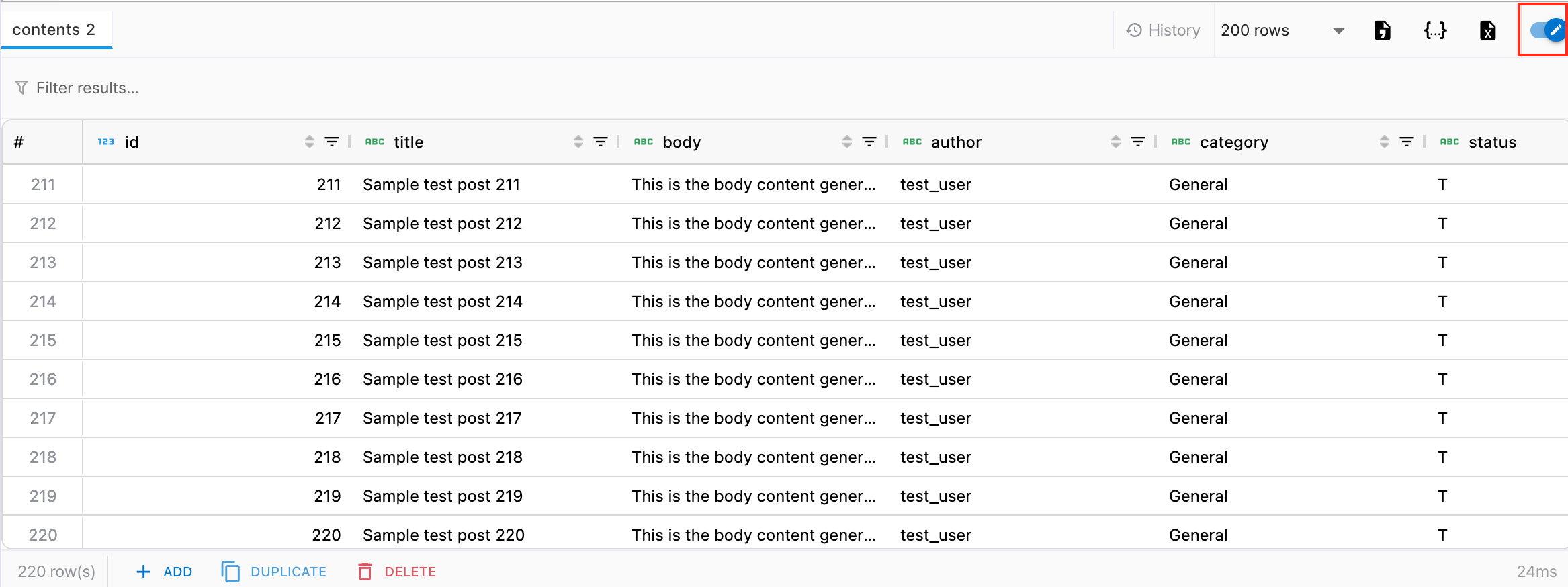
Edit mode is only available for single-table results. The Inline Edit switch is disabled for JOIN queries or results from multiple tables.
When edit mode is enabled, the following buttons appear in the status bar:
| Button | Action |
|---|---|
| Add Row | Adds an empty row below the focused row (INSERT). All values are initialized to NULL. |
| Duplicate Row | Duplicates the focused row. PK columns are set to NULL to prevent duplicates. |
| Delete Row | Marks the focused row for deletion (DELETE). The row is displayed with a red strikethrough. |
Click a cell to directly edit its value (UPDATE). Modified cells are highlighted with a yellow background.
Change Status Indicators
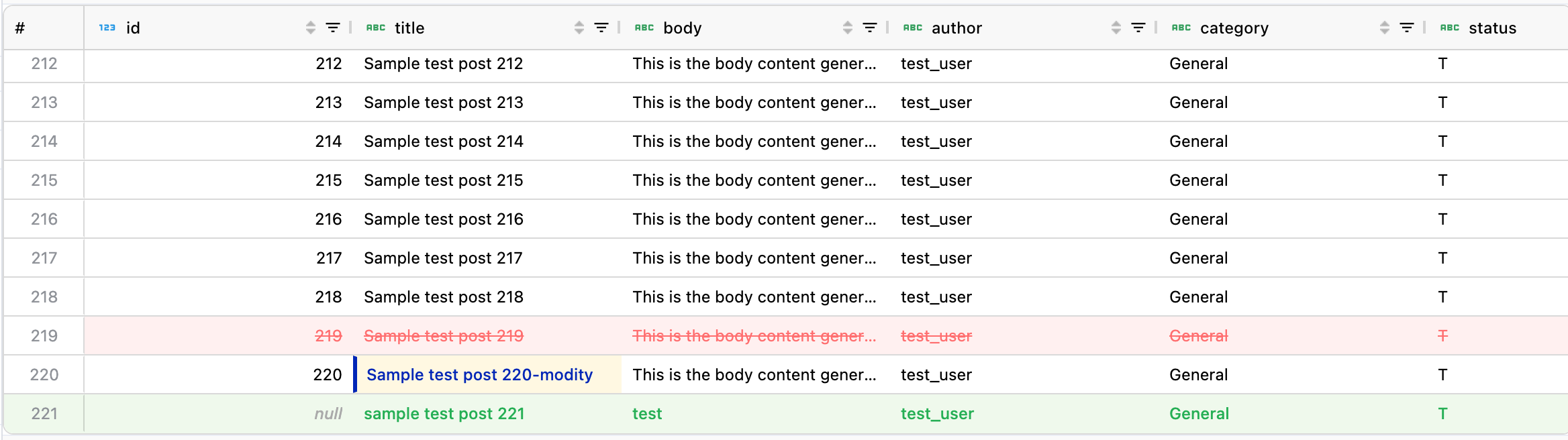
| Status | Display |
|---|---|
| Modified cell | Yellow background |
| Added row | Green background |
| Row marked for deletion | Red strikethrough + light red background |
ENUM Cell Editor / SET Cell Editor
A dropdown selector is automatically provided when editing MySQL/MariaDB ENUM or SET type columns.
| Column Type | Editor |
|---|---|
| ENUM | Single-select dropdown. Choose one from the defined value list. A NULL option is also included. |
| SET | Multi-select checkbox dropdown. Check multiple values to store as a comma-separated string. |
PostgreSQL User-Defined Enums also use the same dropdown editor.
FK Row Lookup on Cell Click
Hovering over a cell in a Foreign Key column shows a magnifier icon. Clicking it opens a modal that queries the referenced row from the source table.
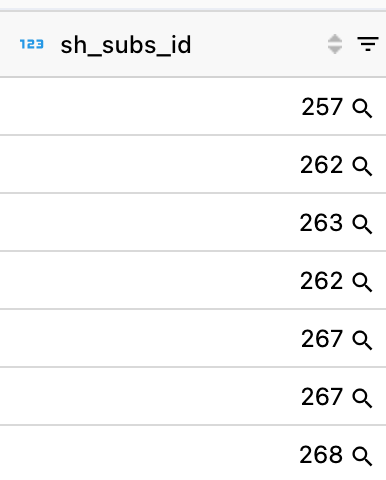
Information available in the FK Detail modal:
- All columns and values from the referenced table (PK table)
- Type icons and remarks for each column
- Date/time values displayed according to the configured Timezone
Click the Copy SQL button at the bottom of the modal to copy a SELECT statement for that row to the clipboard.
The FK Detail feature is only available in read mode (edit mode OFF).
Preview Changes
When there are changes in edit mode, the status bar shows a change summary (N deletes, N updates, N inserts) and a Preview Changes button.
Clicking Preview Changes opens a modal to review the SQL that will be executed:
- Delete —
DELETE FROM table WHERE pk = ... - Update —
UPDATE table SET col = ... WHERE pk = ... - Insert —
INSERT INTO table (cols) VALUES (...)
SQL is generated in a safe order (DELETE → UPDATE → INSERT).
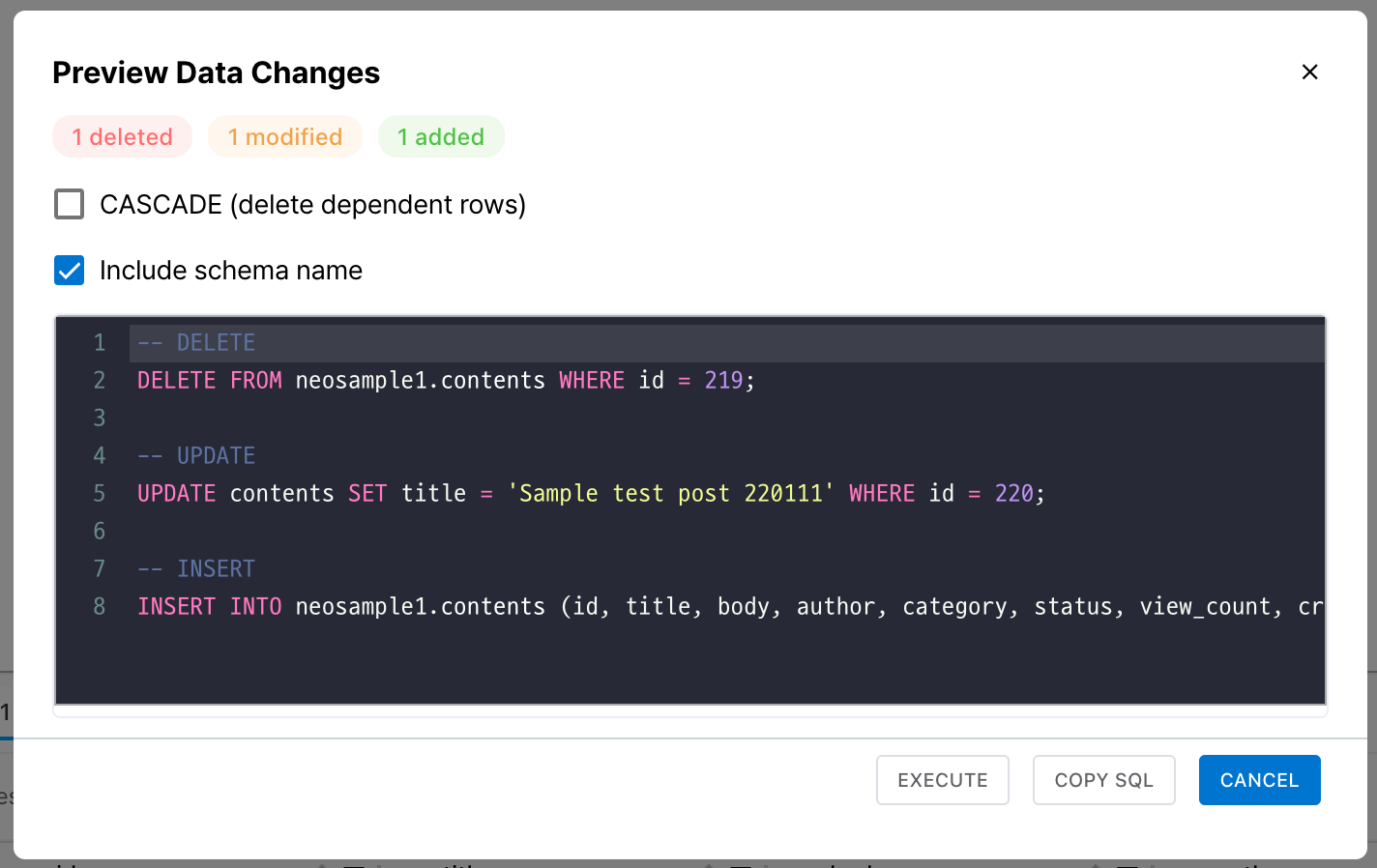
Preview Options
| Option | Description |
|---|---|
| CASCADE | Shown when DELETE statements exist. Enabling adds CASCADE to DELETE statements. |
| Include Schema | Enabling includes the schema name before table names (e.g., schema.table). |
Click Execute in the preview modal to run the SQL, or use Copy SQL to copy it.
Batch Apply Changes
Click the Execute button in the preview modal to execute all changes (DELETE, UPDATE, INSERT) at once.
Edit Data in Edit Mode
Perform necessary changes such as adding rows, modifying cell values, or deleting rows.
Review SQL with Preview Changes
Review the SQL to be executed and verify it matches your intended changes.
Apply with Execute
After review, click Execute to apply changes to the database.
To cancel changes, click the Discard button in the status bar to undo all modifications.
If Auto Commit is off, you still need to Commit after Execute for final persistence. Use Rollback if there are issues.