Project Settings & Preferences
Per-tab fields and usage of the per-project settings modal (project-config.modal).
Project Config Modal (project-config.modal)
Per-project settings managed across multiple tabs in one modal.
Opening the Settings Modal
The same Project Configuration modal can be opened from both the dashboard and the project workspace.
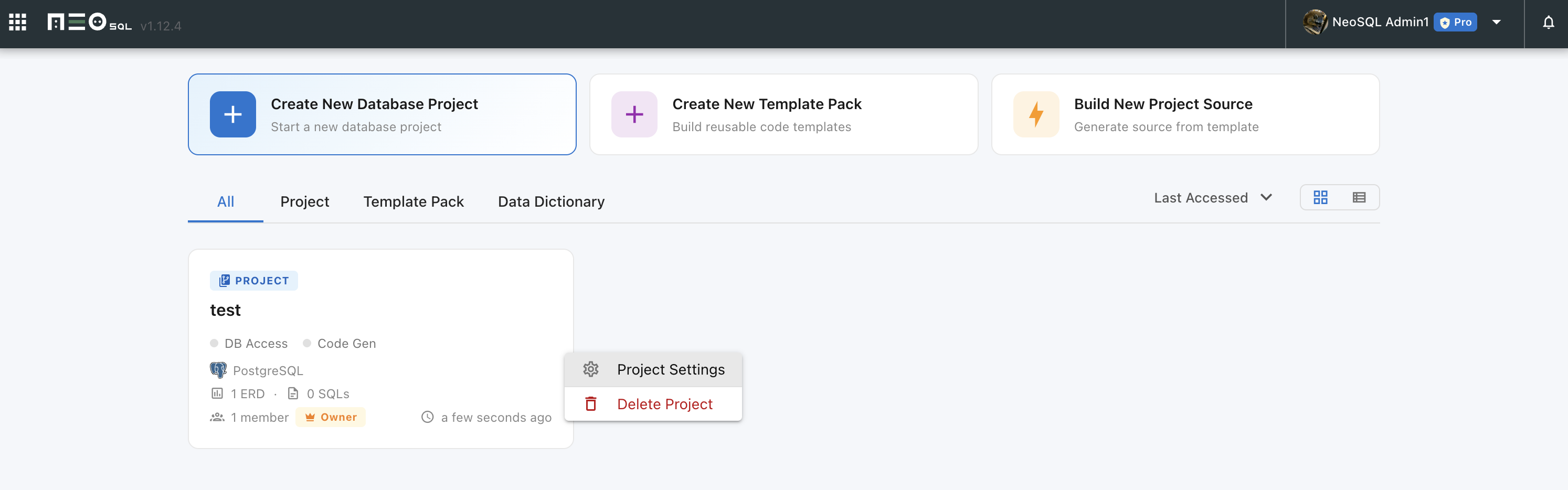
Open Settings from Dashboard
Right-click the project card on the dashboard and select "Project Settings" — the Project Configuration modal opens.
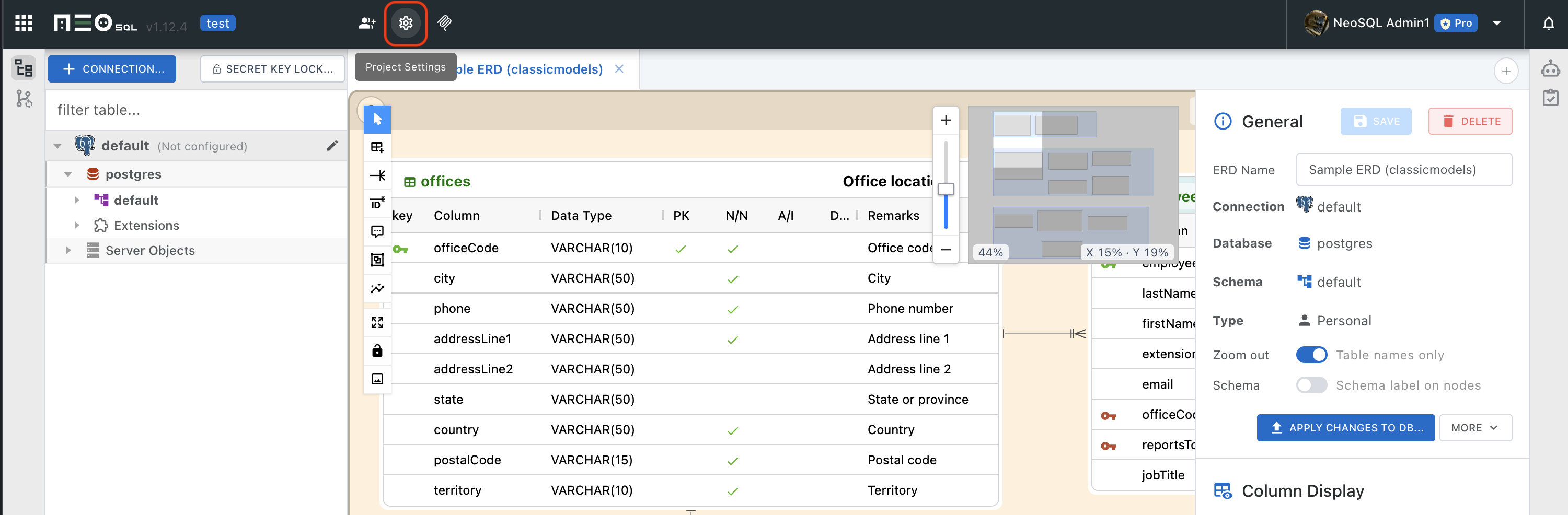
Open Settings from inside the Project
Click the button in the top header of the project workspace to open the same Project Configuration modal.
Project Settings Modal Opens
Either of the two methods above opens the same Project Configuration modal as shown below.
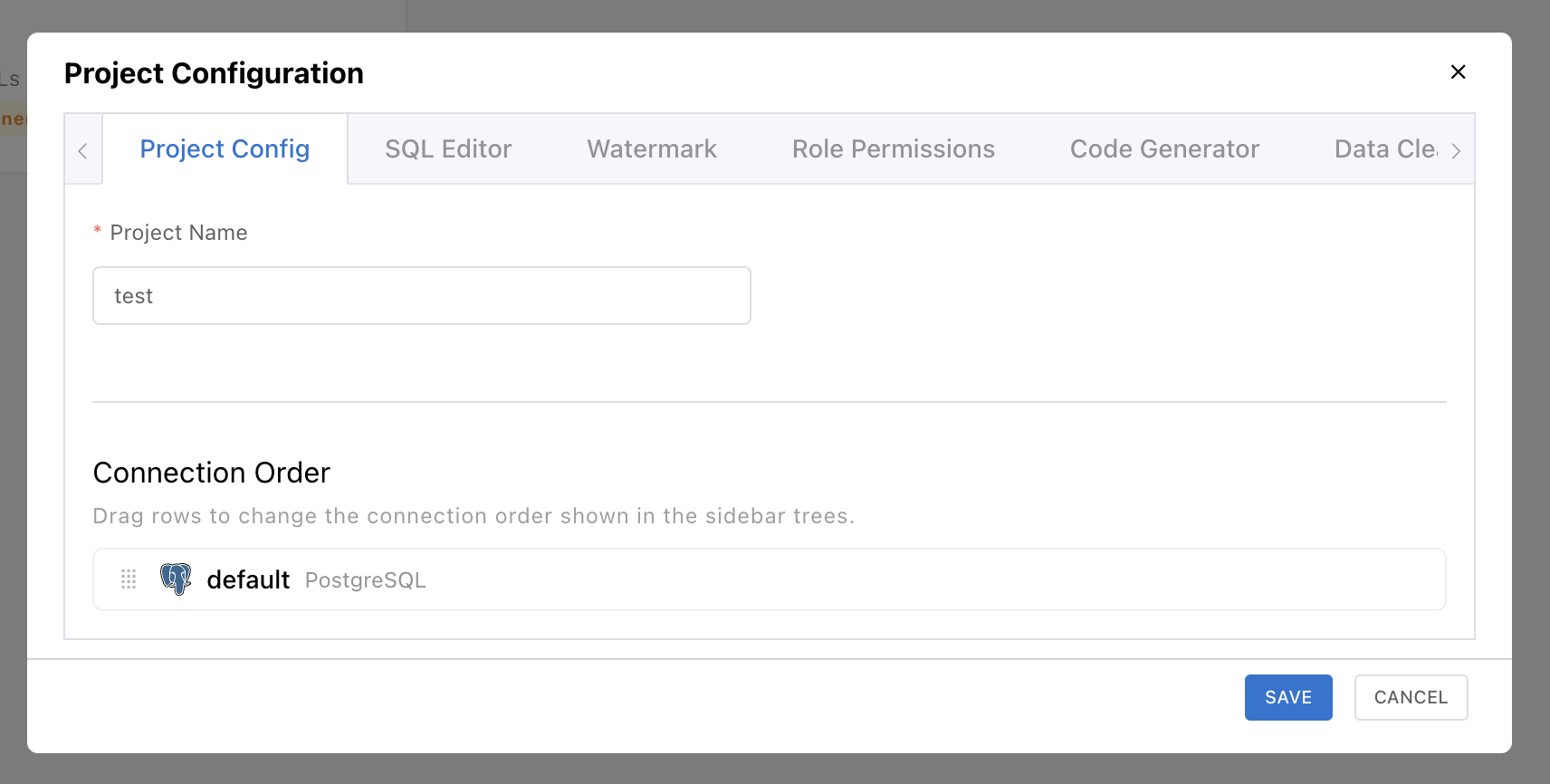
The Project Settings modal is composed of the following tabs. See the table under each tab for its fields.
Project Config Tab
Manages basic project information.
The default appearance is shown in the "Project Settings Modal Opens" image above.
| Field | Description | Visibility |
|---|---|---|
| Project Name | User-facing project name. | Always |
Code Generator Tab NEW
Settings for table-based source code generation. Turning on the "Enable Code-Generator" switch reveals the install Location (desktop only) and the Template Pack / Templates Variables settings.
See the Generating Code guide for the full flow, from adding packs to generating code.
Audit Table Tab NEW
Tells code-generator how to recognize "who/when created or modified" tracking columns on a table by pointing it at a reference table and listing candidate column names.
The Audit Table tab appears only when code-generator is enabled.
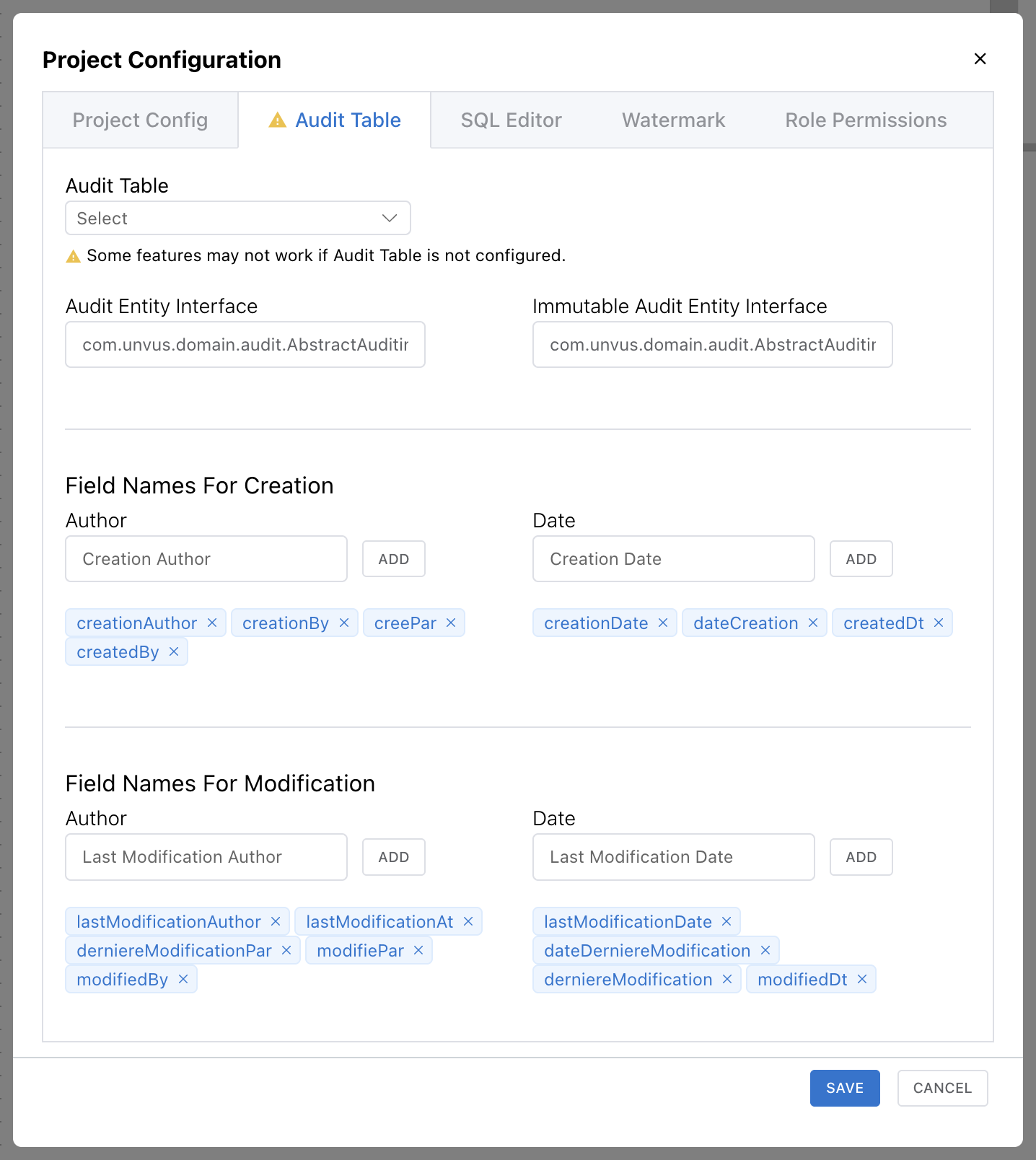
| Field | Description |
|---|---|
| Audit Table | Pick a reference table that already defines the creation/modification tracking columns, via the connection → schema → table tree. |
| Audit Entity Interface | Java interface class name to be implemented by entities that carry creation/modification tracking columns. |
| Immutable Audit Entity Interface | Java interface class name for entities that have creation info only and no modification history. |
| Creation Author | Candidate column names for the creator (who created the row). Multiple tags can be registered. |
| Creation Date | Candidate column names for the creation date (when the row was created). |
| Last Modification Author | Candidate column names for the modifier (who last modified the row). |
| Last Modification Date | Candidate column names for the modification date (when the row was last modified). |
SQL Editor Tab
Configures the date/time display format and indentation used by the SQL Editor. Saved per user on the same project.
| Field | Description |
|---|---|
| Timezone | IANA timezone used for date/time display of SQL results (e.g. UTC, Asia/Seoul). |
| Timestamp Format | Timestamp output format. Default YYYY-MM-DD HH:mm:ss.SSS |
| Date Format | Date output format. Default YYYY-MM-DD |
| Time Format | Time output format. Default HH:mm:ss |
| Indent Using | Indent character. Either Spaces or Tabs. |
| Tab Size | Indent width when Spaces is selected (2 / 4 / 8). |
| Preview | Shows a preview formatted with the current settings. |
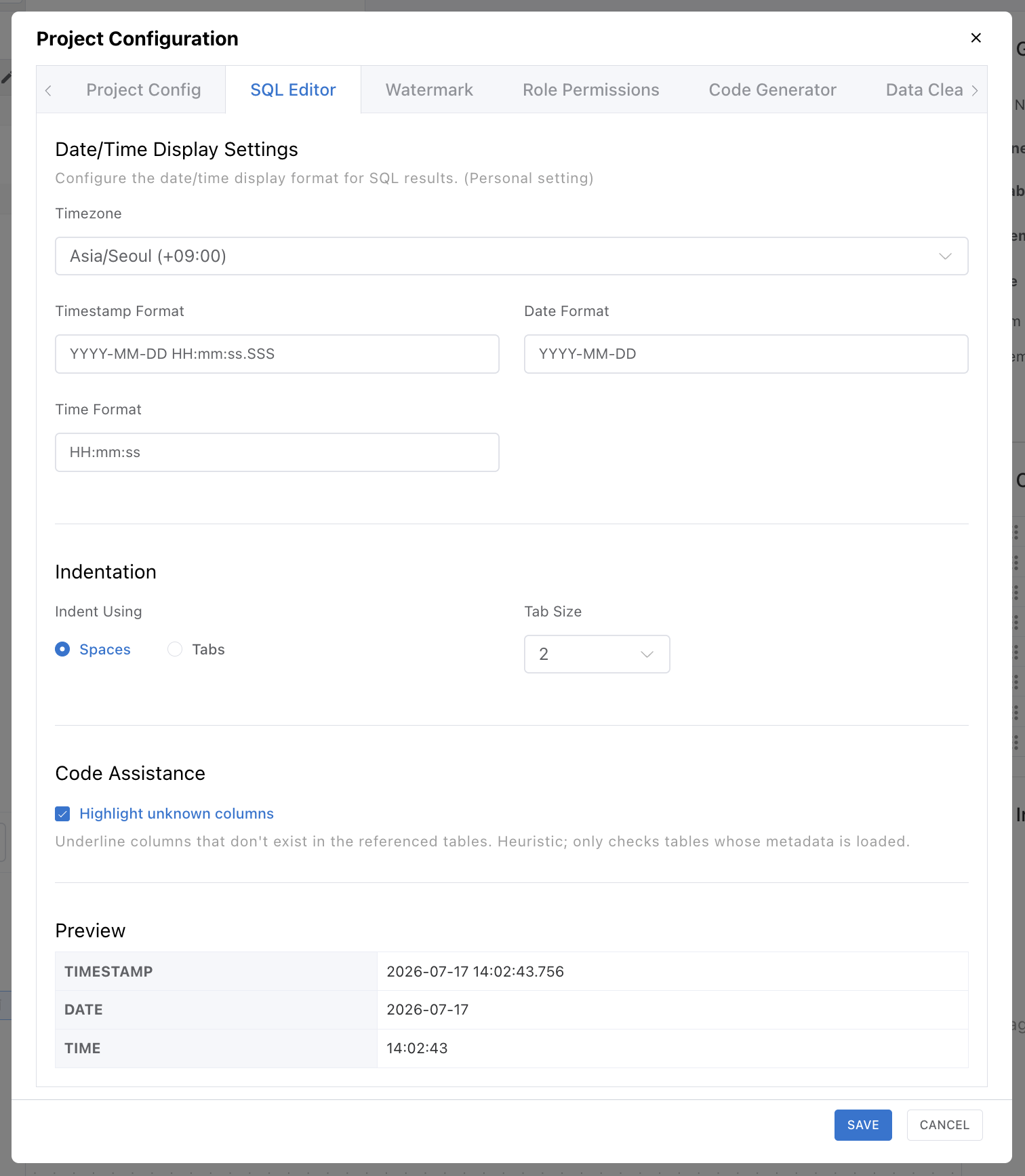
Timezone, format, and indentation behavior and scope are covered in detail in the SQL Editor settings guide.
Watermark Tab
Configures the watermark applied when printing or exporting the ERD.
Online mode · only visible to the project owner
| Field | Description | Visibility |
|---|---|---|
| Enabled | Whether the watermark is enabled. | Custom watermark mode |
| Watermark Text | Watermark text. Supports the $ / $ / $ / $ variables. | Custom watermark mode |
| Mode Banner | Depending on the plan, a "Fixed NeoSQL" or "Watermark removed" mode may be applied automatically; the fields above are disabled in those modes. | Non-custom plans |
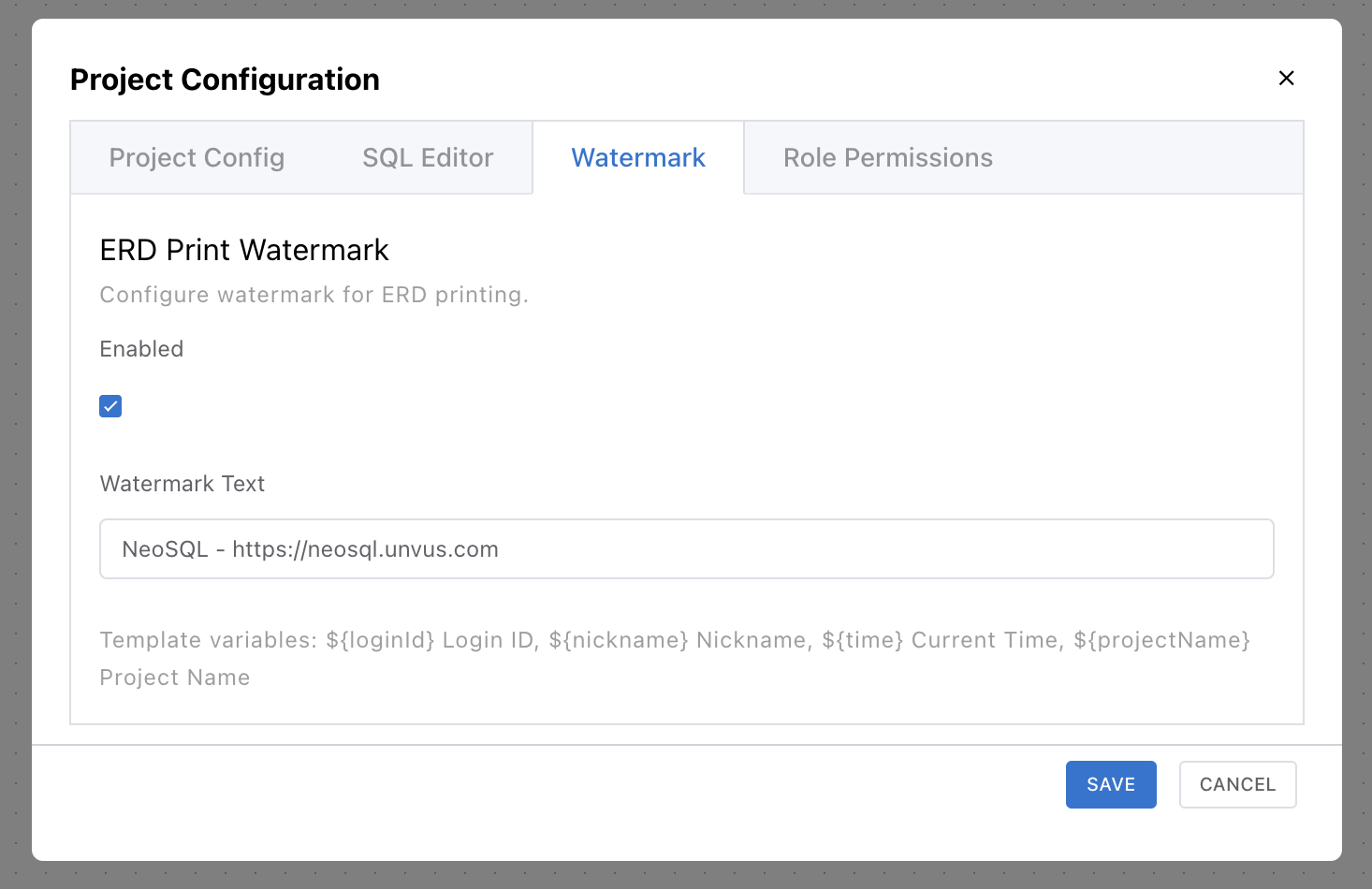
Confirming the Applied Watermark
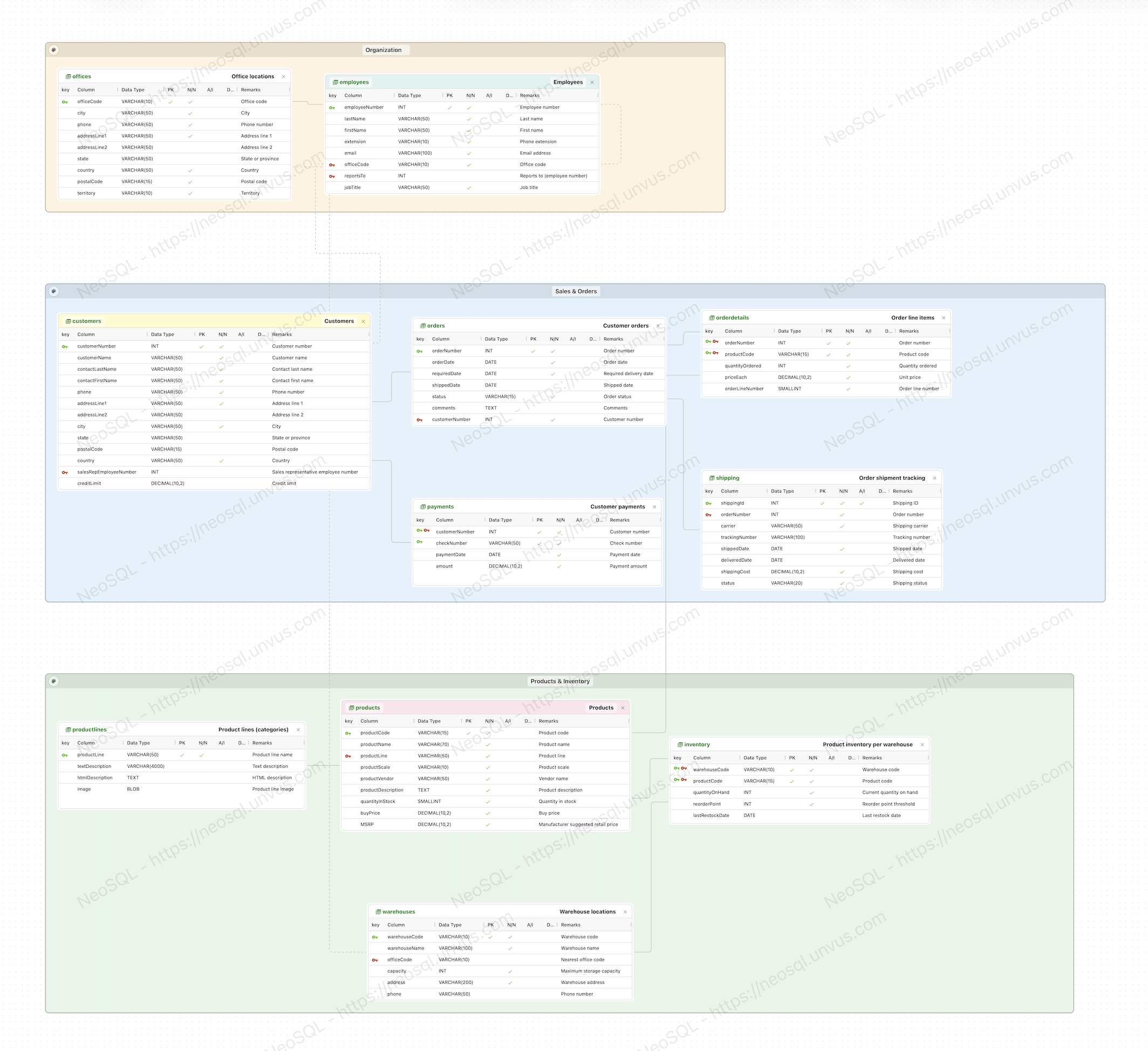
The image below is the result of exporting the ERD with the default watermark settings (no custom configuration). Changing the watermark settings will replace the text/mode in the same spot. See ERD Image Export guide for the export procedure.
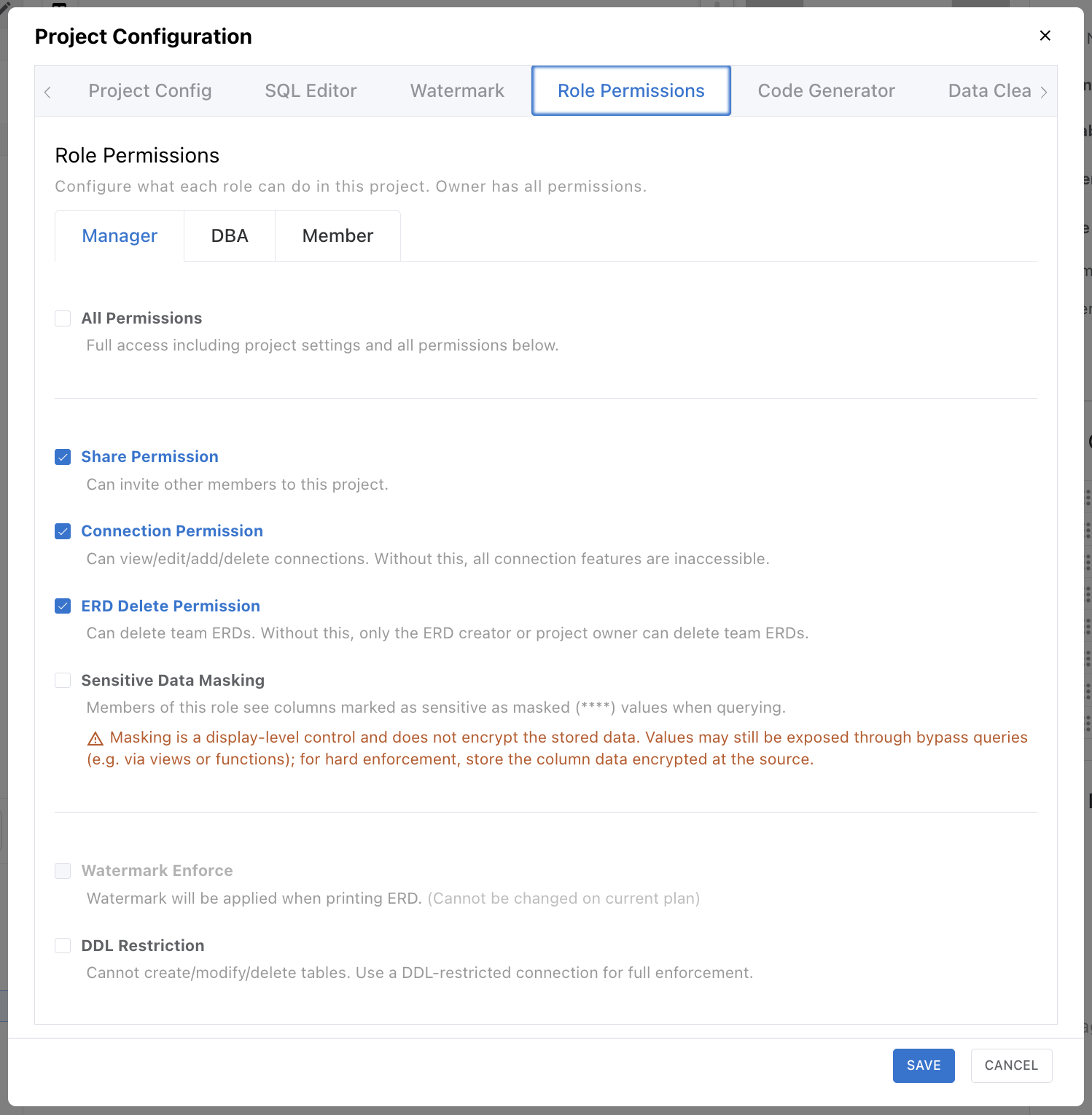
Permissions Tab
Configures permissions for the three roles Manager / DBA / Member. Each role has its own sub-tab. The settings apply to users invited via project sharing, based on the role assigned to them; the project Owner always has all permissions regardless of these settings.
Online mode · only visible to the project owner
| Field | Description |
|---|---|
| All Permissions | Automatically grants all permissions below. Share/Connection are turned on; Watermark Enforce / DDL Restriction are turned off. |
| Share Permission | Allows inviting/sharing the project with other users. |
| Connection Permission | Allows viewing/adding/editing/deleting database connections. |
| ERD Delete Permission | Allows deleting team ERDs. Without this, only the ERD creator or project owner can delete team ERDs. |
| Sensitive Data Masking | Members of this role see columns marked as sensitive as masked (****) values when querying. |
| Watermark Enforce | Enforces the watermark on ERD printing. |
| DDL Restriction | Restricts DDL operations such as create/modify/delete table. Full enforcement requires a separately configured DDL-restricted connection. |
| DDL Approver Role | When DDL Restriction is enabled, choose another role that approves DDL requests. |