
Profile / Table Template
Connection profiles for visual environment identification and execution protection, plus table templates that define the default columns inserted when creating a new table.
Profile
Visually distinguish each environment (Production, Staging, Development, etc.) with color and watermark, and set the protection level for SQL execution (confirmation dialog / read-only) to support safer database operations.
Configure in the Profile tab of the connection settings. Profile is saved as a personal setting and does not affect team members.
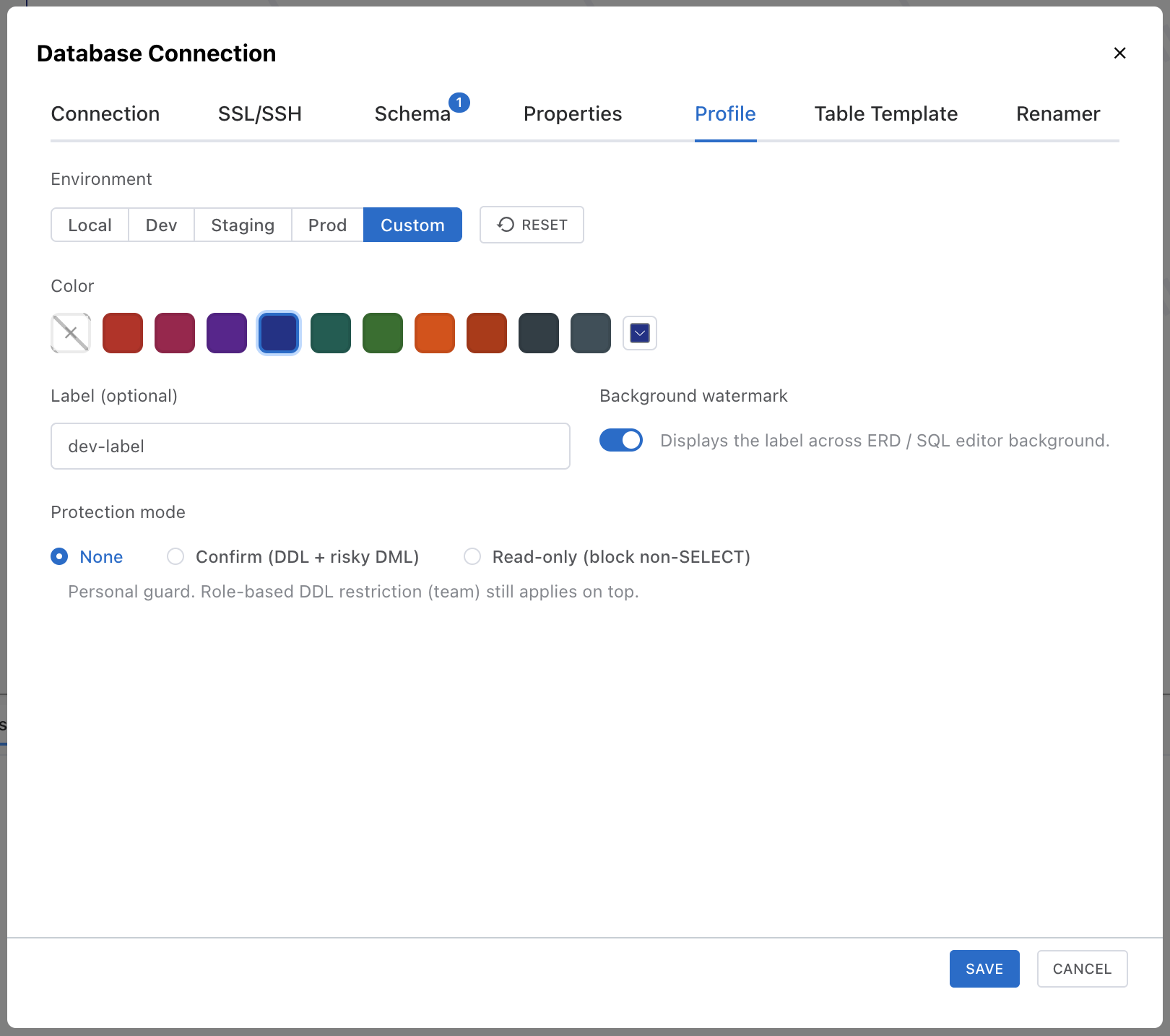
Environment Preset
Select an environment preset to automatically configure color, watermark, and protection mode.
| Preset | Watermark | Protection | Use Case |
|---|---|---|---|
| Local | OFF | None | Local development |
| Dev | OFF | None | Development server |
| Staging | OFF | Confirm | Staging environment (confirm before execution) |
| Prod | ON | Confirm | Production environment (watermark + confirm before execution) |
| Custom | - | - | Manual configuration |
Color
Choose a color to visually distinguish the connection. 10 predefined colors or a custom color are available.
Selecting a custom color automatically switches the preset to Custom.
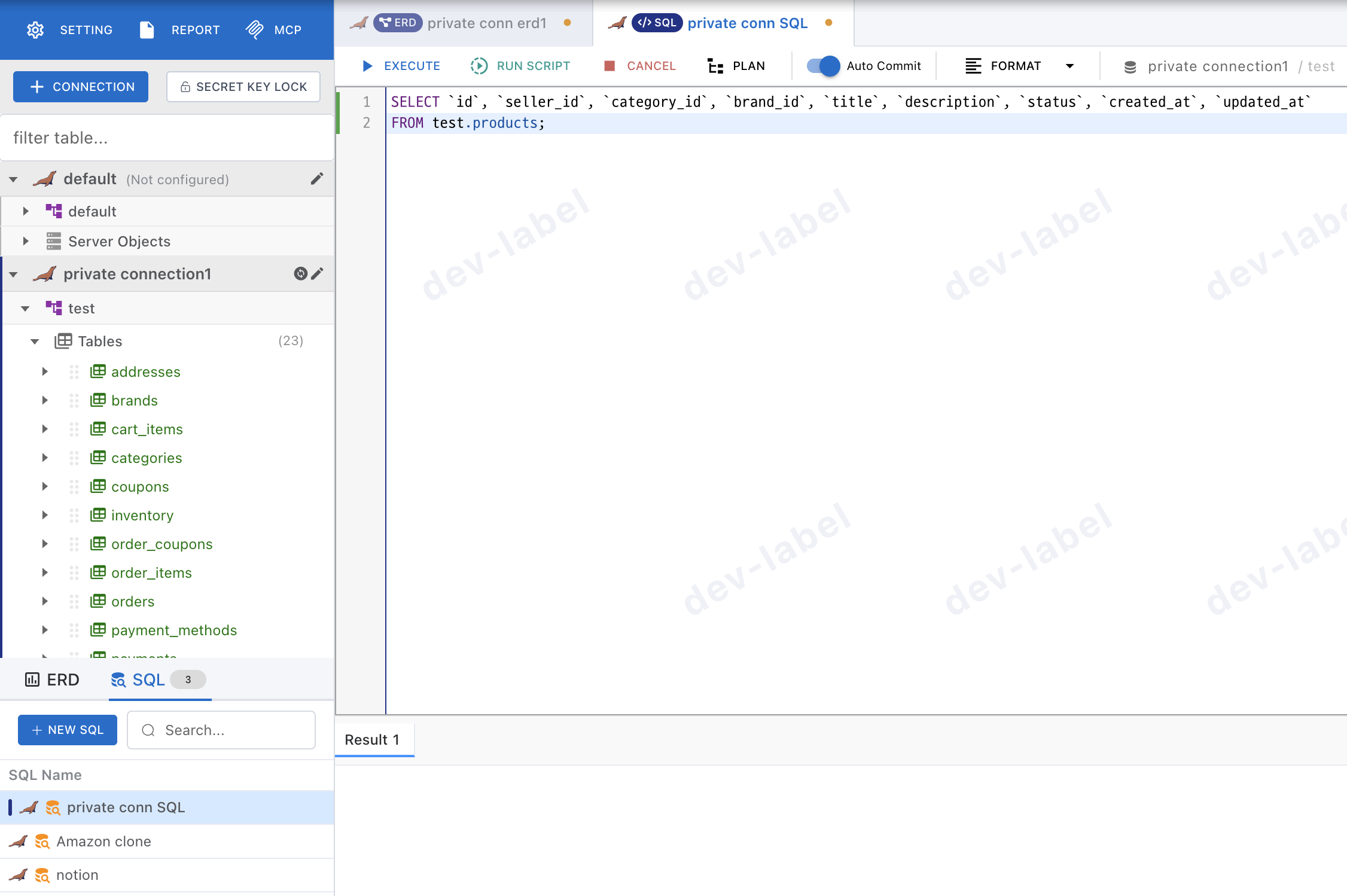
The chosen color is applied automatically wherever environment identification matters — the vertical bar next to sidebar connection nodes, editor tab badges, the SQL editor's left gutter border, and the background watermark (when enabled) — so you can tell which environment you're working in at a glance whenever you pick or use a connection.
Label
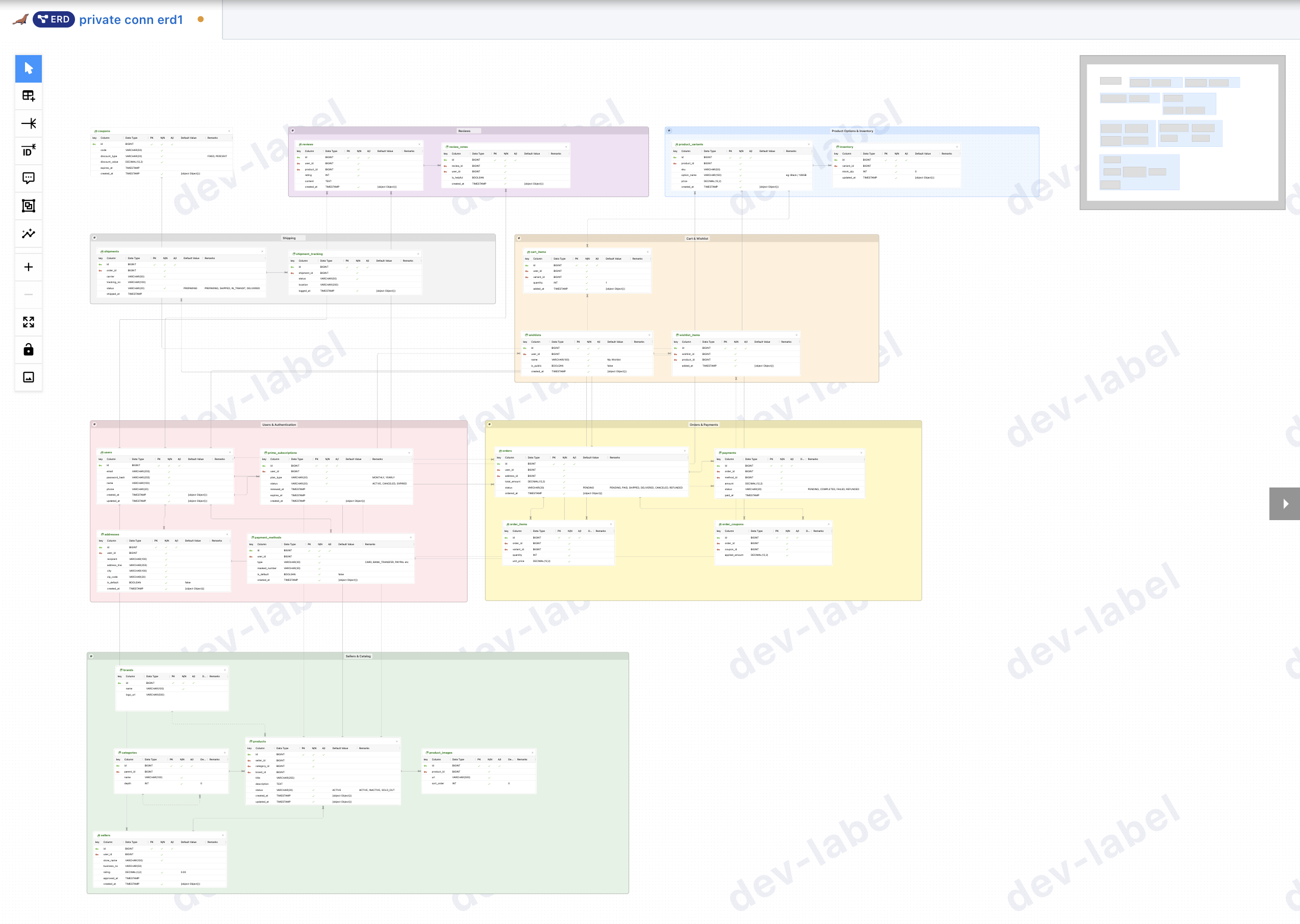
Shown on the ERD canvas and SQL Editor while you work, so you can identify which environment you are currently working on.
Displayed only when Background watermark is ON; if left empty, the connection name is used.
Label(Background Watermark) vs Watermark
| Item | Purpose | Where to configure |
|---|---|---|
| Label | Visually identify the current environment while working on the ERD canvas and SQL Editor. Shown only when Background Watermark is ON. (Displayed only when the background watermark setting is ON) | Connection settings → Profile tab |
| Watermark | Overlaid on the exported image when an ERD is exported as an image. | Project Configuration → Watermark tab |
Background Watermark
When enabled, the label is displayed as a watermark across the ERD canvas and SQL Editor background. Useful for preventing mistakes when working on production databases.
Protection Mode
Set a personal protection level for SQL execution.
| Mode | Behavior |
|---|---|
| None | No restrictions. All SQL can be executed. |
| Confirm | A confirmation dialog is shown for DDL (CREATE/ALTER/DROP) or UPDATE/DELETE without a WHERE clause. |
| Read-only | All DML/DDL execution is blocked except SELECT. |
Note: Profile is a personal setting and does not affect team members. Team-level DDL restrictions are managed separately via role-based permissions.
Table Template
Define default columns to be automatically included when creating a new table. Configure in the Table Template tab of the connection settings.
What is a Table Template?
A table template is a set of default columns configured per connection. When you add a new table in the ERD, the columns defined in the template are automatically included, eliminating the need to manually add common columns every time.
Note: The table template feature is available after selecting a database in the Connection tab.
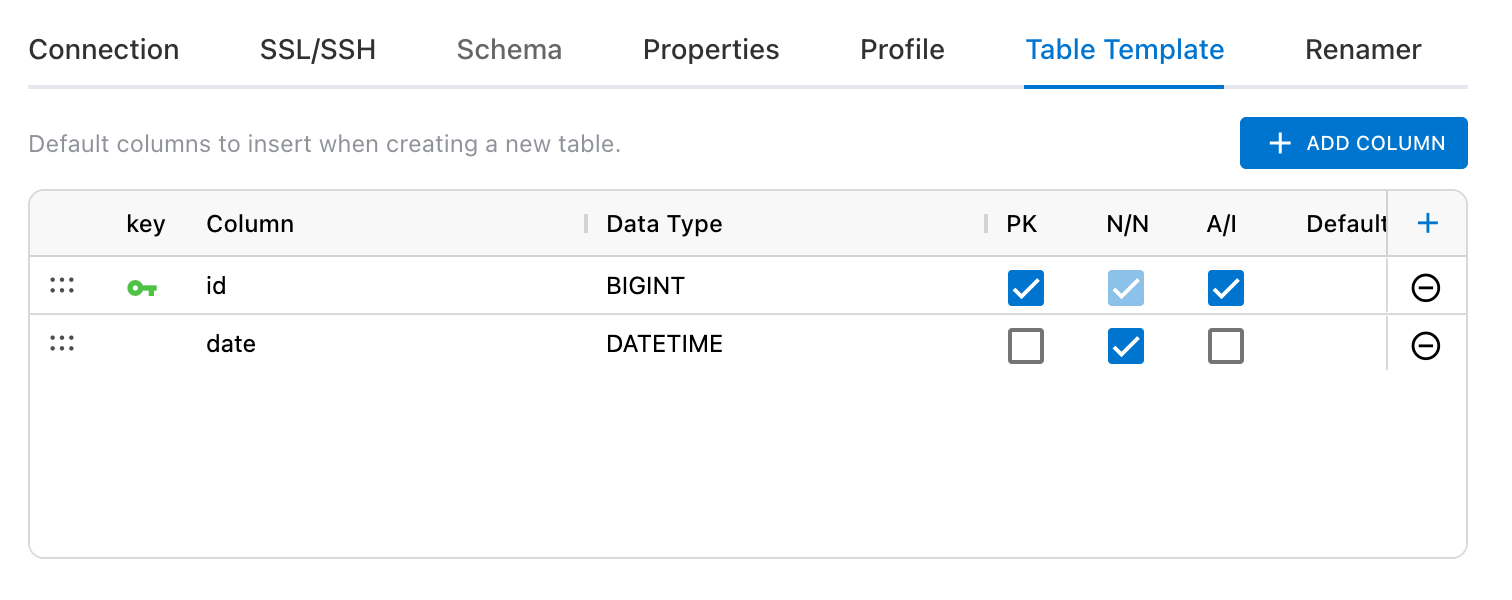
Default Template
When a connection is first created, the following default template is automatically set:
| Field | Value |
|---|---|
| Column Name | id |
| Data Type | BIGINT |
| PK | ✓ (Checked) |
| Auto Increment | ✓ (Checked) |
| Nullable | — (Unchecked) |
Configurable Column Properties
Each column in the template supports the following properties:
| Field | Description |
|---|---|
| Column Name | Enter the column name. Must be unique within the template. |
| Data Type | Enter the data type (e.g., VARCHAR(255), BIGINT, TIMESTAMP). |
| PK | Set whether the column is a Primary Key. |
| Nullable | Set whether NULL values are allowed. |
| Auto Increment | Set whether the column auto-increments. |
| Default Value | Enter a default value for the column. |
| Remarks | Enter a description for the column. |
How to Configure
Open Connection Settings
Right-click a connection in the connection list and select Edit Connection, or configure it when adding a new connection.
Select the Table Template Tab
Click the Table Template tab in the connection settings modal.
Add and Edit Columns
Click the "Add Column" button to add columns, then edit each column's name, type, PK, Nullable, and other properties.
Save
After completing the configuration, save the connection. The template will be automatically applied when creating new tables.
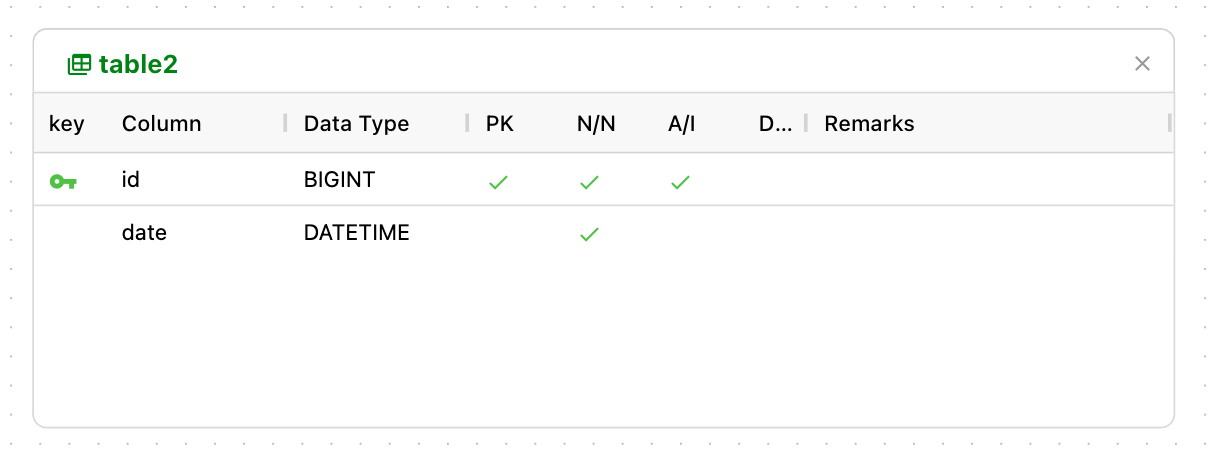
- Add audit columns like created_at and updated_at to the template to maintain consistent columns across all tables.
- When you change the DBMS, the template is automatically regenerated for the new DBMS if you haven't customized it. If you have made custom edits, your changes are preserved.
- If you delete all columns from the template, new tables will be created empty.
- Drag column rows to reorder them.
Note: Table templates are configured independently per connection. Changing a template in one connection does not affect other connections.