
Toolbar & Execution
Learn about Toolbar buttons and shortcuts for executing, formatting, and saving SQL.
EXECUTE — Run Current Statement or Selection
Ctrl+Enter (macOS: Cmd+Enter)

Executes the single SQL statement at the cursor position. If text is selected, only the selected area is executed.
| Situation | Execution Target |
|---|---|
| No text selected | Single SQL statement at cursor position (auto-split by semicolons) |
| Text selected | Entire selected text |
The target SQL statement is marked with a green preview border in the editor, so you can verify which statement will be executed.
To execute a specific statement among multiple SQL statements, place your cursor inside that statement and press Ctrl+Enter.
RUN SCRIPT — Execute Entire Script Sequentially
Ctrl+Shift+Enter (macOS: Cmd+Shift+Enter)
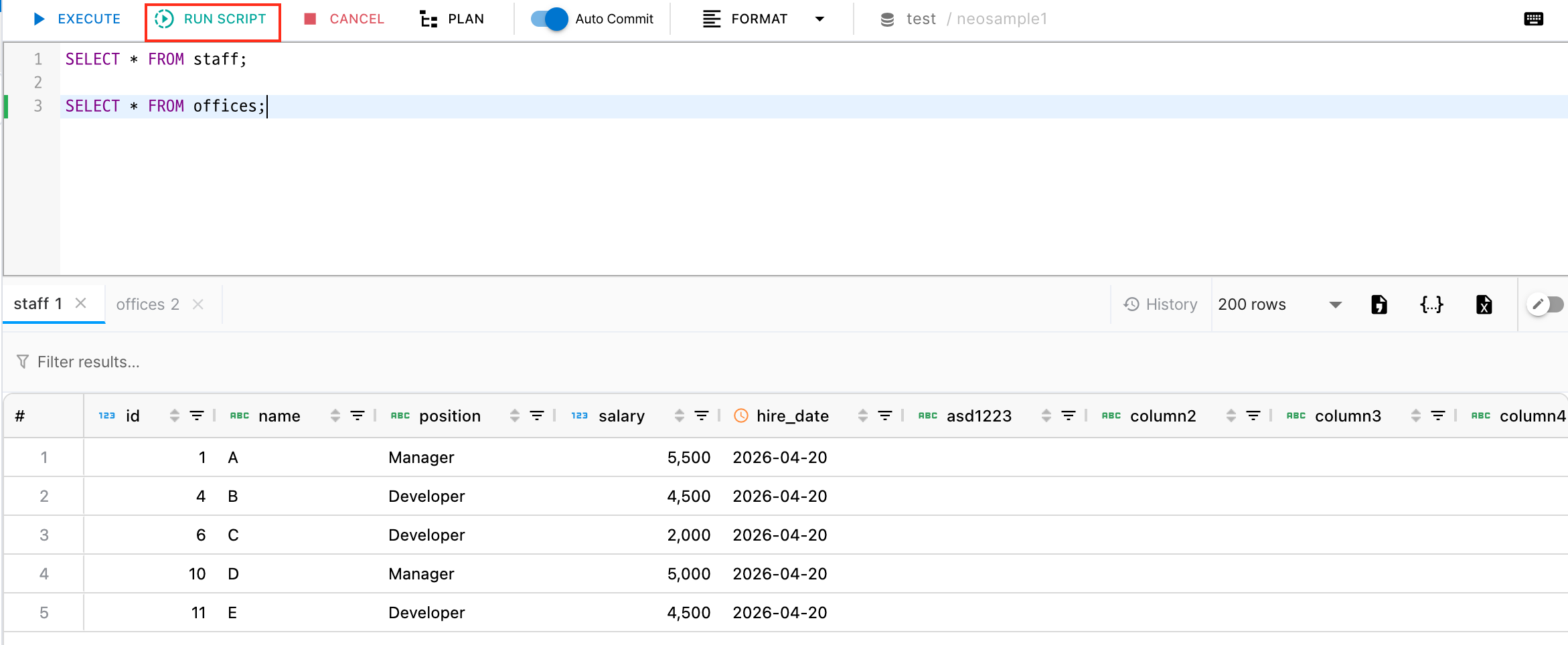
Splits all SQL statements in the editor by semicolons (;) and executes them sequentially. Each statement's result is shown in a separate result tab.
- SELECT → Result grid tab
- DML/DDL → Affected row count or success message
- On error → Stops at that statement and displays the error
CANCEL — Stop Running Query
Esc

Forcefully stops the currently running query. Useful for long-running queries. Use the CANCEL button in the Toolbar or press Esc.
CANCEL sends a cancellation request to the server, so there may be a slight delay before the query actually stops depending on the DB server.
PLAN — EXPLAIN Analysis
Ctrl+Shift+E (macOS: Cmd+Shift+E)

Retrieves the execution plan for the SQL statement at the cursor position. A separate Explain tab is created in the result area showing the plan in tree format.
For more details on EXPLAIN analysis, see the EXPLAIN PLAN Analysis section.
FORMAT — SQL Formatting
Ctrl+Shift+F (macOS: Cmd+Shift+F)

Auto-formats SQL for readability. Choose from two options in the FORMAT dropdown in the Toolbar:
| Option | Description |
|---|---|
| Format Statement | Formats only the single SQL statement at the cursor position. |
| Format All | Formats the entire SQL in the editor. |
Formatting rules:
- Keywords are converted to uppercase (e.g.,
select→SELECT) - Line breaks are applied per clause
- Formatting follows the syntax of the connected DBMS (MySQL, PostgreSQL, Oracle, SQL Server, etc.)
Save — Save Query
Ctrl+S (macOS: Cmd+S)
Saves the current SQL content in the editor. Saved SQL can be reopened anytime from the left SQL list panel.
SQL content is auto-saved even when you close a tab or navigate away, so reopening restores your previous work.