
Result Grid
Learn how to use the result grid, including sorting, filtering, pagination, and more.
Multi Result Set Tabs
Query results are displayed as tabs in the result area below the editor.

| Execution Method | Tab Behavior |
|---|---|
| EXECUTE | Replaces the existing result tab. |
| RUN SCRIPT | Each SQL statement's result creates a separate tab. |
| PLAN | Creates a separate Explain tab. |
A History tab is always pinned alongside result tabs, allowing you to review past execution history at any time.
Each tab displays the following information:
- Sequence number — shows which statement in a script produced this result
- Spinner during execution — indicates the query is running
- X button — close tab (at least one tab is always kept)
Sort / Filter / Column Hide / Column Resize
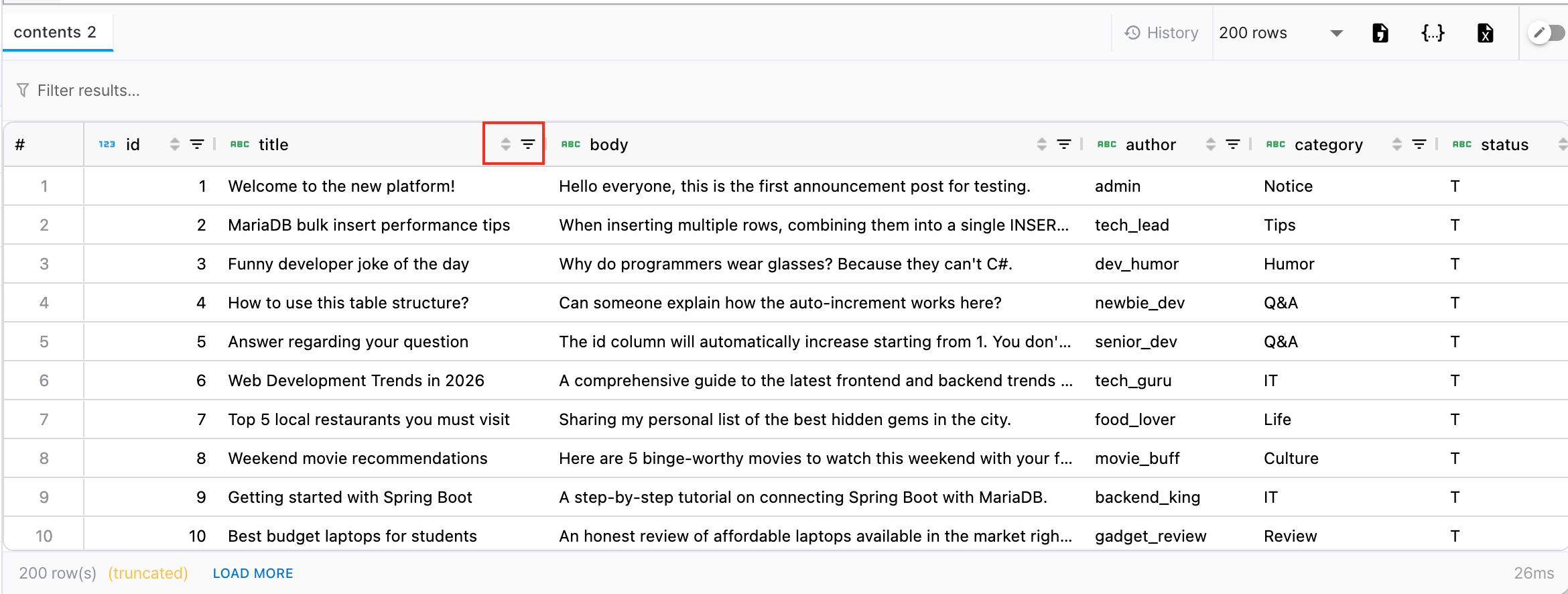
Sort
Click a column header to sort by that column.
- First click → ascending
- Second click → descending
- Third click → clear sort
Filter
Click the filter icon in a column header to apply a filter. The filter UI varies by column type:
- Numeric columns — range or comparison conditions (e.g., > 100)
- Date columns — date range selection
- String columns — contains/equals search
Enter text in the Quick Filter input at the top of the result area to filter across all columns in real time.
Column Resize
Drag the border of a column header to adjust its width. Column widths auto-adjust to cell content by default.
Cell Copy / Clipboard
Select a cell in the result grid and press Ctrl+C (macOS: Cmd+C) to copy the cell value to the clipboard.
- Select a single cell and copy — copies that cell's value
Pagination (Load More)
When the result row count exceeds the max row limit, a (truncated) indicator and Load More button appear in the status bar.
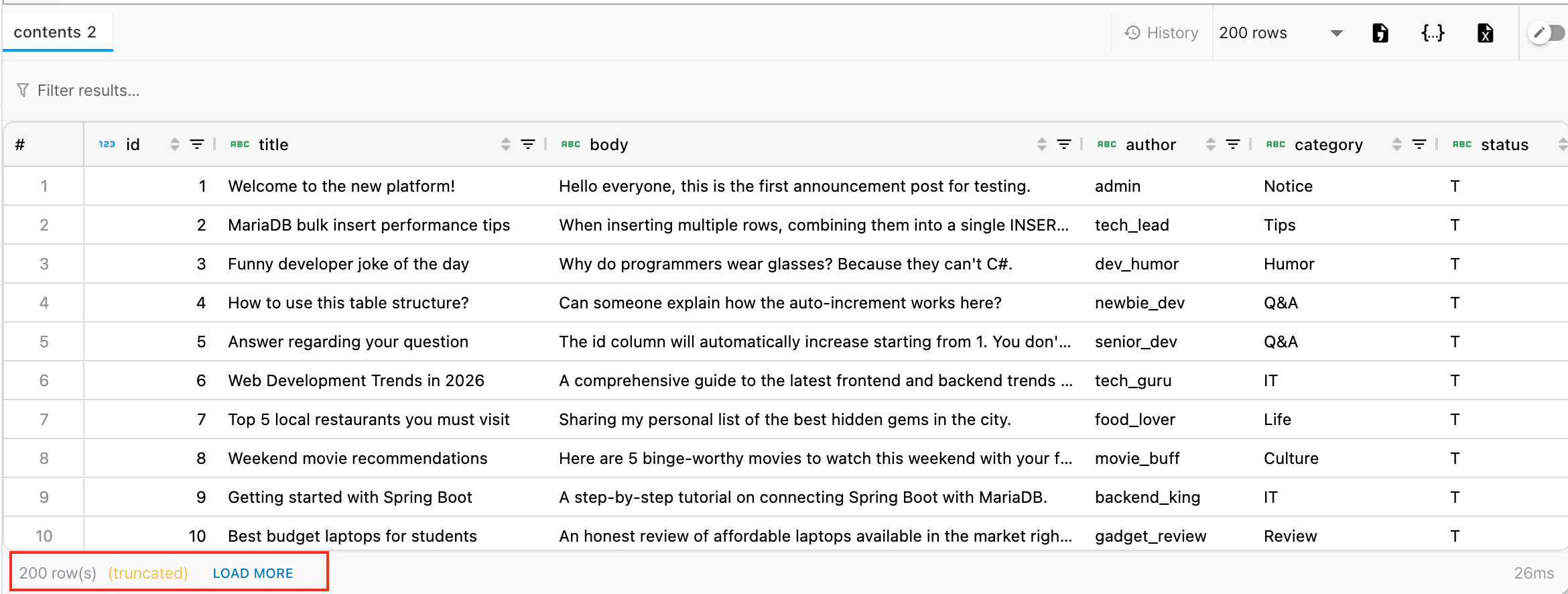
- Load More button — click to load the next page of data
- Auto load — scrolling to the bottom of the grid automatically loads the next batch of data
If you have unsaved changes in edit mode when Load More is triggered, the changes will be reset. Apply your changes first before loading more data.
Max Row Limit
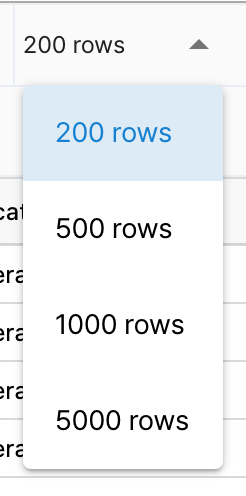
Sets the maximum number of result rows fetched at once. The default is 200 rows.
Select from the following options in the result tab header dropdown:
| Option | Description |
|---|---|
| 200 | Default. Suitable for general queries. |
| 500 | For medium-sized data review |
| 1,000 | For large data review |
| 5,000 | Maximum option. For reviewing large datasets at once. |
Higher row counts increase browser memory usage. Set only as much as needed. The maximum row limit may vary depending on your subscription plan.
NULL Value Display
NULL values in the result grid are displayed as null, distinguishing them from empty strings ('').
| Value | Display |
|---|---|
| NULL | Gray italic null |
| (nothing displayed) | |
| Normal text |
CSV / JSON / XLSX (Excel) Export
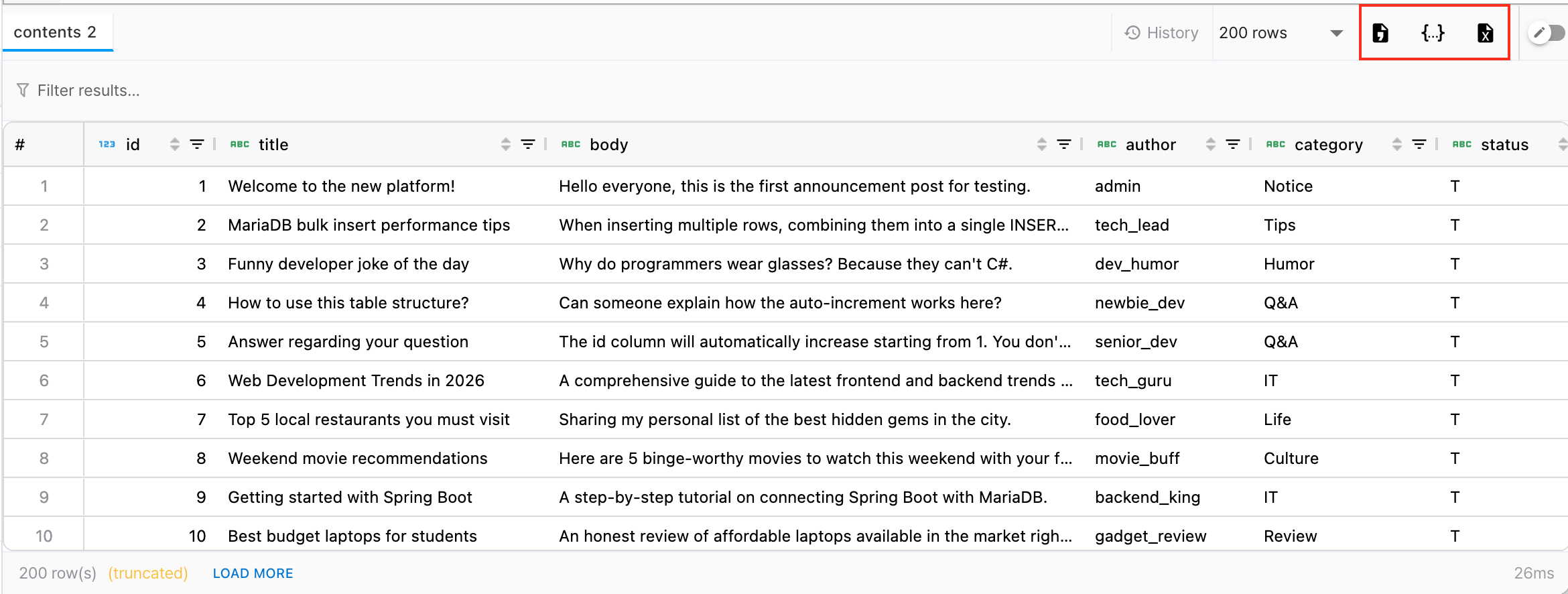
Click the export button in the result tab header to download current results as a file.
| Format | Filename | Description |
|---|---|---|
| CSV | export.csv | Comma-separated text file. Column names are included as headers. Values containing commas or line breaks are automatically quoted. |
| JSON | export.json | JSON array format. Each row is converted to an object with column names as keys. Pretty-printed with indentation. |
| XLSX | export.xlsx | Excel file format. Header row is styled with bold text and gray background, column widths are auto-adjusted, and auto-filters are applied. |
Export includes only the data currently loaded in the result grid. Load all data using Load More before exporting to include all rows.