Manage Subscription
From My Page → Subscription, view and manage your current plan, status, scheduled changes, and scheduled cancellation. The desktop app's My Page shows the same information in read-only form; changes and cancellations are performed on the web My Page.
Current Subscription Plan Information
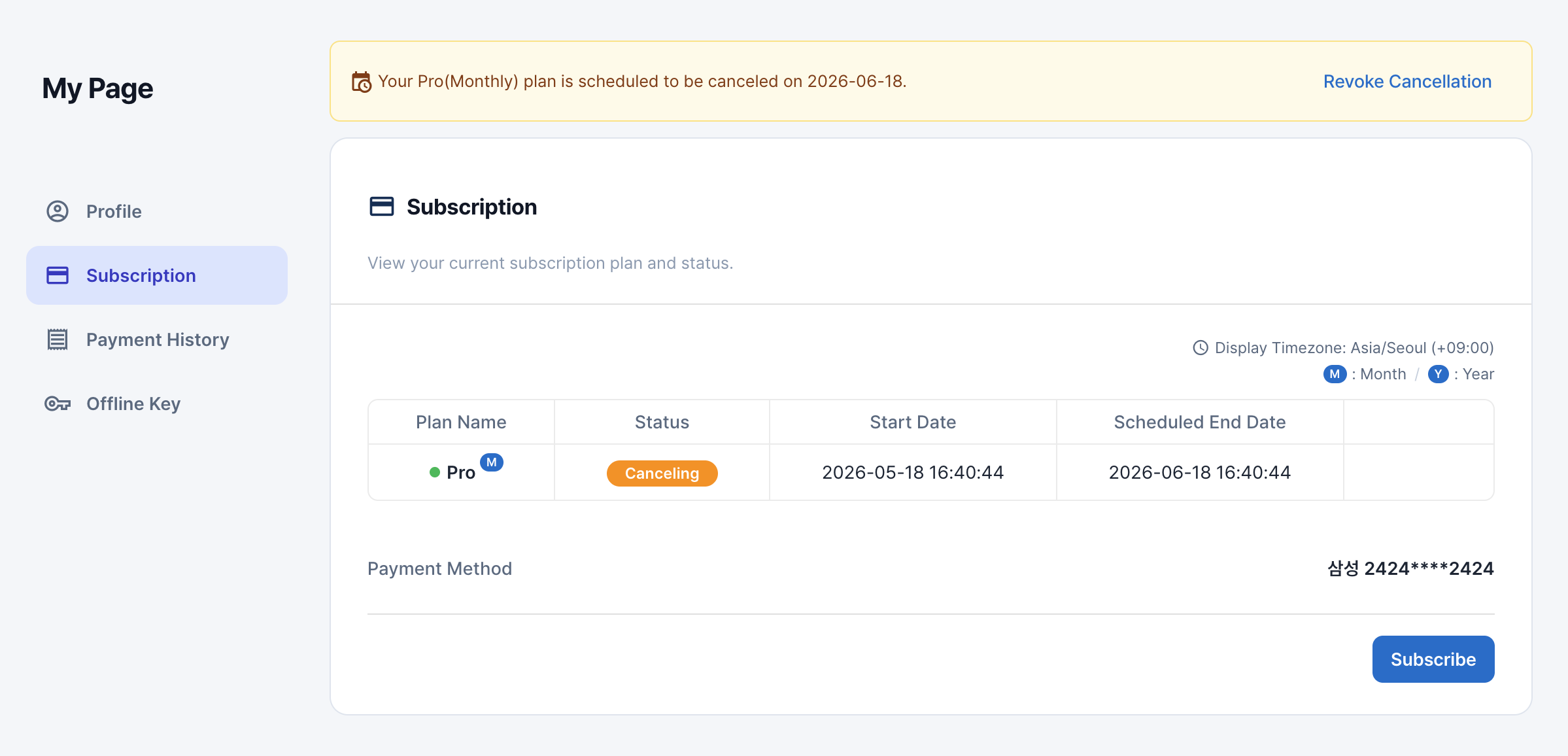
The top of the Subscription tab gives an at-a-glance view of your current subscription.
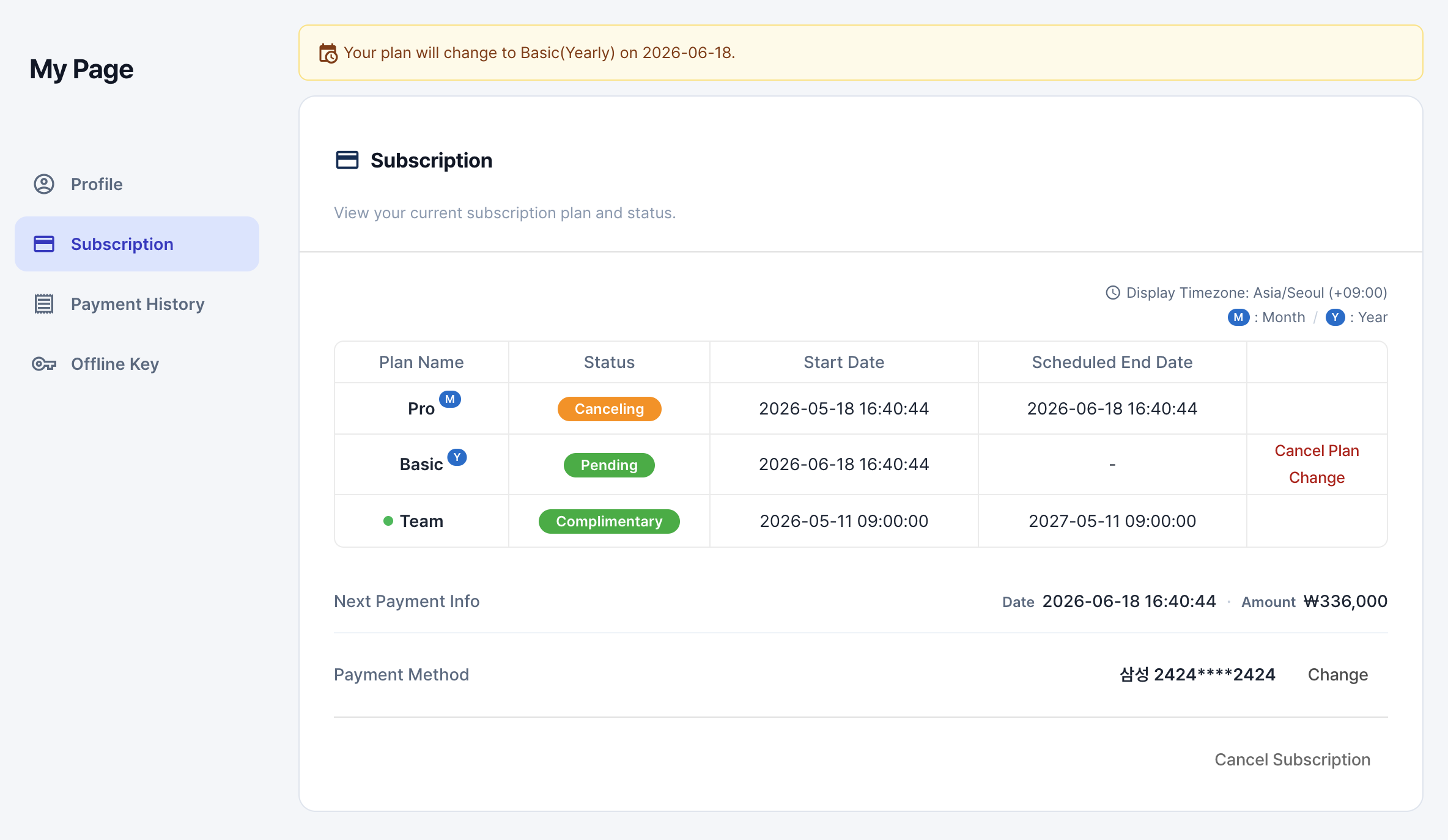
Fields shown
| Field | Description |
|---|---|
| Plan | Current plan name and a billing-cycle badge (M = monthly / Y = yearly). Any plan granted separately by an admin is shown in a separate row as "Benefit Applied". |
| Status | Subscription status shown as a colored badge. See the table below for variants. |
| Start date | When the current subscription began. |
| End date (scheduled) | Scheduled Subscription End Date (Shown only when a cancellation is scheduled.) |
| Next Payment Information | Scheduled date/time and amount for the next payment. |
| Payment method | Card brand and masked card number used for recurring payments. |
Status labels
| Status | When |
|---|---|
| Active | Normal active subscription |
| Ending soon | You have scheduled cancellation — usable as normal until the end date |
| Payment failed | Latest renewal payment failed — recoverable by updating the payment method within the grace period |
| Payment pending | Payment for the scheduled plan is pending |
| Benefit applied | Shown on a plan granted outside of your normal subscription (e.g., a sign-up event). |
All dates and times follow the time zone you've configured under My Page → Profile. The active display time zone is labeled at the top of the screen.
Plan change
You can switch to a different plan or billing cycle while subscribed. Billing and apply-time policy differs by change type — be sure to review the confirmation modal before confirming.
Change flow
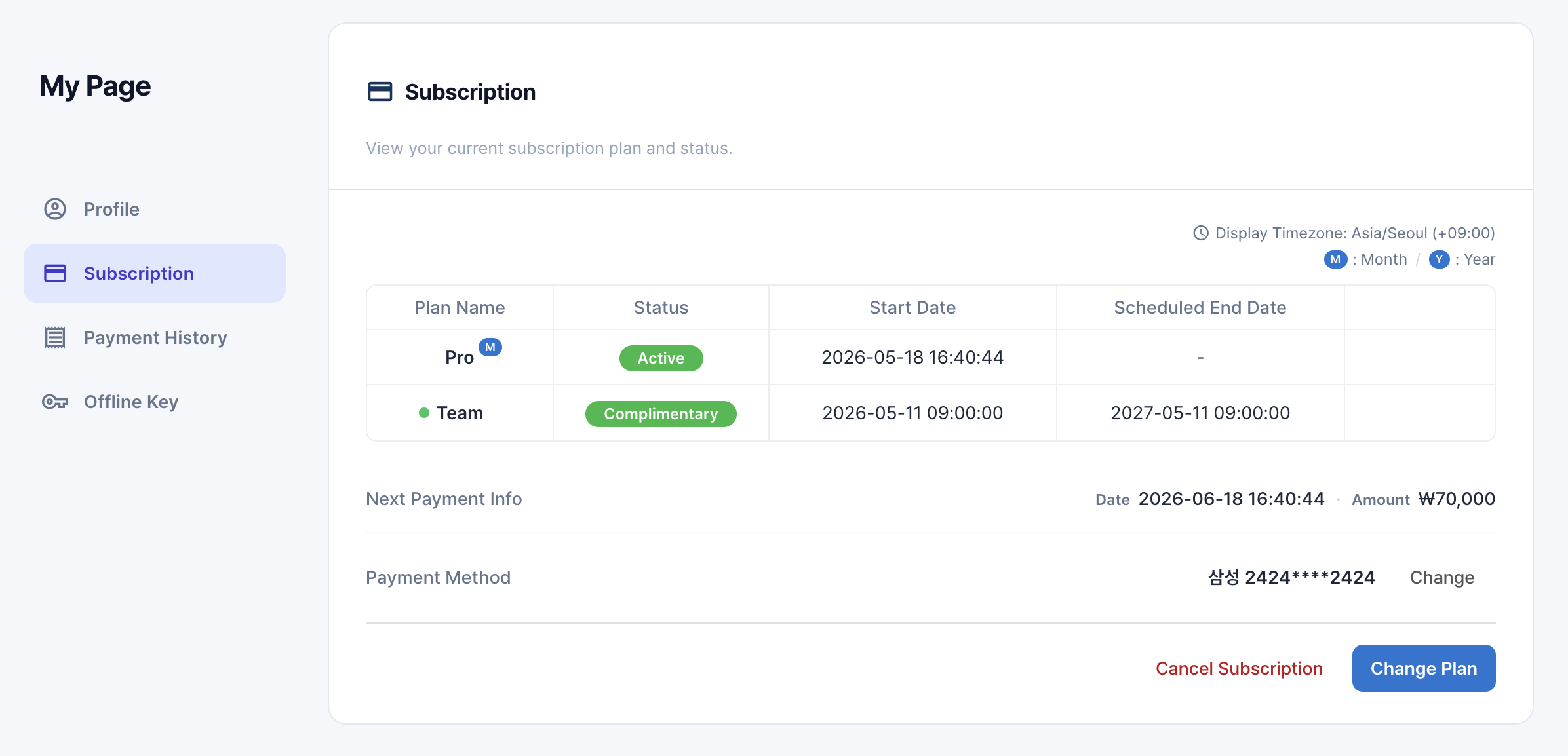
Start change
Click the Change Plan button at the bottom of the subscription page in My Page.
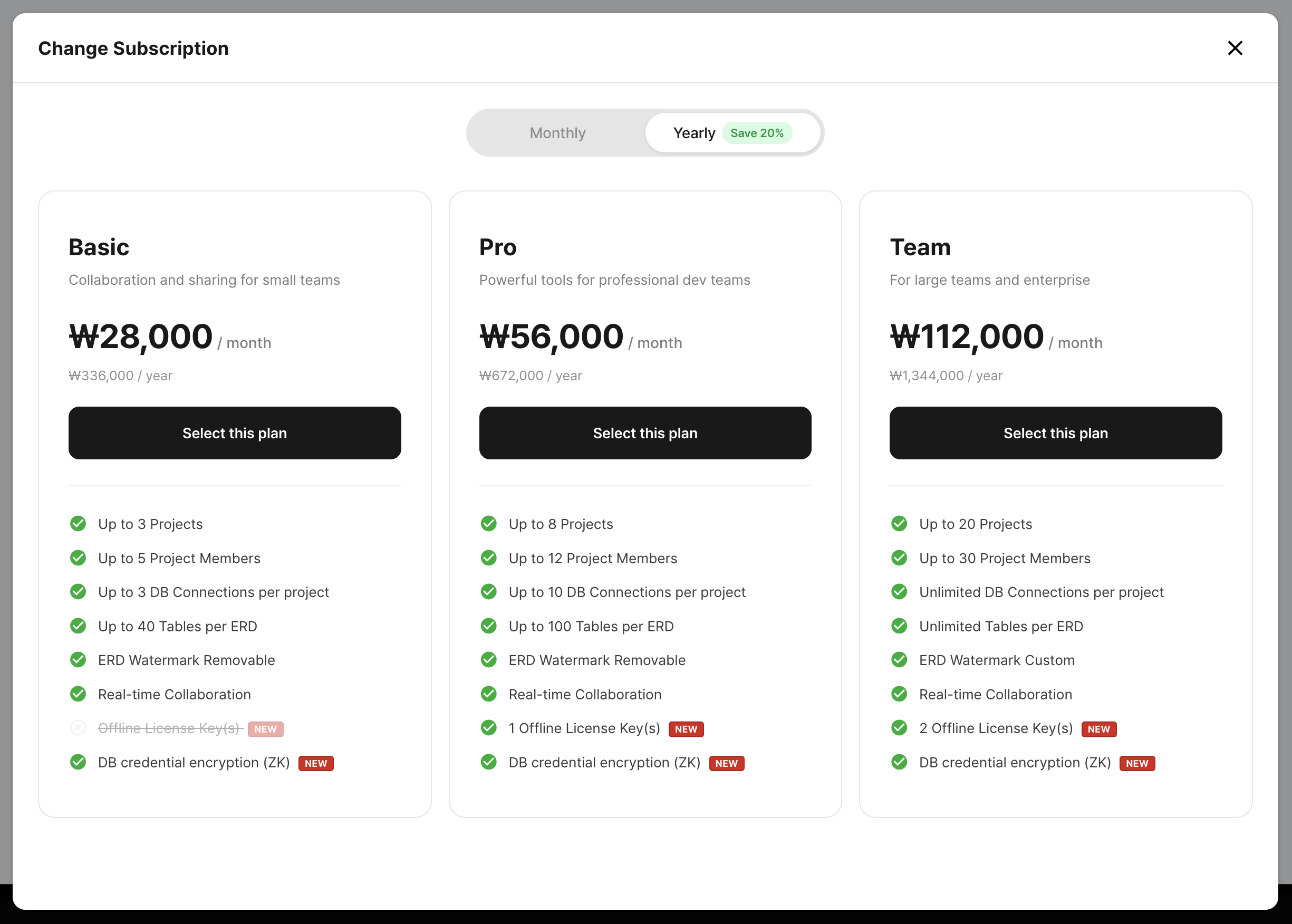
Pick plan · cycle
Choose the destination plan and billing cycle (monthly / yearly).
Confirmation modal
Review the new plan, the immediate charge (for upgrades) or apply date (for downgrades), and the refund preview (when switching yearly → monthly). Agree to the terms and confirm to charge.
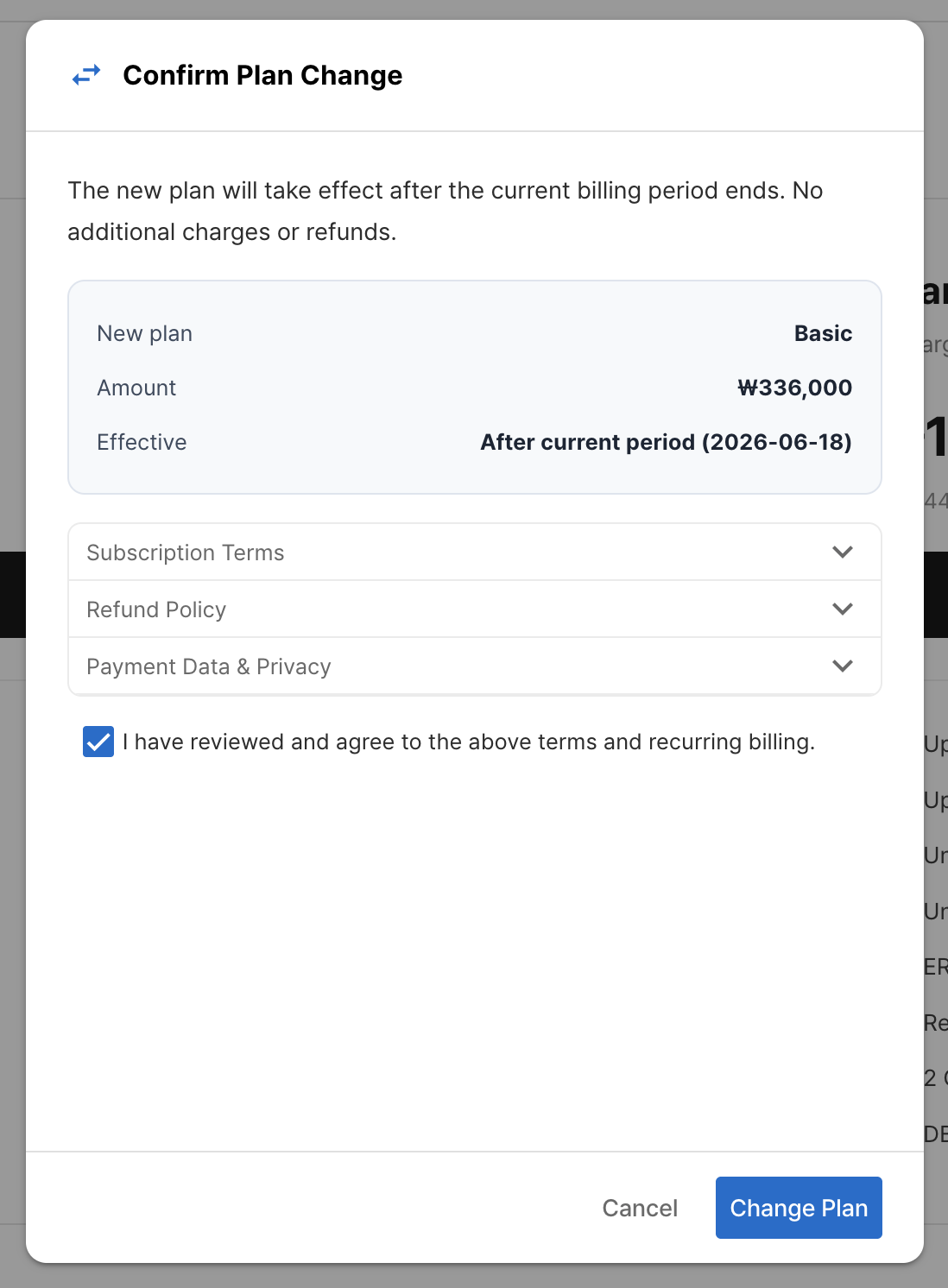
Billing · apply policy by change type
| Change type | Apply time | Refund |
|---|---|---|
| Monthly → Yearly & Upgrade | Apply immediately after payment | None |
| Monthly → Yearly & Downgrade/Cycle change only | Payment and activation after the remaining period of the current plan ends | - |
| Yearly → Monthly | Apply immediately after payment | Refund of the annual remainder (charge − monthly × days used ÷ 30) |
Cancel · re-schedule the change
Changes scheduled for the next billing cycle can be canceled before they take effect using the Cancel Plan Change button.
If the plan change is canceled, the scheduled change will be removed and your current plan will remain active.
Note: Once a payment gateway has been issued, it stays in place for the lifetime of that subscription. To switch currency or gateway, cancel the subscription and re-subscribe with the new currency.
Subscription cancellation
Cancellation behavior depends on your billing cycle (monthly / yearly).
A monthly subscription keeps running until the end of the current cycle and then ends automatically; for a yearly subscription the refund is calculated automatically — if canceled within the first month (30 days) only one month is deducted and the service remains usable until one month from the payment date, and after the first month it is canceled immediately.
Cancellation flow
Start cancellation
On the subscription screen, click Cancel Subscription.
Confirmation modal
A confirmation modal appears. Monthly plans show a scheduled end date; yearly plans show a refund preview (charged amount · used amount · refund amount).
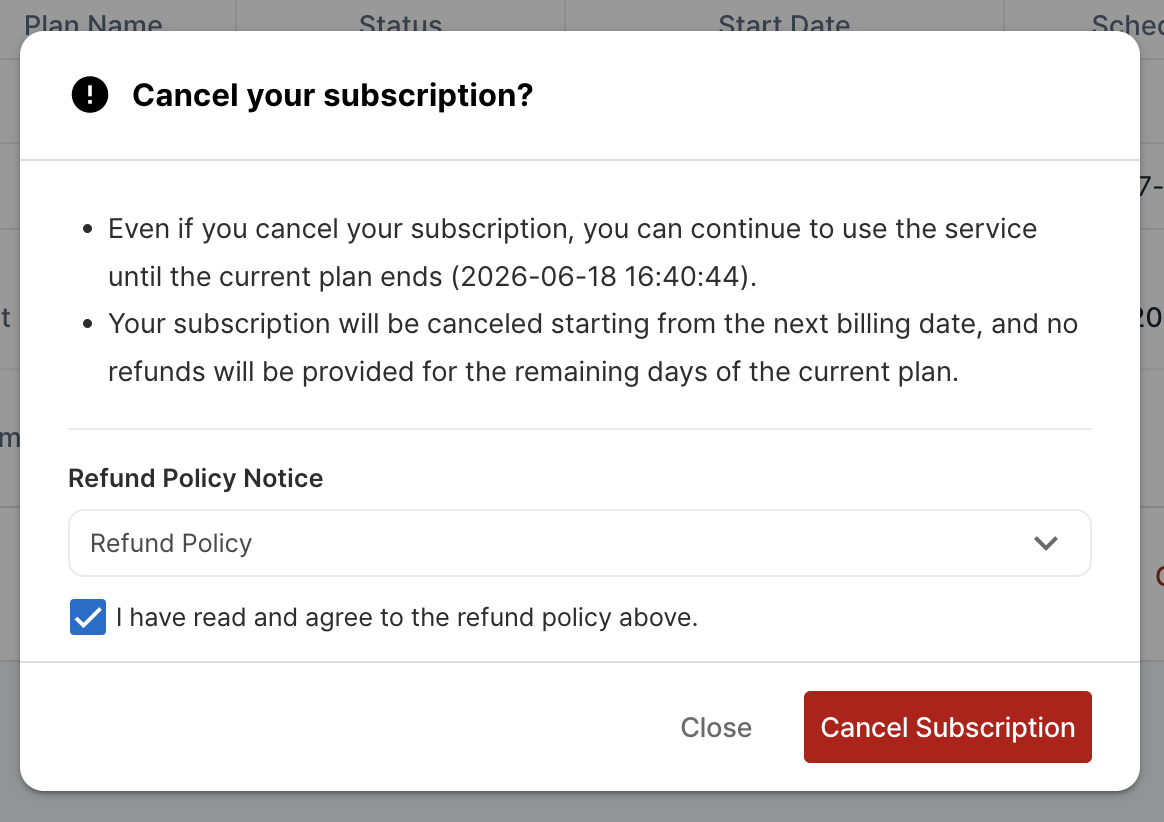
Confirm — result depends on the billing cycle
Monthly subscriptions switch to Ending soon and remain usable until the end date. Yearly subscriptions are refunded immediately; if canceled within the first month (30 days) the service stays usable until one month from the payment date, and after the first month it switches to the Free plan right away.
Cancellation behavior by billing cycle
| Billing cycle | Effective time | Refund |
|---|---|---|
| Monthly | At the end of the current plan period (service remains available until the end date, not terminated immediately) | - |
| Yearly | Automatic refund · within the first month (30 days) usable until one month from payment then ends; after that, immediate switch to Free | Calculated automatically as charge − monthly × days used ÷ 30 and refunded (within the first month, a fixed one month is deducted). |
Revoke cancellation
A monthly cancellation can be revoked any time before the end date via Revoke Cancellation. A yearly cancellation, because it processes the refund immediately, cannot be revoked.
Payment gateways (PG)
The payment gateway is selected automatically based on the currency you choose at checkout.
Changing payment method
In My Page → Manage Subscription, use the change-payment-method button to replace the registered card.
- For KRW subscriptions, enter your card number, expiration date, birth date or business number, and the first two digits of the card password to issue a new bill key.
- For USD subscriptions, Paddle's payment-method update page opens in a new tab where you can update your card details.
- Once the payment method is updated, any in-progress renewal retry uses the new method on the next attempt.
- The payment currency cannot be changed. If you wish to use a different currency, you must cancel your subscription and subscribe again with the new currency.
| Currency | Gateway | Supported methods |
|---|---|---|
| KRW | NicePay | Credit / debit card |
| USD | Paddle | Credit card, PayPal, and other Paddle-supported methods |
Viewing payment history
All recurring charges, refunds, and failed payment attempts are listed under My Page → Payment History. Timestamps are shown in the timezone set in My Page → Profile.
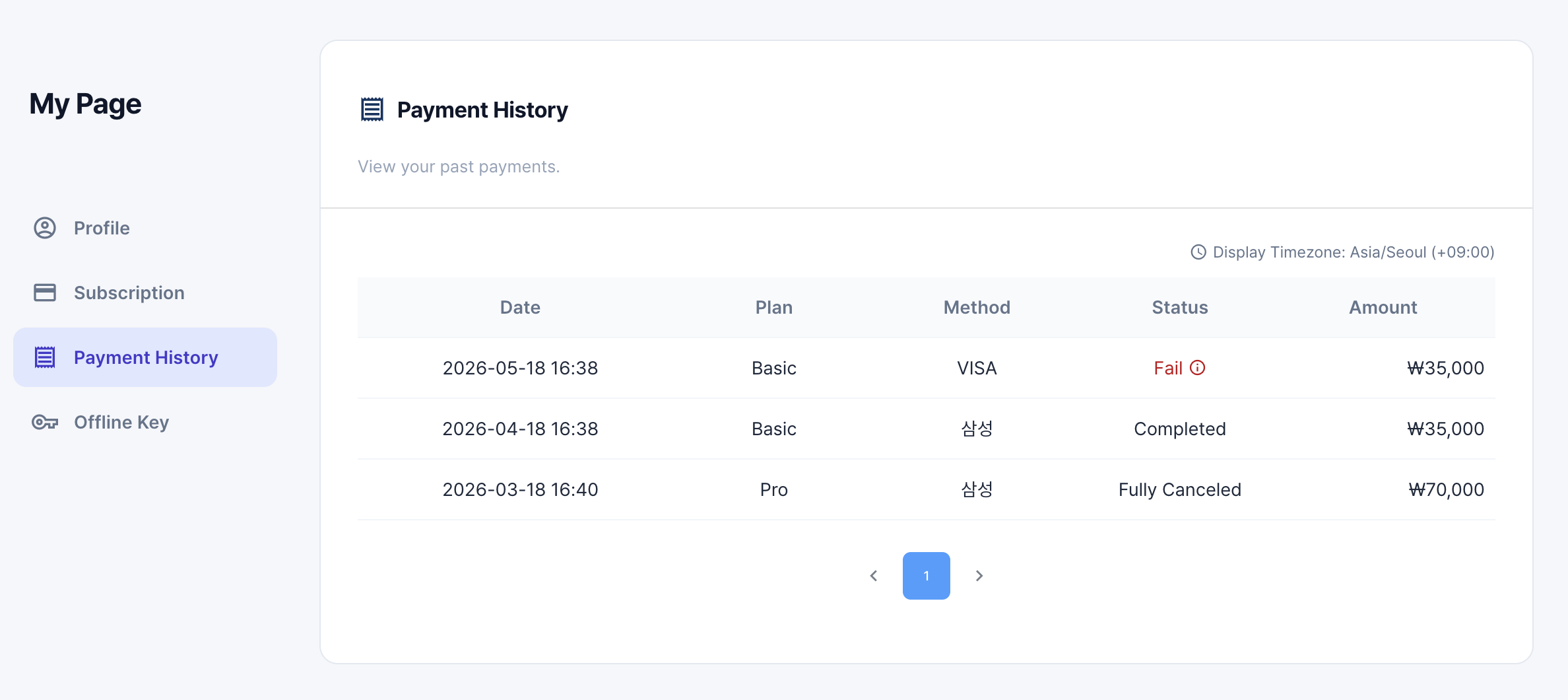
| Column | Meaning |
|---|---|
| Date | When the payment was processed |
| Plan | The subscription plan associated with the charge |
| Method | Card brand or payment method used for the charge |
| Status | One of Paid / Fully canceled / Partially canceled / Failed |
| Amount | Charge or refund amount (shown in the subscription's currency) |
Inspecting failure reasons
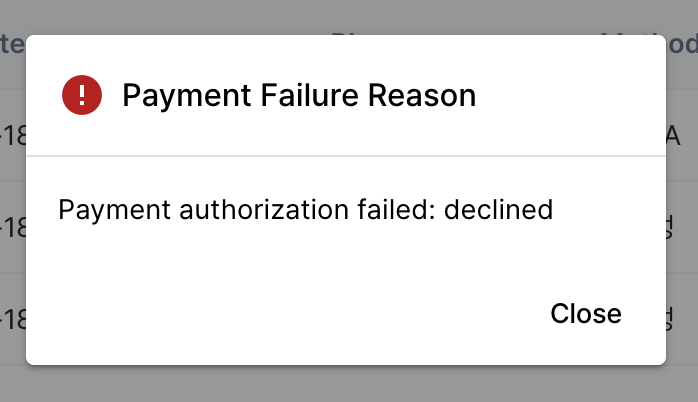
Click a row with status Failed to see the failure reason returned by the payment gateway. Once you have identified the cause (expired card, exceeded limit, etc.), use Changing payment method above to register a new card — the next renewal retry picks it up immediately.