
Editor Basics
Learn about tab management, syntax highlighting, autocomplete, and other basic editing features of the SQL Editor.
Multi-Tab / Multi-Session
The SQL Editor allows opening multiple tabs, each operating as an independent session.
| Item | Description |
|---|---|
| Independent Session per Tab | Each tab uses a separate DB session (connection). Opening a transaction in one tab does not affect other tabs. |
| Per-Tab Connection Selection | Each tab can be assigned a different DB connection. |
| MCP Session Isolation | Database sessions used by MCP are completely separated from SQL Editor sessions, so they do not interfere with each other. |
Rename / Close Tab
You can rename or close SQL Editor tabs.
Rename
Click the settings icon for a SQL entry in the left SQL list panel to rename it. The changed name is immediately reflected in the tab title.
Close Tab
Click the X button on a tab to close it. SQL being written is auto-saved, so reopening restores the previous content.
If you close a tab with an uncommitted transaction, the transaction is automatically rolled back.
Syntax Highlighting
SQL keywords, table names, strings, numbers, and comments are displayed with distinct colors.
| Element | Example |
|---|---|
| Keywords | SELECT, FROM, WHERE, INSERT |
| Strings | 'hello', "world" |
| Numbers | 42, 3.14 |
| Comments | single-line comment, block comment |
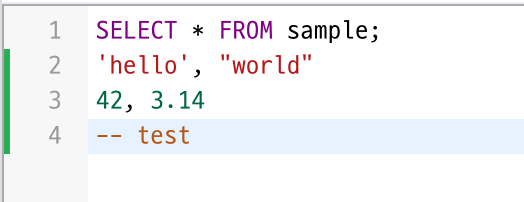
The editor also provides the following editing aids:
- Line numbers
- Current line highlighting
- Bracket matching (matching brackets are highlighted when the cursor is on a bracket)
- Auto-closing brackets and quotes
When running Execute, the SQL statement at the cursor position is marked with a green border to preview which statement will be executed. The currently executing statement blinks with an orange border.
Autocomplete
Tables, columns, and keywords are automatically suggested as you type SQL.
| Suggestion Type | Behavior |
|---|---|
| Tables | Tables in the current schema are suggested. Typing schema. suggests tables from that schema. |
| Columns | Typing table. or alias. suggests columns from that table. |
| Keywords | Standard SQL keywords (SELECT, FROM, JOIN, etc.) are suggested. |
The autocomplete list displays color-coded badges for each item type. The list narrows as you type, with substring matching support.
If autocomplete doesn't appear, press Ctrl+Space (macOS: Cmd+Space) to invoke it manually.
Inline Error Display
When a query error occurs, the error message and SQL State code are displayed in the result area below the editor. The SQL statement that caused the error is also shown, helping you quickly identify the problem.

Comment Toggle
Press Ctrl+/ (macOS: Cmd+/) to toggle single-line comments (--) on the current line or selected lines.
- Uncommented line → adds
-- - Already commented line → removes
-- - When multiple lines are selected, the toggle applies to all selected lines
The same feature is available from the right-click context menu under Format > Toggle Comment.