Engineering
Learn how to synchronize databases and ERD using reverse engineering and forward engineering.
Reverse Engineering
Import existing database tables into the ERD. There is no separate reverse engineering button; once you connect to a connection, the table list appears in the left sidebar, and you can drag & drop the desired tables onto the ERD canvas.
Add via Drag & Drop
Connect to Connection
Connect to a database connection in the left sidebar, and the table list for that database will appear in a tree structure.
Select Tables
Click to select the tables you want to import. Use Ctrl(Cmd) + click to multi-select.
Drag to ERD Canvas
Drag & drop the selected tables onto the ERD canvas area. Table metadata including columns, indexes, and FKs will be automatically loaded and relation lines will be displayed.

When dropping multiple tables at once, they are automatically arranged vertically.
Add via Context Menu
Besides drag & drop, you can also right-click a table in the sidebar and select "Add to ERD". In this case, the table is placed at the center of the current viewport.

Note: Tables already added to the ERD will not be duplicated, and tables from a different connection or schema cannot be added.
Forward Engineering
Convert table structures designed or modified in the ERD into DDL and apply them to the actual database. DDL syntax appropriate for the target DBMS (MySQL, PostgreSQL, Oracle, etc.) is automatically generated.
Apply to Database
Modify Tables
Create new tables or modify columns, indexes, FKs, etc. of existing tables in the ERD. Tables with changes will show a change indicator.
Execute Apply to Database
Select the changed tables and click the "Apply to Database" button. You can also multi-select tables and apply at once (right-click -> "Apply Changes to Database").
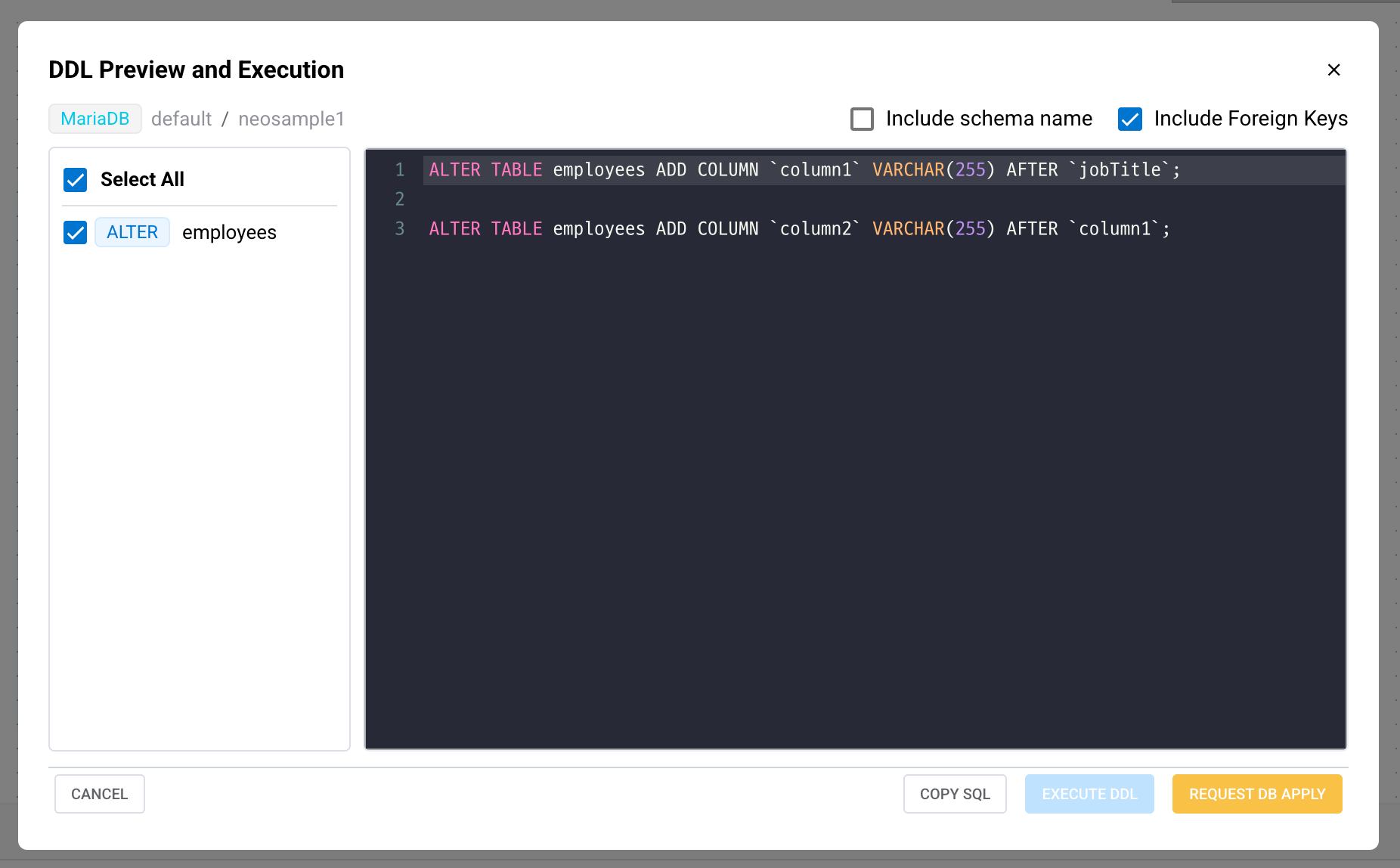
DDL Preview & Execute
A change summary and the generated DDL script are shown in a preview. After reviewing, click the "Execute" button to apply to the database.

Generated DDL Types
The following DDL is auto-generated based on the type of change.
| Change Type | Generated DDL |
|---|---|
| New table | CREATE TABLE (including columns, PK, FK, indexes) |
| Column add/modify/delete | ALTER TABLE ADD/MODIFY/DROP COLUMN |
| Index add/delete | CREATE INDEX / DROP INDEX |
| FK add/delete | ALTER TABLE ADD/DROP CONSTRAINT |
| Table rename | ALTER TABLE RENAME TO |
| Table delete | DROP TABLE |
Note: DDL is executed as a single transaction. If any statement fails, the entire operation is rolled back to ensure database consistency. After execution, the schema is re-read from the database and auto-synchronized with the ERD.
Caution: If destructive changes such as column deletion or data type changes are included, a separate warning will be displayed. Always create a backup before executing in production environments.
Change Summary
The DDL preview modal shows a summary of changes at the top.
| Item | Description |
|---|---|
| New Tables | Number of newly created tables (CREATE TABLE) |
| Deleted Tables | Number of tables to be deleted (DROP TABLE) |
| Modified Tables | Number of modified existing tables (ALTER TABLE) |
| Columns Added | Number of columns added |
| Columns Modified | Number of columns modified (type, default value, nullable, etc.) |
| Columns Deleted | Number of columns deleted |
| Columns Reordered | Number of columns with changed order |
Change Tracking
NeoSQL automatically tracks schema changes using a snapshot-based approach. It saves the original state of tables and columns as snapshots, compares them with the current state, and generates DDL only for the changed parts.
Snapshot Comparison
Keeps the original state (table name, schema, comments, PK, FK, indexes, etc.) as a snapshot and generates DDL only for fields that differ from the current state.
Column-Level Tracking
Detects changes in each column's name, type, default value, nullable, Auto Increment, comments, and order individually.
Auto Classification
Automatically determines new, deleted, or modified status and generates the appropriate CREATE / DROP / ALTER DDL.
DDL Generation Order
ALTER TABLE DDL is generated in the following order to ensure database stability.
Table Rename
If the table name has changed, RENAME is executed first.
Table-Level Changes
Processes table comments, FK add/delete, index add/delete, engine/charset changes (MySQL/MariaDB), etc.
Column Rename
If a column name has changed, RENAME COLUMN is executed before ADD/MODIFY.
Column Add -> Modify -> Delete
Executed in order: ADD COLUMN (in order), MODIFY COLUMN, DROP COLUMN.
DBMS-Specific DDL Generation
NeoSQL automatically generates DDL syntax appropriate for the connected DBMS. Even for the same schema change, the appropriate syntax is applied depending on the DBMS.
| Item | MySQL / MariaDB | PostgreSQL | Oracle | SQL Server |
|---|---|---|---|---|
| Identifier quoting | Backtick (`) | Double quote (") | No quoting | Brackets ([]) |
| Auto increment | AUTO_INCREMENT | SERIAL / BIGSERIAL | SEQUENCE | IDENTITY |
| Table comment | COMMENT '...' | COMMENT ON TABLE | Not supported | Extended Properties |
| Column reorder | AFTER / FIRST supported | Not supported (recreate) | Not supported | Not supported |
| Additional options | ENGINE, CHARSET, COLLATION | - | - | Filegroup |
Supported DBMS: MySQL, MariaDB, PostgreSQL, Oracle, SQL Server, SQLite, H2. The DBMS is auto-detected during connection setup, and the appropriate Dialect DDL is generated.