
Execution Modes
NeoSQL can be used as Online (Web), Online (Desktop), or as sign-in-free local projects. Pick what fits your environment.
Mode Overview
Online (Web)
Use directly in your browser. Cloud sync enables team collaboration after OAuth login. Only public DBs can be connected.
Online (Desktop)
Desktop app + cloud sync. Connect to internal network DBs, local DBs, and databases behind VPNs, and collaborate with your team.
Local Project (Desktop)
Use the desktop app right away — no sign-up or sign-in required. Data stays only on your computer, and you can connect directly to internal, local, and VPN-restricted databases.
Feature Comparison
Compare available features across modes at a glance.
| Feature | Online (Web) | Online (Desktop) | Local Project |
|---|---|---|---|
| Core Features | |||
| ERD Design / Edit | Yes | Yes | Yes |
| SQL Editor | Yes | Yes | Yes |
| Code Generation NEW | Yes | Yes | Yes |
| Forward / Reverse Engineering | Yes | Yes | Yes |
| DB Connection | |||
| Public DB Connection | Yes | Yes | Yes |
| Internal / Local DB Connection | No | Yes | Yes |
| Collaboration & Cloud | |||
| Team Collaboration (Real-time Sync) | Yes | Yes | No |
| Project Sharing / Invite | Yes | Yes | No |
| Cloud Backup | Yes | Yes | No |
| Additional Features | |||
| AI Features | Yes | Yes | No |
| Template Store (Download/Upload) | Yes | Yes | Yes |
Use the desktop app if you need to connect to internal network DBs, local DBs, or databases behind VPNs or firewalls.
Note: Local and account projects cannot be converted into each other. If you need team collaboration, sign in first and create an account project.
Start Online Mode
Online mode uses OAuth social login for authentication. Available in both web browser and desktop app.
Launch App
Access the NeoSQL web app or launch the desktop app.
Social Login
Log in with Google, GitHub, or other social accounts on the login screen. On desktop, authentication happens in the browser and auto-connects to the app.
Select Project
After authentication, you'll be navigated to the dashboard. Your project list is displayed, and you can create a new project or select an existing one.
Team Invite & Management (Online Only)
Invite team members and manage roles in online mode.
Invite Team Members
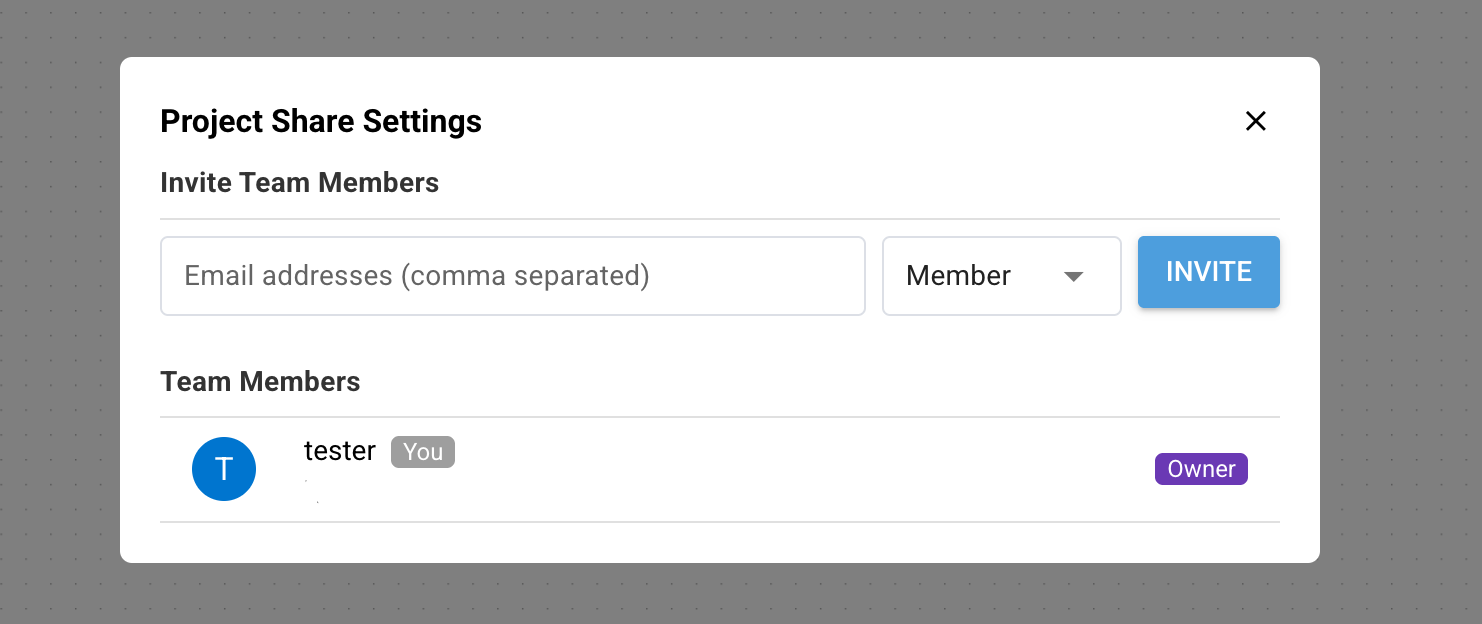
Open Share Settings
Click the share button in the project editor toolbar to open project share settings.
Enter Email
Enter the email of the team member to invite. Separate multiple emails with commas (,).
Select Role & Send Invite
Select a role and send the invitation. An email will be sent to the invited user.
Accept Invitation
When the team member clicks the invite link in the email, they join the project automatically after login.
Roles & Permissions
Four roles can be assigned to project members.
| Role | Invite Members | Change Role | Remove Member | Transfer Ownership |
|---|---|---|---|---|
| Owner | Manager, DBA, Member | All members | All members | Yes |
| Manager | DBA, Member | No | DBA, Member | No |
| DBA | No | No | No | No |
| Member | No | No | No | No |
Role-based feature permissions
Beyond member management, each role's actions in the project are controlled by permission flags. The defaults at project creation are:
| Permission | Manager | DBA | Member |
|---|---|---|---|
| Sharing (invite members / edit share settings) | Yes | No | No |
| Connection management (read / add / edit / delete) | Yes | Yes | No |
The owner can also toggle the following per-role options:
- Watermark force — Forces the watermark to remain on when this role prints an ERD; they cannot disable it.
- DDL restrict — Blocks this role from creating, editing, or deleting tables.
- DDL approver — When the DDL approval workflow is enabled, designates which role approves pending DDL statements.
These defaults can be changed at any time by the project owner via the "Project Settings → Role Permissions" tab.
Share modal layout
The project share modal is divided into two areas.
- Members list — Every person who has accepted an invite and currently belongs to the project. Each row shows the name/email and a role badge; users with the right permission can change a member's role or remove them from the right-hand menu.
- Pending invitations — Invites that have been sent but not yet accepted. Visible only to the owner and only when at least one invitation is pending. Clicking the X button on the right of an entry opens a confirmation dialog that includes the invitee's email — for example "Cancel the invitation sent to invitee@example.com?" — and clicking OK cancels the invitation immediately. Once accepted, an invitation automatically moves into the members list; expired or cancelled invitations no longer appear in the modal.
Manage Members
Manage current project members in the Members tab of share settings.
- View each member's role and last access time in the member list.
- Owner or Manager can change member roles or remove them from the project.
- Owner can transfer ownership to another member.
- Non-owner members can leave the project on their own.
Owner or Manager can configure project visibility (Public/Members Only) and copy permissions in the Settings tab.
Getting Started with Local Projects
The desktop app works without an account. Every project you create while signed out is a local project.
Install and Launch the Desktop App
Install the desktop app from the download page and launch it — you land on the dashboard with no sign-in screen.
Create a New Project
Create a project with New Database Project. When signed in you can pick 'Local' as the project type; when signed out, projects are local automatically.
Connect and Work
All core features are available — DB connections, ERD editing, the SQL Editor, and code generation. Everything is stored only on this computer.
Note: The previous offline mode (license-key activation) has been discontinued. Local projects, which require no sign-in, replace it. Importing legacy offline (.neosql folder) projects is not supported.
Data Storage
Account Projects
Project data is automatically synchronized to the cloud. Sync starts automatically when a project is opened — no manual save needed.
Note: Even if the network is temporarily disconnected, work continues with local data. Sync resumes automatically when the network is restored.
Local Projects
All data is stored in the app's built-in local database and never leaves this computer. Sensitive credentials such as DB passwords are encrypted separately in the OS secure store (keychain).
Data Portability
A project's type (local or account) is decided at creation time and cannot be changed afterwards.
Why Types Cannot Be Converted
Local projects use this computer's local database while account projects use cloud-synced storage — the storage backends are fundamentally different. If your environment changes, create a new project of the desired type and re-import the schema from your database via Reverse Engineering.