

Sensitive Column Masking
Once you mark columns that must not be exposed—national ID numbers, phone numbers, account numbers—any teammate who connects with a masked role sees those values as ****, replaced on the server. The real value is never sent to the client, so it can't be recovered even by inspecting the browser.
How it works
Column masking is role-based. When you set a role as a "masking target" in the project, teammates connecting with that role see designated sensitive columns replaced with ****. The owner (OWNER) and full-permission roles always see the original values.
Both of the following settings are required:
- ① Masked roles — which roles have values hidden from them (set in project settings)
- ② Column designation — which columns to hide (right-click a table or column to mark it)
Values are hidden on the server. Masked roles never receive the original value, so there's no way to reveal it.
Column masking is available only in online team projects. It does not apply in offline (personal) mode.
Step 1 · Configure masked roles
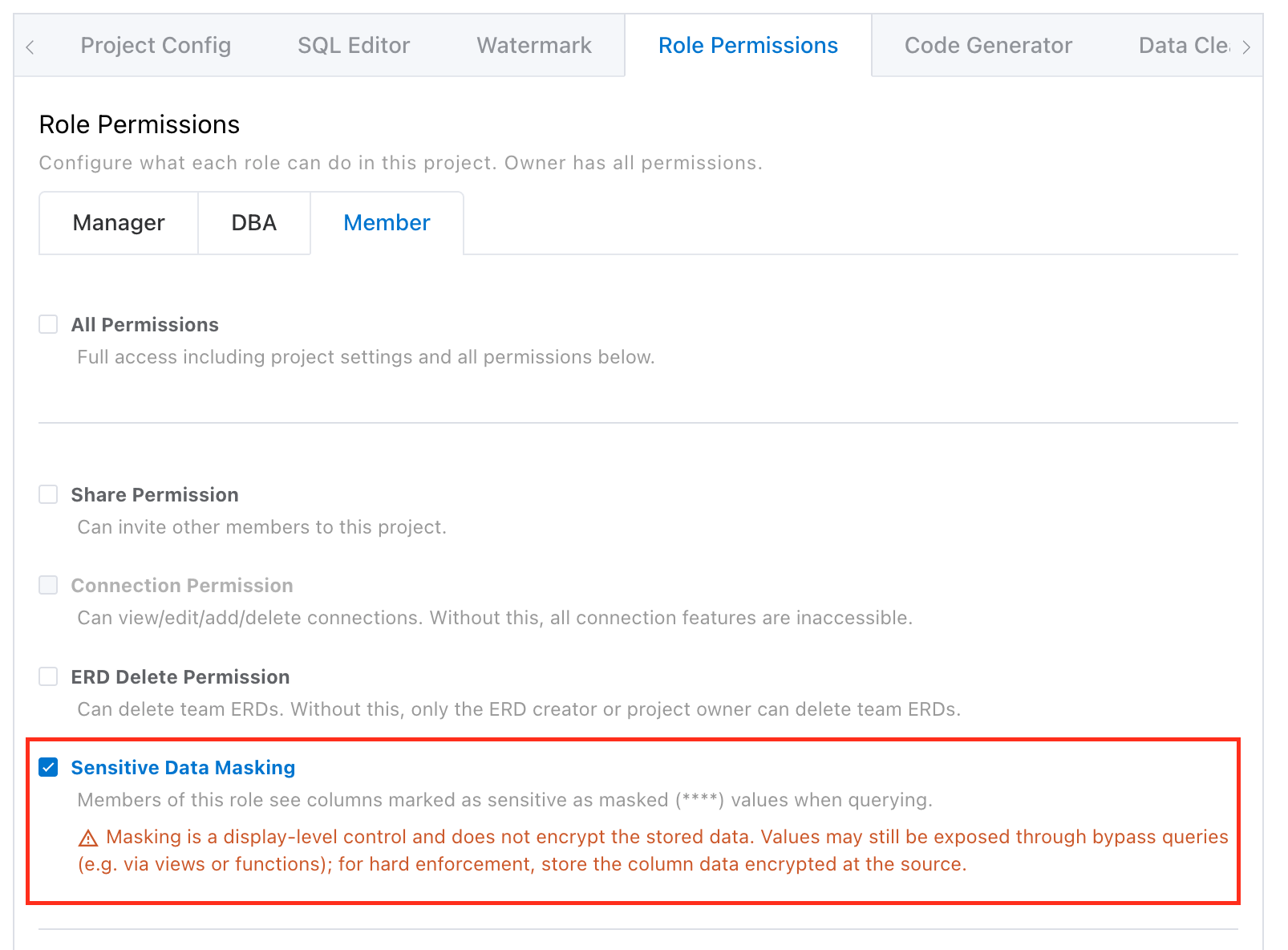
Under Role Permissions in project settings, turn on "Sensitive Data Masking" for a role to make it a masking target. At least one role must have masking enabled before you can designate columns.
| Role | Can be masked | Description |
|---|---|---|
| Owner (OWNER) | No (always original) | The project owner always sees full values and is excluded from masking. |
| Full-permission role | No (always original) | A role granted full permissions is never masked. |
| Manager · DBA · Member | Yes | With masking on, a role sees designated sensitive columns as ****. |
Role hierarchy and automatic inheritance
Masking follows a trust hierarchy, ordered Manager > DBA > Member. Masking a higher role automatically masks the lower roles too, on the principle that a lower role must never see more than a higher one. (e.g. masking Manager also masks DBA and Member.)
Once you save the masking settings, they take effect immediately in any ERD, table editor, or result view that's already open—no need to reopen the project.
Step 2 · Mark sensitive columns
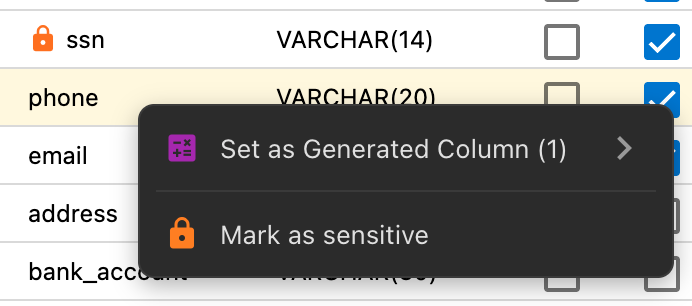
Right-click the column you want to hide and choose "Mark as sensitive" or "Unmark sensitive" from the context menu. Marked columns show a lock (shield) icon. Designations are saved to the server instantly and shared with every project member.
You can designate columns in these places.
- ERD table node — right-click a column on a table in the canvas
- Table editor — right-click in the column list
- Object detail (view) column list — view columns can be designated the same way
Designate / unmark permissions (asymmetric)
| Action | Who can do it | Reason |
|---|---|---|
| Designate (add) | Owner, or a role that is not a masking target | Because it hides values rather than exposing them, it's allowed fairly broadly. Masking-target roles, however, cannot designate columns. |
| Unmark (remove) | Owner only | Unmarking exposes the value to masking targets. Only the owner may decide to reverse that exposure. |
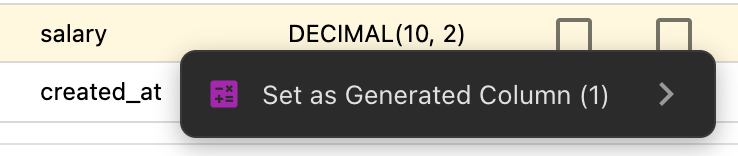
Only text-type columns can be designated. In tables and ERDs, only text types such as VARCHAR and TEXT are eligible. Numeric types like DECIMAL and INT, as well as date and boolean types, are not, so "Mark as sensitive" doesn't appear in the right-click menu for them. Sensitive data—national ID numbers, phone numbers, emails, and the like—is mostly text, and the restriction keeps masked values consistent to edit as plain text.
PK · FK columns cannot be designated. Primary and foreign keys are the basis for editing and joins, so if an already-designated column later becomes a PK/FK, its sensitive designation is removed automatically.
Where masking applies

For masking-target roles, sensitive column values come through as **** across all of the paths below.
- SQL editor result grid
- AI query results — the AI model also receives only
****, never the original. - Result export — files exported as CSV, Excel, etc. also store the masked value.
- Preview panel
Editing a masked cell
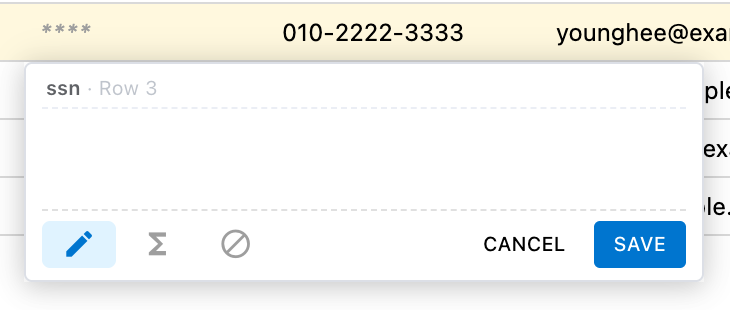
A masked cell does not show the original, so opening the editor starts with an empty value. Saving without entering anything leaves the value unchanged; entering a new value runs an UPDATE with it. In other words, the old value is never revealed even while editing. Note that a masked column used as a primary key (PK) cannot be edited.
What gets masked
Not only the value of a sensitive column queried directly, but also results derived from it (a substring, a concatenation with another value, etc.) are hidden as much as possible. When in doubt, it errs toward preventing exposure.
Notes & limits
- Works only in online team projects; it does not apply in offline (personal) mode.
- The owner and full-permission roles are never masked under any circumstances.
- If no role is a masking target, column designation is disabled.
- PK · FK columns are automatically excluded from designation.
- Only the owner can unmark a designation.