MCP Settings Guide
How to connect the NeoSQL Desktop app to an external MCP client.
Note: MCP settings are shown only in the Desktop app and cannot be configured from the Web App.
MCP Setup
How to set up MCP clients to use NeoSQL's AI features.
Open MCP Settings
Open the target project in the NeoSQL Desktop app, then open MCP settings from the project screen.

Configure Access and Defaults
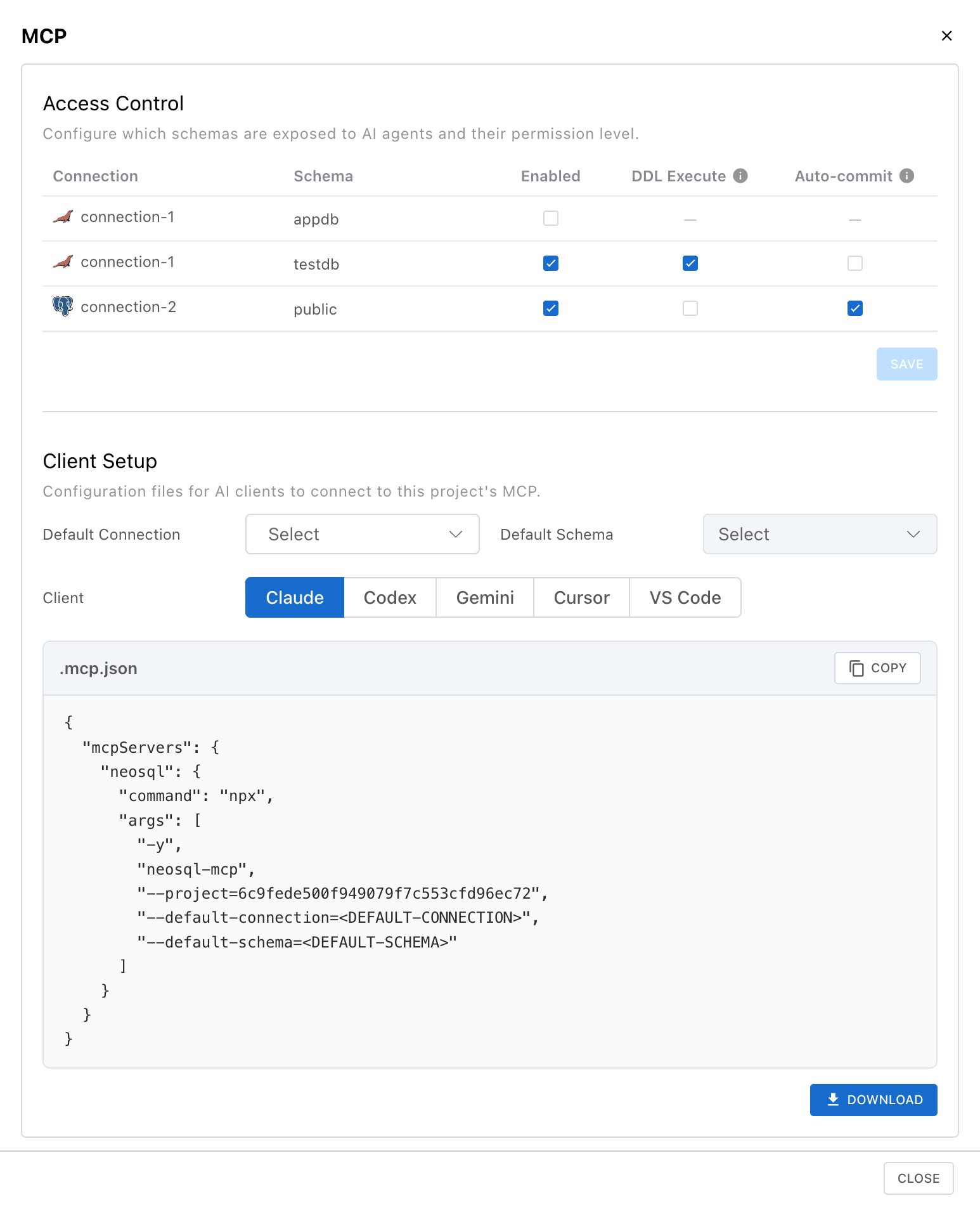
In Access Control, enable the connections and schemas exposed to AI, and set DDL Execute and Auto-commit policies per schema. In Client Setup, choose the default connection and schema used in the generated config file.
Copy or Download Client Config
In Client Setup, choose the client, Default Connection, and Default Schema, then copy or download the generated config. The selected default connection and schema are used first, but AI can also use other connections and schemas allowed in Access Control.
Note: Only project owners can change access and policy settings.