Gallery & Embed Viewer
Share your ERD on the gallery for other users, or embed it in external websites using the embed viewer.
Public ERD Gallery
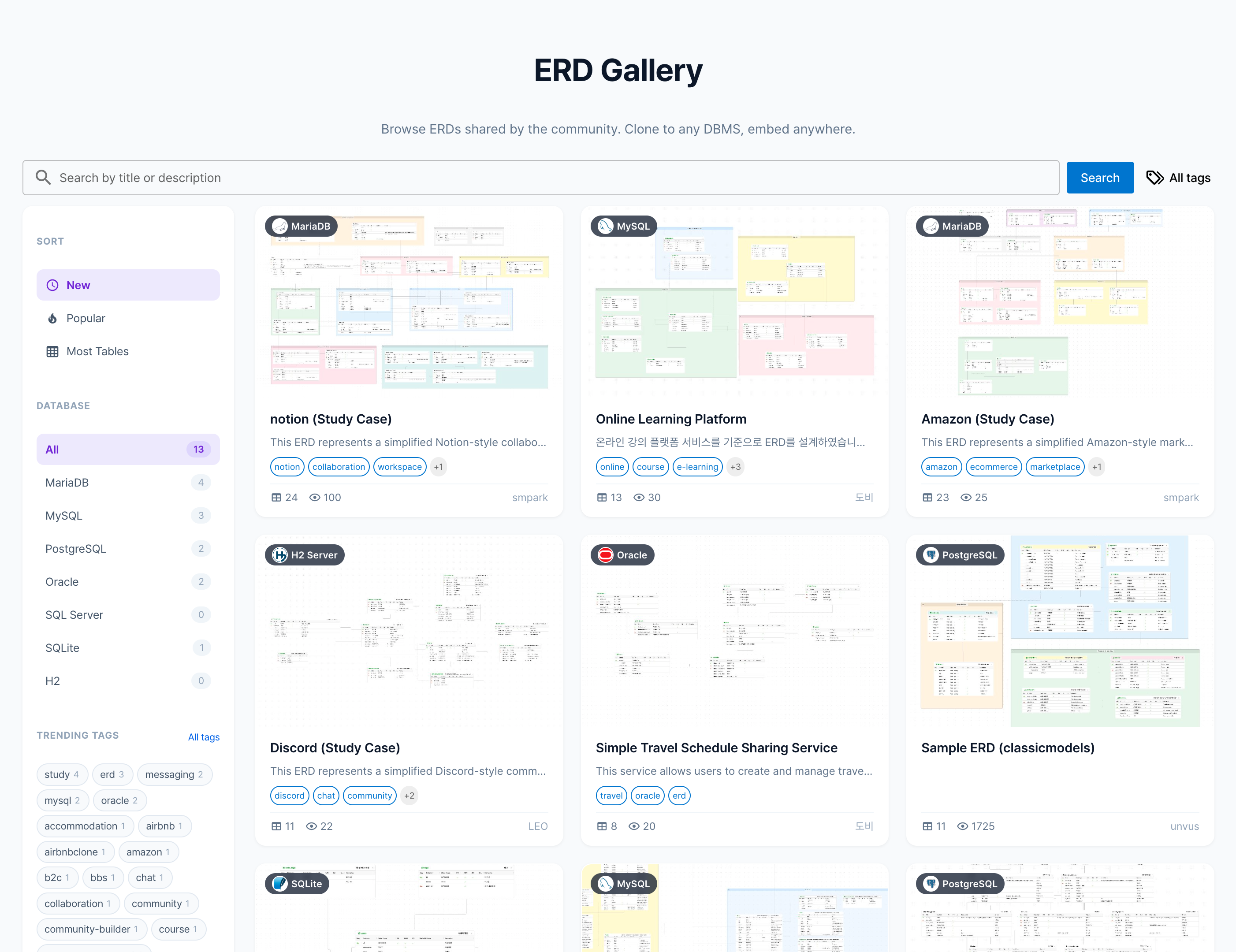
The gallery is a space where you can browse ERDs shared by NeoSQL users. Explore various database designs or import them into your own project.

Browse & Search the Gallery
Browse publicly shared ERDs as cards on the gallery list page.
| Feature | Description |
|---|---|
| Keyword Search | Search by keyword in titles and descriptions |
| Tag Filter | Click popular tags or select from the tag search modal |
| DB Type Filter | Filter by MariaDB, MySQL, PostgreSQL, Oracle, SQL Server, SQLite, H2 |
| Sort | Sort by Recent, Popular, or Table Count |
Each card shows the ERD cover image, title, tags, author, and view count. Click a card to open its detail page.
Publish Your ERD to the Gallery
You can publish a private ERD from the NeoSQL app to the gallery.
Open the ERD Info Panel
Click the More dropdown in the info panel of the ERD you want to publish.

Select Publish to Public
Click the Publish to Public menu item.
Enter Publication Details
Enter a title (required), description, and tags (up to 10, each up to 20 characters).

Set Cover Image
Use the Use Current ERD Snapshot button to auto-capture the current canvas, or Upload Image to set a custom cover. A cover image is required.
Publish
Click the Publish button to make it public on the gallery.
After publishing, you can update the title, description, tags, and cover image via the Update Gallery menu.

Clone a Public ERD to Your Project
Click the Clone to My Project button on the gallery detail page to copy the ERD to your own project.
Request Clone
Click the Clone to My Project button on the gallery detail page. If you are not logged in, you will be redirected to the login page first.

Open in App
Click OK in the confirmation modal to create a clone request. After completion, click the Open in App button to launch the NeoSQL app. If the app is not installed, a link to open in the web app will be provided.

Select Target (Project → Connection → Schema)
When the clone wizard opens in the app, select the destination in 3 steps. Click Project, Connection, and Schema from left to right. The currently open project is selected by default, but you can choose a different one.

Preview Conversion
Click Next to preview the list of tables and FK relationships to import. If the source ERD and target connection use different DBMSs (e.g., MySQL → PostgreSQL), data types are automatically converted, and warnings are shown if there are conversion notes.

Apply
Click the Apply button to schedule the clone. When you enter the project, the ERD is automatically created and progress is shown in a modal. After completion, click the Open ERD button to navigate directly.

Unpublish (Make Private)
To make a published ERD private again, select Unpublish from the More menu in the ERD info panel. The ERD is immediately removed from the gallery after confirmation.
Unpublishing also disables any embed viewer links for that ERD.

Public ERD Embed Viewer
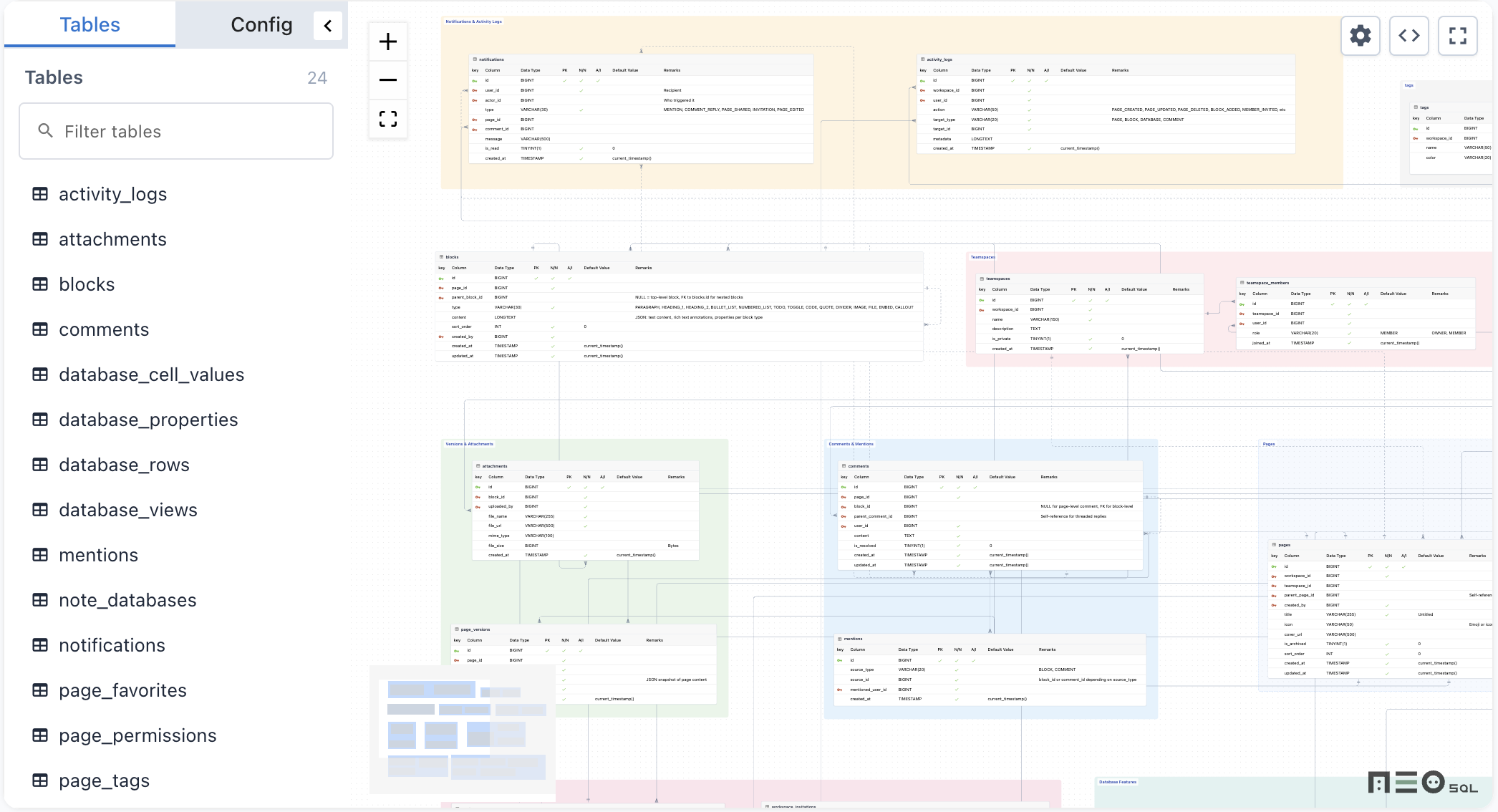
Published ERDs can be embedded in blogs, technical docs, internal wikis, and other external web pages via an <iframe> tag. The embed viewer is read-only and supports table structure browsing and DDL viewing.
Embed URL
Click the Share button on the gallery detail page to open the share modal. Copy the iframe code from the Embed tab.

Embed Options
| Option | Description | Default |
|---|---|---|
| Width | iframe width in px | 800 |
| Height | iframe height in px | 400 |
| Table Panel (panel) | Show/hide the left-side table list and settings panel | On |
| Open by default (panelOpen) | Whether the panel starts expanded | Off |
| Minimap (minimap) | Show/hide the minimap at the bottom-right | On |
| Controls (controls) | Show/hide zoom in/out and Fit View buttons | On |

Save Initial Viewport Position
In the preview area at the bottom of the share modal, move the canvas to the desired position and leave it there. The viewport coordinates are automatically applied to the iframe code, so the embedded ERD always starts at the specified position.
When the viewport is captured, a "Viewport set" tag is displayed. Changing options resets the viewport capture and reverts to Fit View.

iframe Code Example
<iframe src="https://neosql.unvus.com/app/embed/erd/123?panel=1&minimap=1&controls=1" width="800" height="400" frameborder="0" title="NeoSQL ERD" allow="clipboard-write" allowfullscreen></iframe>In the Link tab, you can also copy the gallery detail page URL directly. Social sharing buttons (X, Facebook, LinkedIn, etc.) are also available.
Embed Viewer Features
Features available in the embed viewer.

Table List Panel
View all tables in the ERD from the Tables tab in the left panel. Type a table name in the search field at the top to filter in real time.
Table Select / Focus
Click an item in the table list to auto-scroll the canvas to that table node (focus). Clicking a table node directly on the canvas also syncs the selection in the left panel.

Column Display Settings
In the Config tab of the left panel, choose which column properties to display on table nodes. Toggle PK, column name, data type, nullable, comment, etc., and drag to reorder.

View DDL
Click the DDL button at the top-right of the viewer to view CREATE TABLE DDL for all tables in a modal. The DDL is generated for the ERD's DBMS type. Use the Copy button to copy to clipboard. Foreign keys are output separately as ALTER TABLE statements at the bottom.

Minimap Toggle
The minimap is a reduced overview displayed at the bottom-right of the canvas. Control its visibility with the minimap URL parameter.
Controls (Zoom / Fit View) Toggle
Control the visibility of zoom in/out and Fit View buttons with the controls URL parameter. Mouse wheel zoom remains available even when controls are hidden.