
Workspace (Plan Sharing) NEW
Share one subscription with your whole team. Invite workspace members so they can create projects directly under the owner's plan.
Overview
A workspace lets the billing account (owner) invite members to share a plan. Members create projects with the owner's plan limits and features — and only the owner pays.
| Term | Description |
|---|---|
| Owner | The subscription (plan) holder. One per workspace, with access to every project under the workspace. |
| Member | A user who accepted an invitation. Members can create projects directly under the owner's plan. |
| Seats (workspace members) | The number of members you can invite. Active members and pending invitations occupy seats; the owner and suspended members do not. |
| Project limit | Projects that members create under the workspace count toward the owner's project limit — not the member's own. |
See seats per plan on the pricing page.
Note: The FREE plan cannot invite members. Being invited as a member is available on any plan.
Inviting Members
Owners invite members by email or nickname from My Page.
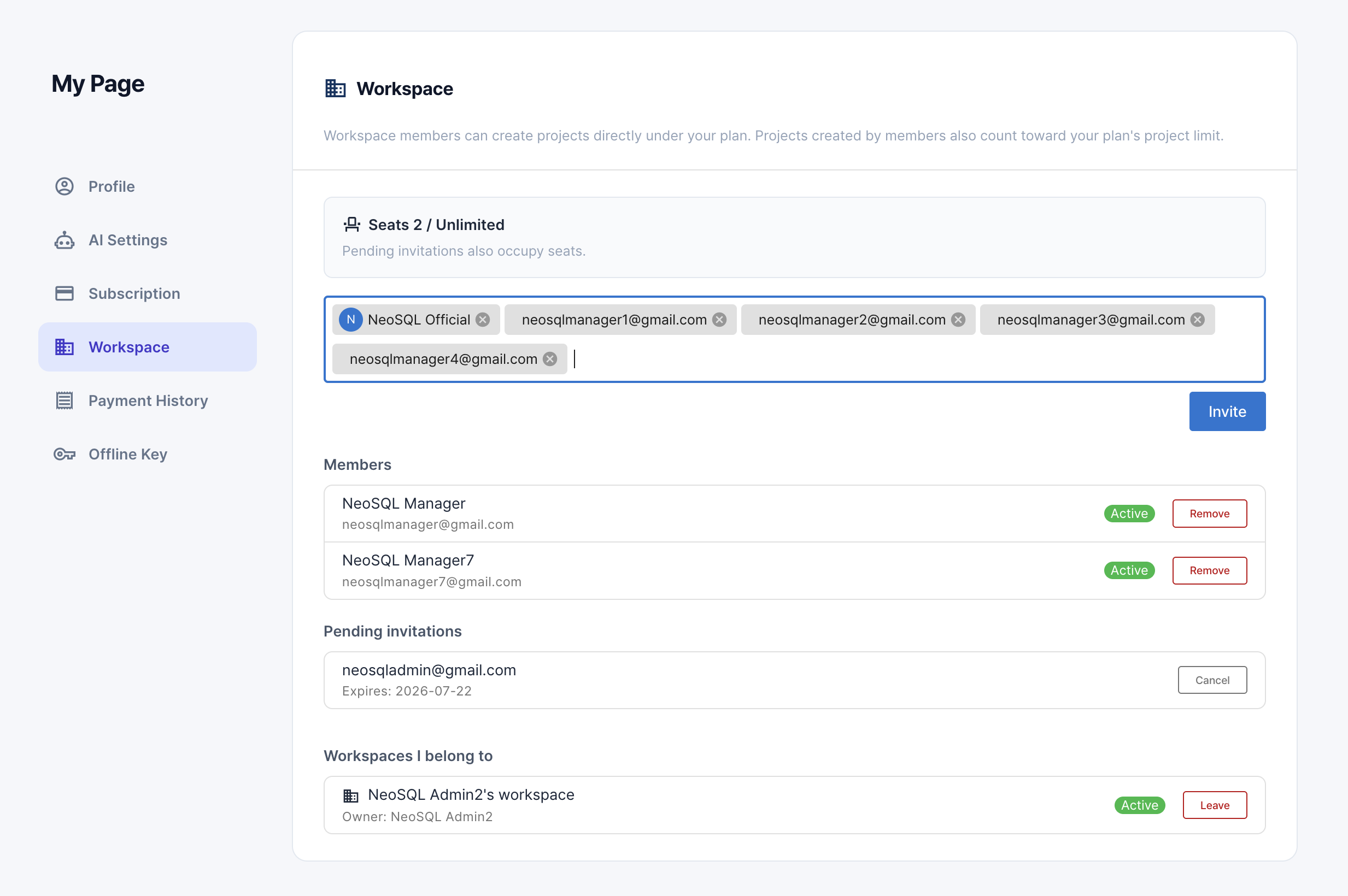
Go to My Page → Workspace
Open My Page from the profile menu and select Workspace in the left menu.
Enter the members to invite
Search for a nickname and select it, or type an email address directly, then click Invite. You can add several people at once, mixing nicknames and email addresses.
Accept the invitation
An invitation email is sent to the target, and if they already have an account, an in-app notification is sent as well. The invitee accepts via the link and becomes a member.
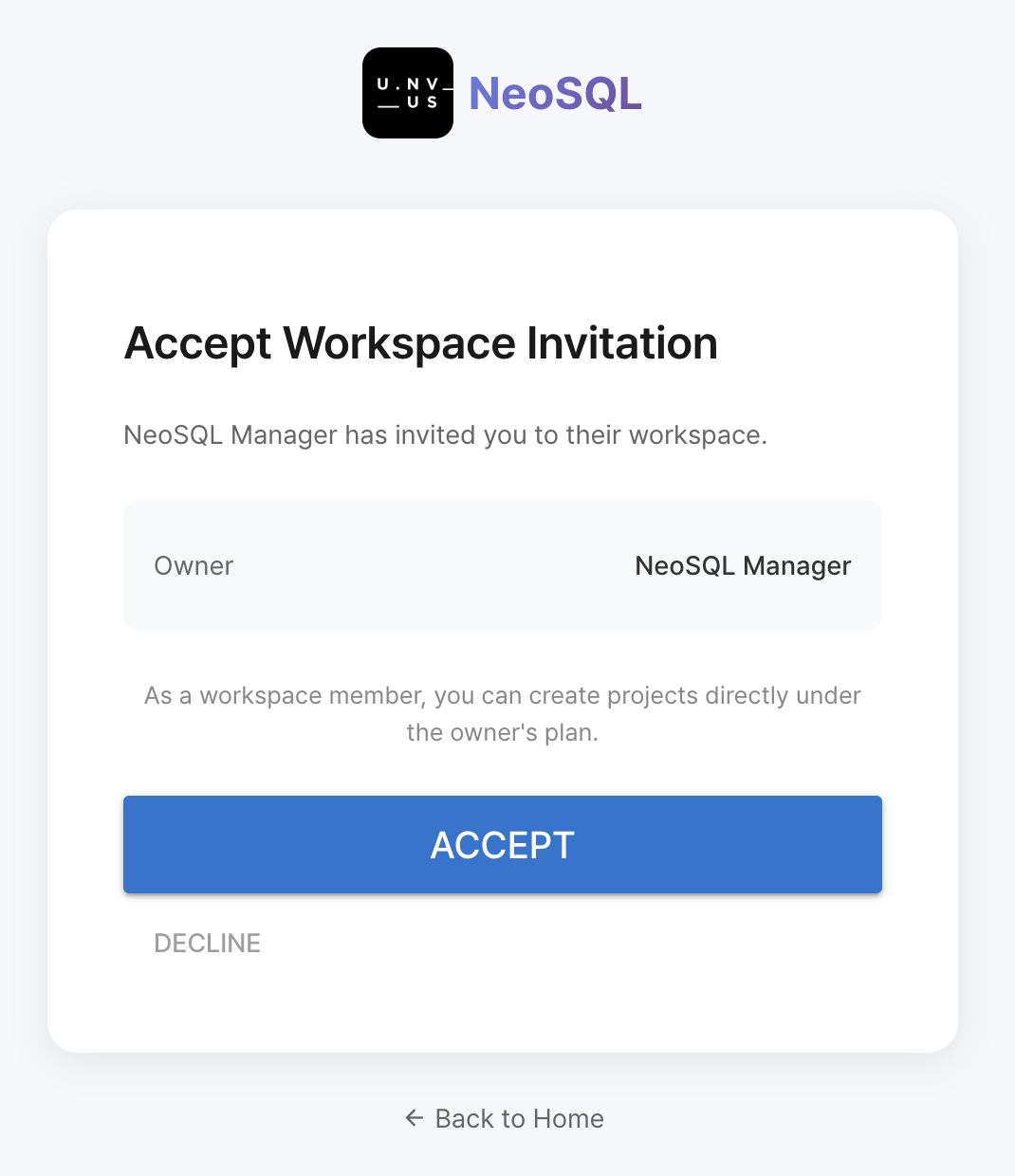
Note: Invitations expire after 7 days and can only be accepted with an account using the same email address that was invited. Pending invitations can be cancelled at any time. No invitation is sent to someone who is already a member or to your own email, and re-sending an existing pending invitation simply extends its expiry by another 7 days.
What Members Can Do
When creating a project, members choose an affiliation to create it under the owner's plan.
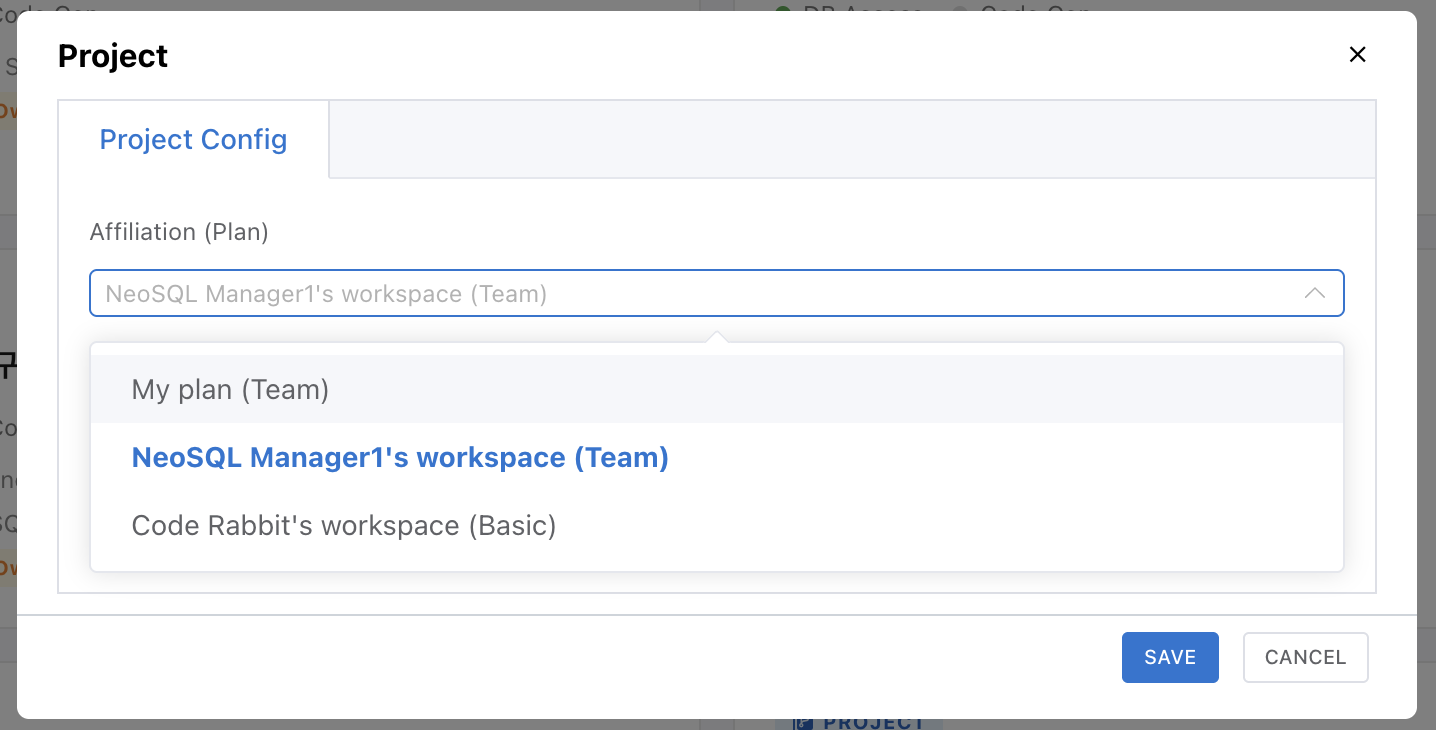
In the new-project dialog, select your workspace in the affiliation (location) dropdown. The project's limits (DB connections, ERD tables, etc.) and features then follow the owner's plan. The dropdown lists "My plan" and each workspace you belong to, along with the owner's plan name and project usage (e.g. 5/15).
The member is the OWNER of projects they create, so all existing project features — like inviting project members — work as usual.
Members do not automatically see each other's projects. To collaborate, invite teammates to the project.
One account can belong to multiple workspaces at the same time — just pick the affiliation when creating a project.
Workspace Owner Permissions
The owner can access every project under the workspace — including those created by members — with OWNER permissions.
Projects members create under the workspace appear automatically in the owner's project list — no separate sharing needed. The owner can open them directly to edit, manage project content such as DB connections and ERDs, or delete the project.
The owner is also notified when a member creates or deletes a workspace project, and can jump straight to the project (on creation) or the dashboard (on deletion) from the notification. Since members can delete projects with OWNER permissions, this notification is a safeguard so the owner doesn't miss the change.
Note: Projects a member creates under a different plan of their own (such as their personal plan) — rather than under the workspace — are not visible to the owner. Only projects created under the workspace appear in the owner's list.
Member Status
Workspace members have one of two states.
| Status | Description |
|---|---|
| Active | Occupies a seat and can create new workspace projects under the owner's plan. |
| Suspended | Does not occupy a seat. Cannot create new projects, but keeps OWNER permissions and access to projects already created. Can be re-enabled once a seat becomes available. |
Note: Suspension usually happens when a plan downgrade exceeds the seat limit. Pending invitations are a separate "pending" state and expire after 7 days.
Managing Members
Remove members or re-enable suspended members from the Workspace page in My Page.
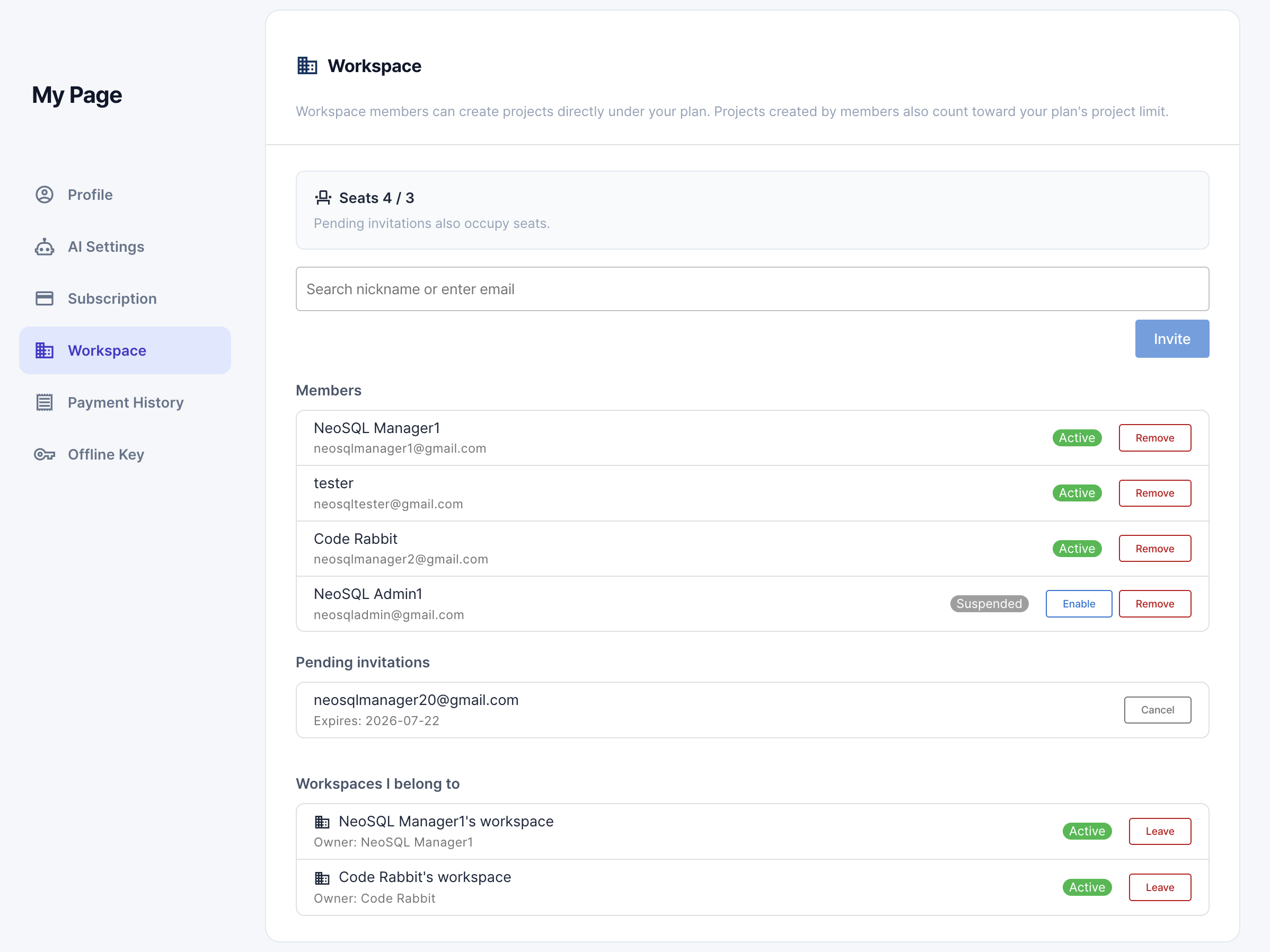
| Action | What happens |
|---|---|
| Remove a member | Workspace projects they created stay on the plan, and ownership transfers to the owner. The removed member loses access to those projects. |
| Member leaves | Members can also leave from the "Workspaces I belong to" list in My Page. Handled the same as removal. |
| Enable a suspended member | Once a seat becomes available, suspended members can be re-enabled. |
Cleaning Up Members When Seats Are Exceeded
If you launch NeoSQL while over the seat limit, a member cleanup dialog appears automatically on the dashboard. Select the members to keep, within your seat limit, and click Apply Cleanup — members you do not select are switched to Suspended, and re-selecting a suspended member restores them to Active. The dialog closes only once the cleanup is applied.
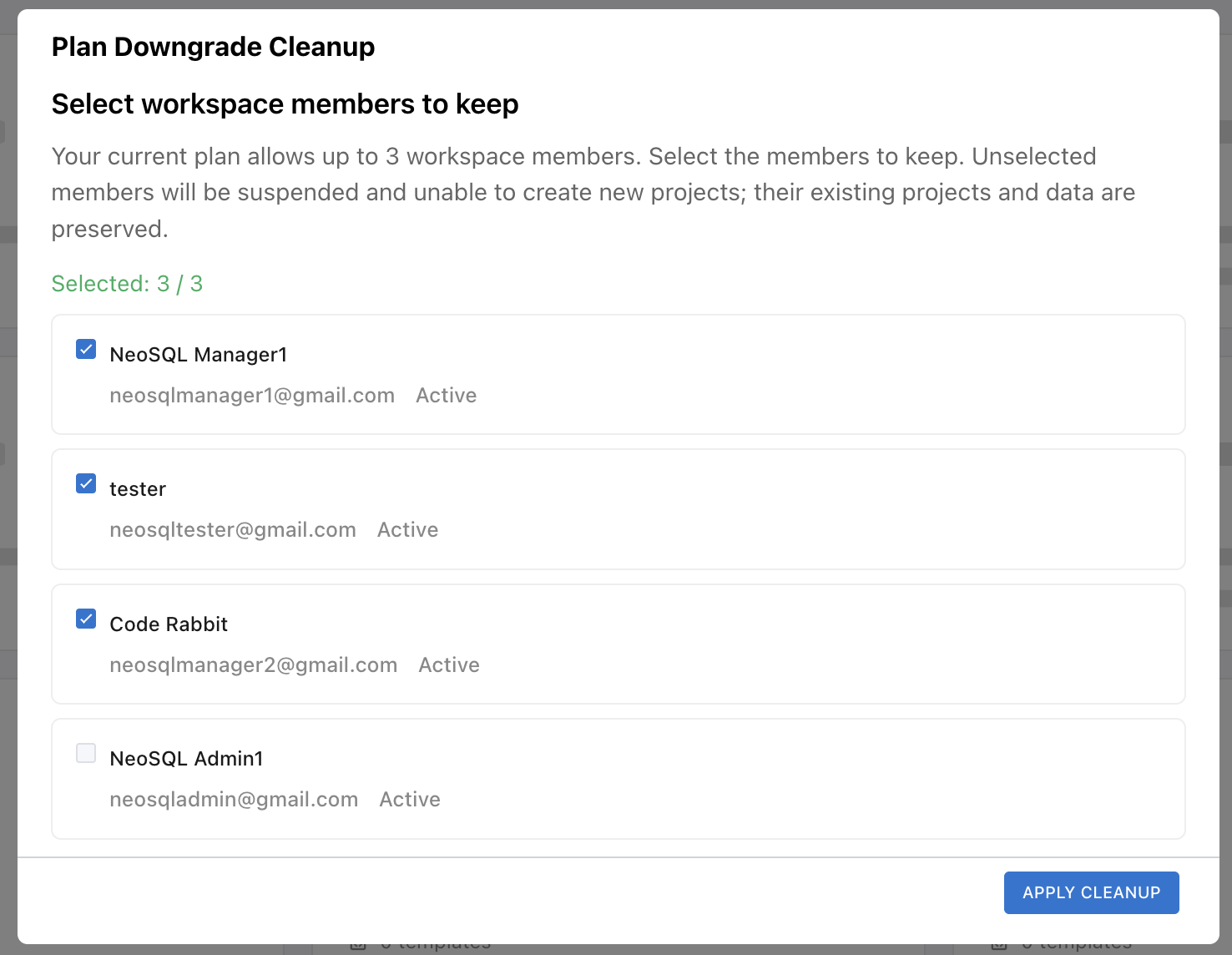
When you downgrade or cancel, seats and member states are cleaned up as follows.
| Event | Policy |
|---|---|
| Downgrade exceeds seats | You choose which members to keep; the rest become Suspended. |
| Suspended members | Cannot create new workspace projects, but keep access to existing projects and data. |
| Subscription cancelled / expired | The workspace feature is disabled and members lose access to workspace projects. |