
Adding tiles from presets
Pick metrics whose per-DBMS query is already settled — live sessions, slowest queries, storage — from the built-in catalog.
The preset gallery
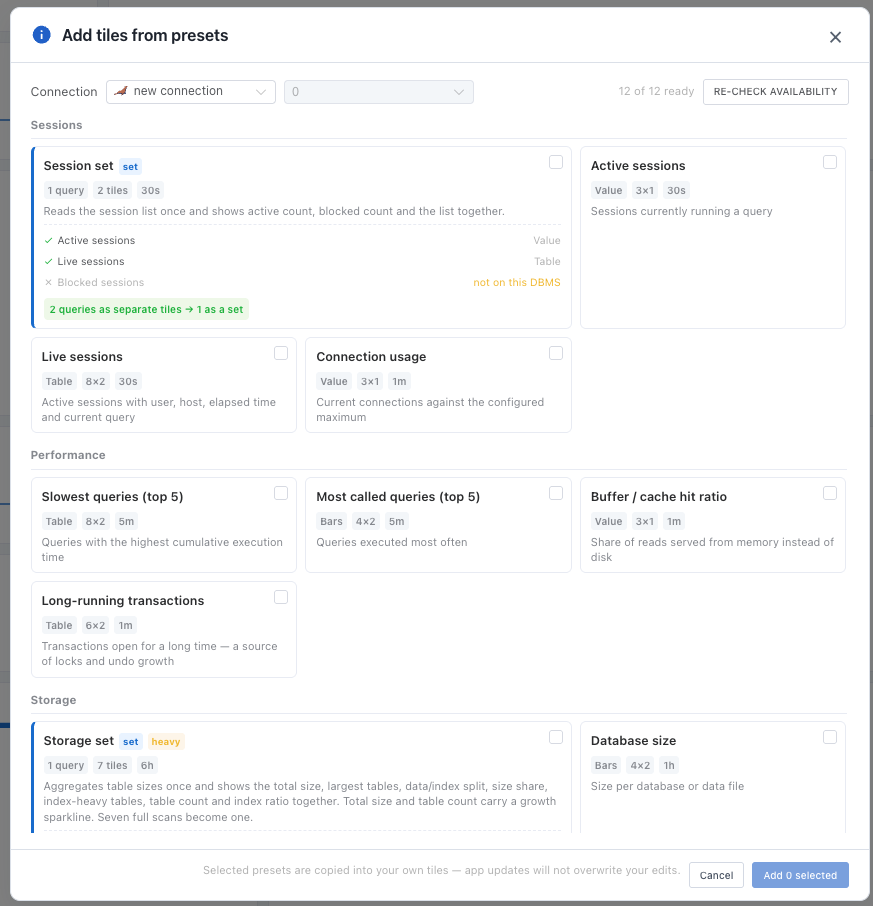
Open it with the [Presets] button on the toolbar. On a dashboard with no tiles, [Start from presets] opens it too.
Pick a connection and a schema — preset SQL differs by DBMS and version.
Click the cards you want. Several can be selected at once.
Press [Add n selected] and the tiles go into the dashboard.
The catalog is divided into Sessions / Performance / Storage / Health / Schema quality.
The catalog includes Active sessions, Live sessions, Blocked sessions, Connection usage, Slowest queries (top 5), Buffer / cache hit ratio, Long-running transactions, Tablespace usage, Largest tables (top 10), Dead tuple ratio, Replication lag, Tables without a primary key and Unused indexes, among others; which ones are available differs by DBMS.
Each preset brings its own default interval and size — Live sessions at 30 seconds, Slowest queries at 5 minutes, and heavy metrics such as full catalog aggregations (marked heavy) at 10 minutes or more. All of it can be changed in the tile settings.
Availability check
Many presets simply fail without the right permission, extension or setting. So when the gallery opens, each preset runs one light probe query, and only the ones you can use right away are shown as enabled.
The ‘n of m ready’ count in the header is that result. After fixing a permission or a setting, check again with [Re-check availability].
A greyed-out card says why it cannot be used. Common reasons:
- The
pg_stat_statementsextension is required (CREATE EXTENSION). performance_schemamust be enabled — MariaDB has it off by default.- Access to Oracle’s
v$dynamic performance views or to DBA views is required (SELECT_CATALOG_ROLE). - The SQL Server
VIEW SERVER STATEpermission is required.
If there are no presets for that DBMS yet, the list says so.
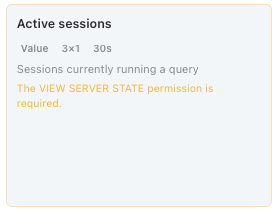
Skipping the availability check and adding everything would leave half the dashboard as red error tiles. Greyed-out cards cannot be selected.
Sets — several tiles from one query
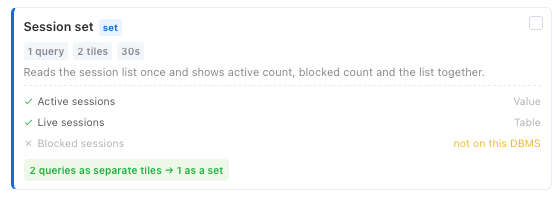
A card with the set badge feeds several tiles from the result of a single query. The Session set, for example, reads the session list once and fills the active count (a number), the blocked count (a number) and the list (a table) together.
Keeping the same metric in separate tiles sends that many queries every cycle. A set reads once and shares, so with the Storage set what used to be seven full aggregations becomes one.
The card lists the tiles it will add, and a member that cannot be used on that DBMS is marked <strong>not on this DBMS</strong>.
To edit the settings of a set member you have to [Detach from set] — the tile then owns its own query, and one more query goes out per cycle.
A detached tile keeps the calculation the set was using (row count, one value of the first row, sum, ratio and so on) as its Computed value. Clearing it uses the result as-is.
Presets are copied
Adding a preset copies its definition into a tile of your own. No link to the original remains, so edits you make to the SQL are not overwritten when the app updates.
Using a preset as a starting point and adapting the query to your environment is the intended way to work — adding a WHERE to the table-size preset so that it aggregates one schema only, for instance.