
Auto run and result history
When scheduled runs happen and what stops them, how to read a tile’s footer, and where the change indicator and the sparkline come from.
Setting the interval
Intervals come in two layers: the dashboard default and a per-tile setting.
- The Auto run switch on the dashboard toolbar is the master switch, and the number beside it is the default interval in seconds.
- A tile either follows the default or has its own interval — chosen under Schedule in the tile settings.
- The minimum interval is 30 seconds.
- Tiles run only while the app is open and that dashboard tab is visible. Tiles skipped while you were on another tab run once ahead of schedule when you come back.
Separately from auto run, the refresh button in a tile header runs that tile once, and [Refresh all] on the toolbar runs every tile of this dashboard.

Load control
Auto run spends both a production DB and your own PC, so several caps are layered on it.
| Cap | Value | Why |
|---|---|---|
| Concurrent runs | 3 across the app | Keeps the SQL editor run you just pressed from queueing behind tiles. |
| Per connection | One at a time | Keeps several tiles from hitting the same DB at once. |
| Auto-run tiles | 50 across the app | Tiles past the cap are demoted to manual. Limiting concurrency alone would only lengthen the queue without capping total load. |
| Recommended per dashboard | 30 | Past that NeoSQL warns but does not block. |
| Per-run limit | 60 seconds (80% of the interval for scheduled runs) | A query that never answers holds a slot and makes every refresh look unresponsive. It has to be shorter than the interval so that one run does not overlap the previous one. |
Stopped tiles
A tile whose auto run has stopped says why in its footer.
- stopped after error — when a run fails, auto run for that tile stops, so a failing query is not sent again every cycle. Running it once with the refresh button still works; auto run is re-armed when you leave the tab and come back, or when you touch the auto-run switch or the interval again.
- over the auto-run cap — demoted to manual — the app has more than 50 auto-run tiles and this one was moved to manual. Turning auto run off on other tiles lets it run automatically again.
Errors are shown in the same view as in the SQL editor — the error message, the SQL and AI error analysis all carry over.
A query that does not finish in time is cut off with ‘The query did not finish within the time limit’. Simplify the SQL or lengthen the interval.
Reading the tile footer
The line under a tile gathers that tile’s status.
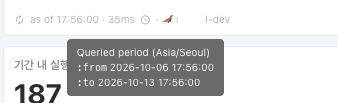
| Marker | Meaning |
|---|---|
| ↻ icon | The tile is on auto run. Hovering shows the interval. No icon means it is manual. |
| as of · ms | When the last successful query ran, and how long it took. |
| · in ns | The time left until the next automatic run. |
| · queued | The scheduled time has passed, but the tile is waiting its turn because of the concurrency cap. |
| Clock icon | Marks that this tile alone queries the period in your timezone. Hovering shows the :from and :to values actually bound. |
| Connection name | The connection this tile reads from. |
Next refresh on the toolbar is based on tiles that follow the default interval. Tiles with their own interval count down in their own footer.
A tile that has never run says ‘Not run yet’. Once a value has arrived, the previous value stays drawn while refreshing — blanking the screen every cycle would just make it flicker.
Result history and trends
Desktop keeps tile results on this device. The change indicator and the sparkline on Value tiles come from that history.
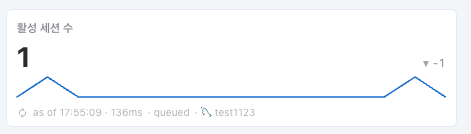
| Marker | Meaning |
|---|---|
| ▲ 12% · ▼ 3% · — | The change against the previous value. It states direction only and does not color-code good or bad — whether a metric going up is good cannot be known from the SQL. |
| Sparkline | The flow of recent values. Up to the last 40 points, and only when the tile is 3 columns or wider. |
On the Web there is no result store, so only the current value and the one before it are kept — no sparkline.
Retention follows the same policy as the SQL execution history. Tiles with very large results (a table with many rows, for instance) are not stored, so after restarting the app such a tile is empty until its first run.
A trend only accumulates while the dashboard tab is open and running. Values from while the app was closed are not kept.