Generate Sample Data

Generate test INSERT statements from the structure and relationships of a physical ERD table, then review or run them under the current execution policy.

Before you start

Sample Data works with an ERD table connected to a real database.

  • You need an active AI provider key.
  • The project ERD must be connected to an active real database Connection and database/schema.
  • The target must be a regular table that exists in the database. Views, system tables, tables marked for deletion, and virtual tables that have not been applied to the database cannot be used.

Note: Even when multiple tables are selected, only the table you right-click is used as the Sample Data target.

How to use it

Start Sample Data generation from a table's context menu in the ERD.

1

Check the execution policy

To review generated INSERT statements before execution, verify that the project owner configured DML for the target schema as ‘Confirm before execution.’

2

Select the target table

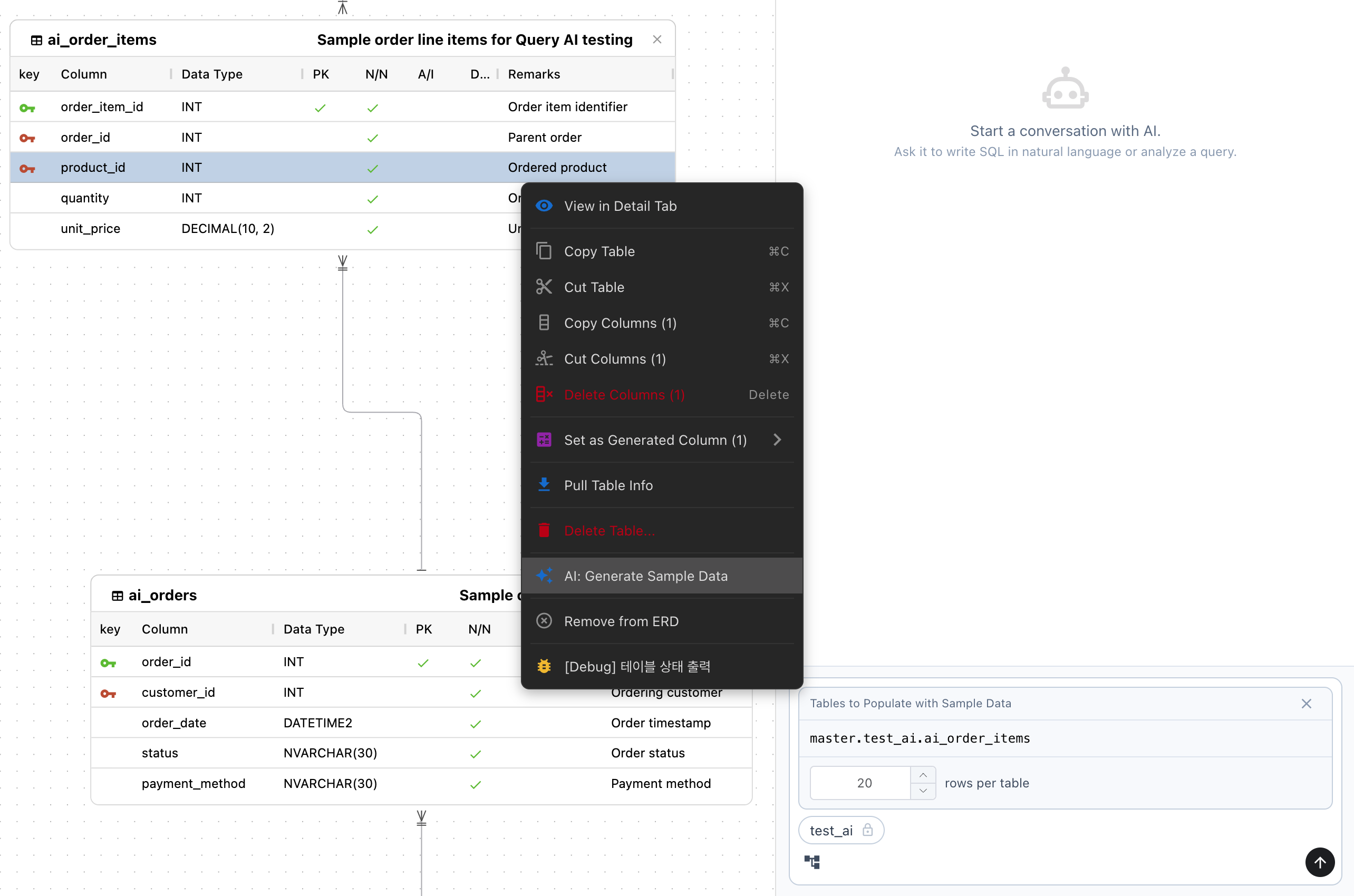
Right-click a physical table in the ERD and select ‘AI: Generate Sample Data.’

3

Confirm a session switch

If the current AI session uses a different database context, confirm creation of a new session. Your previous conversation remains available.

4

Verify the target and row count

Verify the read-only table name shown in AI Chat and enter the number of rows to generate. The default is 20, and the value must be a positive integer.

5

Send and review the INSERT statements

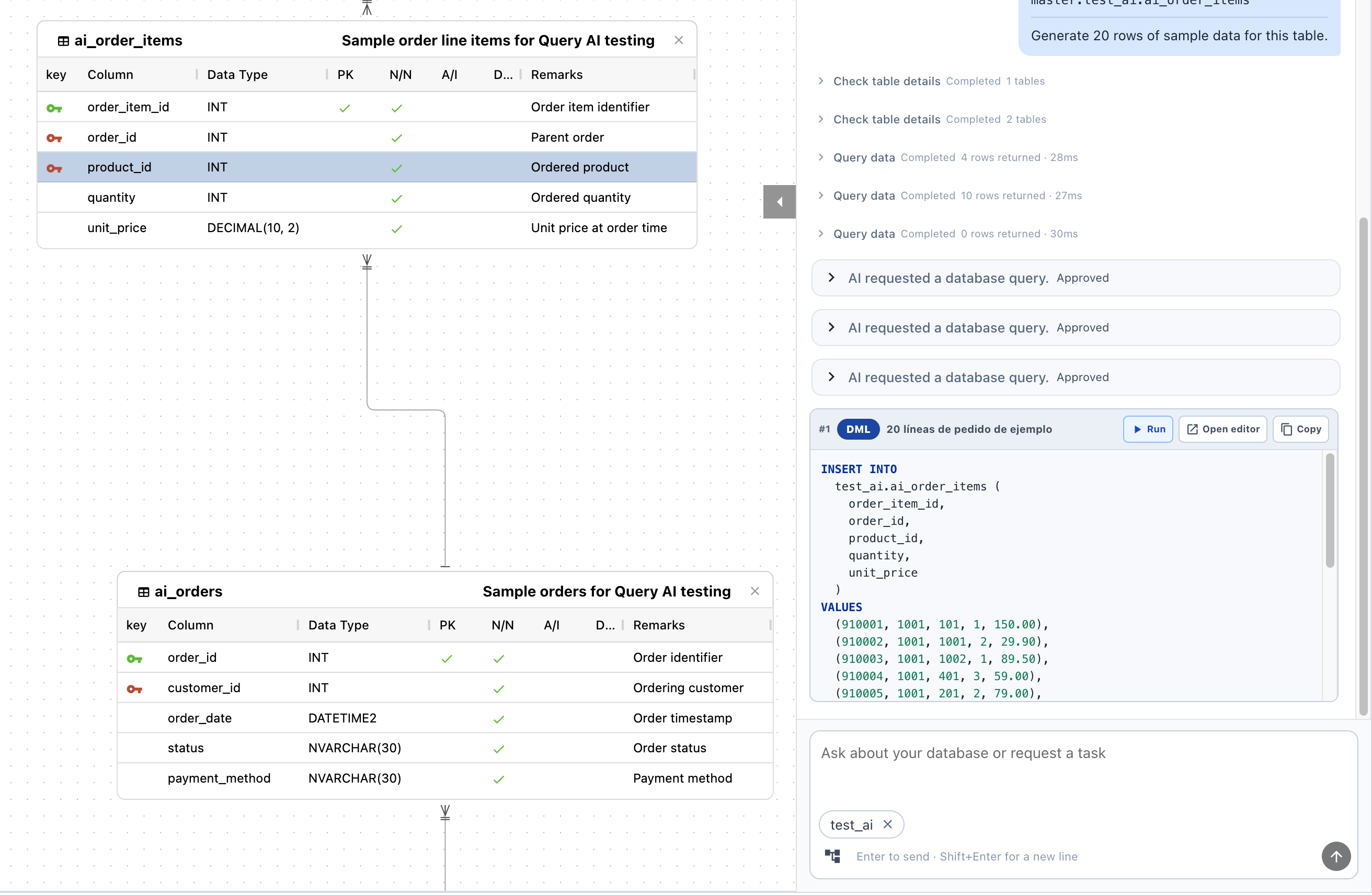
Send the request, then review the columns, values, and row count in the generated INSERT statements. Use the AI SQL Editor to inspect execution decisions and results. When safe generation is not possible, the answer may show a limitation instead of an INSERT statement.

Starting AI Sample Data generation from an ERD table context menu

Target and session context

The target table and row count are fixed in a dedicated attachment for the Sample Data request.

  • The target shows the complete database/schema and table name from the Connection and cannot be edited directly.
  • The default row count is 20 and can be changed to any positive integer.
  • When the active AI session has the same database context, the existing session and the provider key locked to that session are reused.
  • When the context differs, a new session is created for the target Connection and database/schema. The available primary provider key is selected first.
  • Removing the attachment cancels the Sample Data request and returns the input to regular AI Chat.

Real data lookup and protection

Limited real database values may be sent to your selected provider to produce valid foreign key values and avoid candidate duplicates.

  • The request uses necessary metadata such as columns, keys, unique constraints, and foreign keys for the target and related tables.
  • Only read-only query results needed for parent foreign keys or explicit primary and unique key candidates are used.
  • When the internal SELECT tool requires approval, an approval card appears in Chat. With Always allow, the lookup continues automatically.
  • Each internal lookup is limited to 10 rows and 30 seconds, with sensitive-data masking according to the configured policy and response-size limits. LOB and binary column values cannot be queried.
Caution:

Even with masking and lookup limits, real data may be sent to an external provider. Prefer a test database, and avoid generation when the schema requires real personal data or secrets.

Generated SQL and execution policy

The AI is instructed to generate the requested number of INSERT rows for the specified table. The client does not separately validate the final SQL, so review it before execution.

  • The request sends only the table you right-clicked as the INSERT target and does not ask for INSERT statements for related parent tables.
  • For foreign keys, the AI may query a limited set of real parent key values that can be referenced.
  • The AI may check explicit primary or unique key candidates against current data, but this does not guarantee uniqueness across concurrent execution.
  • Review the columns, values, row count, and constraint compatibility before running the generated SQL.
AI-generated Sample Data INSERT statements and execution result
Caution:

INSERT execution follows the DML policy for the target Connection, database, and schema together with the Connection protection policy. Even when DML is configured to run automatically, a Connection not marked as a Test DB by the server requires confirmation, and read-only or protection policies can block execution. Each statement uses Auto Commit, so only some INSERT statements may be applied and the regular SQL Editor's Rollback cannot undo them.

Database constraints: The AI performs validation where possible. Constraints, triggers, defaults, and generated columns evaluated by the database at execution time are authoritative.

Troubleshooting

If the menu is missing or the request cannot be sent, check the following.

  • If the menu is missing, confirm that the target is a regular physical table and that its real Connection and database/schema are valid. Views, system tables, and tables marked for deletion are not supported.
  • If you selected the action for a virtual table, apply the ERD changes to the real database first, then try again.
  • If Send is disabled, verify that the row count is a positive integer, an active provider key is available, and no key loading or other AI operation is in progress.
  • Canceling the new-session switch also cancels the Sample Data request. Your current conversation remains available, so start again from the table when needed.