
Dashboard overview
Pin the check queries you used to re-run by hand every day as tiles, and have them re-run automatically at the interval you set.
What it is made of
A dashboard has four parts. The tile is the real unit; a dashboard is the document the tiles are arranged on.
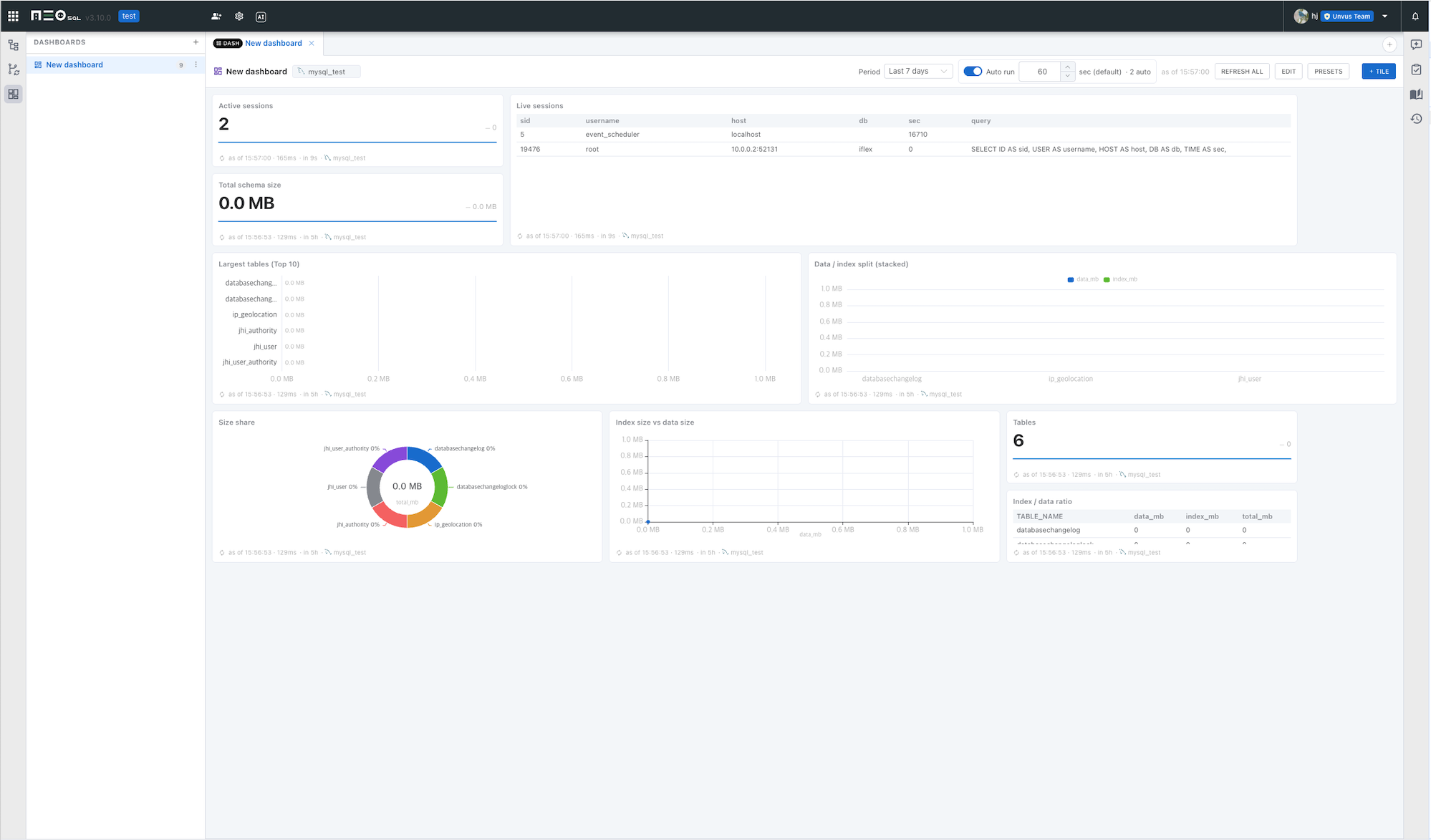
| Part | Description |
|---|---|
| Dashboard document | A project document alongside ERDs and SQL. You can create several per project and keep them open in tabs at the same time. |
| Tile | A connection + one SELECT + a display type + a size + an interval. The connection belongs to the tile, so one dashboard can mix tiles that read a production DB with tiles that read another one. |
| Layout | The slot a tile takes on a 12-column grid, and its width and height. |
| Preset catalog | Ready-made tiles for metrics whose per-DBMS query is already settled — Live sessions, Slowest queries, Tablespace usage and so on. |
The dashboard is not an attempt to replace a BI tool. Its purpose is to pin down the check queries you kept looking up and pasting again every day, on connections you have already set up, with SQL you already write.
How it differs from the SQL editor
Both run a SELECT, but they are used for different things.
- The SQL editor is for exploring once — you read the whole result grid, edit data, manage transactions and export.
- A dashboard is for watching the same question repeatedly — the result is compressed into one number or a few bars, and it records when the value was read.
A statement you were working on in the editor can be sent as it is: the [Dashboard] button on the SQL editor toolbar sends the current statement to a tile.
When it runs and when it stops
This feature promises exactly one thing — while the app is open and that dashboard tab is visible, tiles re-run at the interval you set.
- Tile queries are run by the app you are using right now, not by a server. A DB firewall is usually open only as far as the developer’s PC, so there is no server that could query on your behalf while the app is closed.
- That is why there is no absolute time such as ‘09:00 every day’ — only an interval in seconds. The word ‘interval’ states plainly that nothing runs while the app is closed.
- While you are looking at another tab the timers stop. When you come back to the dashboard, only the tiles that were skipped run once ahead of schedule — a safeguard so that a screen nobody is watching does not keep querying a production DB.
Where definitions and results are stored
A dashboard produces two kinds of data. They differ in nature, so they are stored in different places.
| Data | Stored in | Shared |
|---|---|---|
| Definition (dashboard, tiles, layout, intervals) | On the server for account projects, on this device for local projects | Project members see the same definition in an account project |
| Results (time read, value, elapsed time, errors) | Always on this device | Not shared |
Storing results as project data would replicate tens of thousands of changes a day to every teammate’s device when 20 tiles run on a 60-second interval. More to the point, pushing what my device observed onto someone else’s device makes no sense.
Results follow the same retention policy as the SQL execution history.
Differences by environment
| Environment | Behavior |
|---|---|
| Desktop | Keeps result history on the device. The change indicator (▲▼) and the sparkline on Value tiles come from that history. |
| Web | There is no result store, so only the current value and the one before it are kept. No sparkline. |
| Local project · signed out | The whole dashboard feature works just as it does elsewhere. Definitions are stored on this device. |
To build up a trend, leave the dashboard tab open. Result history accumulates only while the tab is open and running.