
Creating and configuring tiles
A tile is one SELECT. Its query, display type, display options, size and interval are all set in one dialog.
Ways to add a tile
All three ways lead to the same settings dialog.
- [+ Tile] on the toolbar — write it yourself in an empty dialog.
- [Presets] on the toolbar — pick from the built-in catalog.
- [Dashboard] on the SQL editor toolbar — sends the statement the cursor is in (or the selection) to a tile.
When sending from the editor you first pick which dashboard to add it to. If there is no statement to send (the cursor is outside any statement), it tells you.
At least one connection is required to create a tile.

The settings dialog
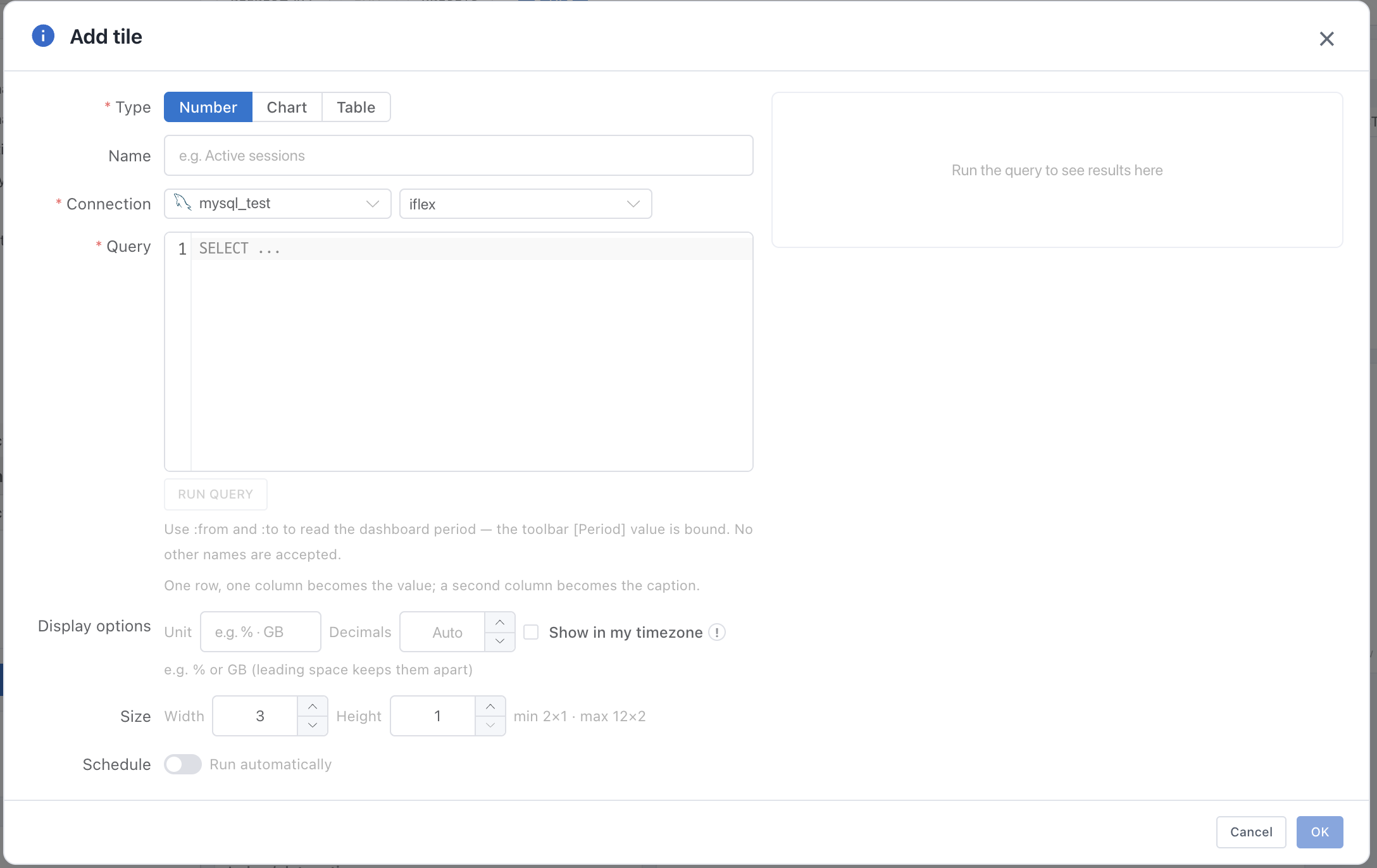
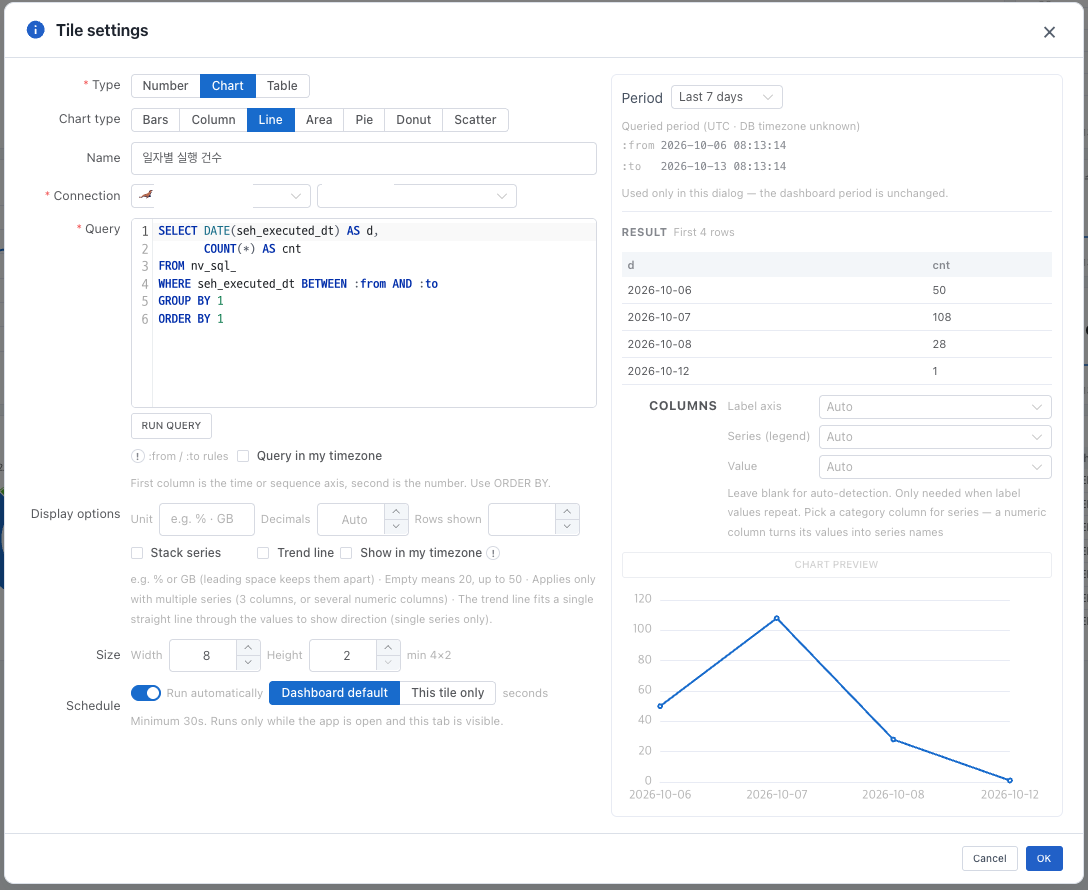
The left side is the tile definition, the right side is the preview.
| Item | Description |
|---|---|
| Type · Chart type | Choose Number, Chart or Table; for a chart, also choose the kind (Bars, Column, Line, Area, Pie, Donut, Scatter). |
| Name | Shown in the tile header. |
| Connection · schema | Where this tile reads from. Leaving the schema empty uses the connection’s default. |
| Query | One SELECT. It is saved only if it follows the rules below. |
| Computed value | Appears only on tiles detached from a preset set. It survives query edits; clearing it uses the result as-is. |
| Display options | Unit, decimals, rows shown and so on. Only the ones that apply to the chosen display type appear. |
| Size | Width (1–12 columns) and height (1–4 rows). |
| Schedule | Follow the dashboard default, or set an interval for this tile only. |
Query rules
A tile query accepts one SELECT (or WITH) statement only. Because it repeats on a schedule while nobody is watching, it is restricted more tightly than the SQL editor.
| Rejected input | Why |
|---|---|
| Two or more statements | Only one statement is allowed — this runs automatically on a schedule. |
| Does not start with SELECT or WITH | DML and DDL are not accepted. Commands such as SHOW and DESCRIBE cannot be used in a tile either. |
| A write statement after WITH | A write statement placed after a CTE, such as PostgreSQL’s WITH ... DELETE, is blocked too. |
An unknown :name | The only names the dashboard can supply are :from and :to. Any other name would be bound as empty at run time, leaving ‘why is the result empty’ unanswerable. |
- The check runs both when saving and right before each run — a definition can arrive by sync from another device or another app version.
- Tiles do not use a session; they run with autoCommit. A tile cannot leave a transaction open.
- At most 200 rows are fetched.
- Tile runs are not recorded in the SQL execution history — a tile running every 30 seconds would bury it.
- Masking policy applies through the same path as in the SQL editor. Sensitive columns do not appear raw in a Table tile.
Blocking statements that change data is a safeguard, not a limitation. The cost of recovering from ‘I only left the screen open and the data had changed’ is greater than the feature would be worth.
Result shape per display type
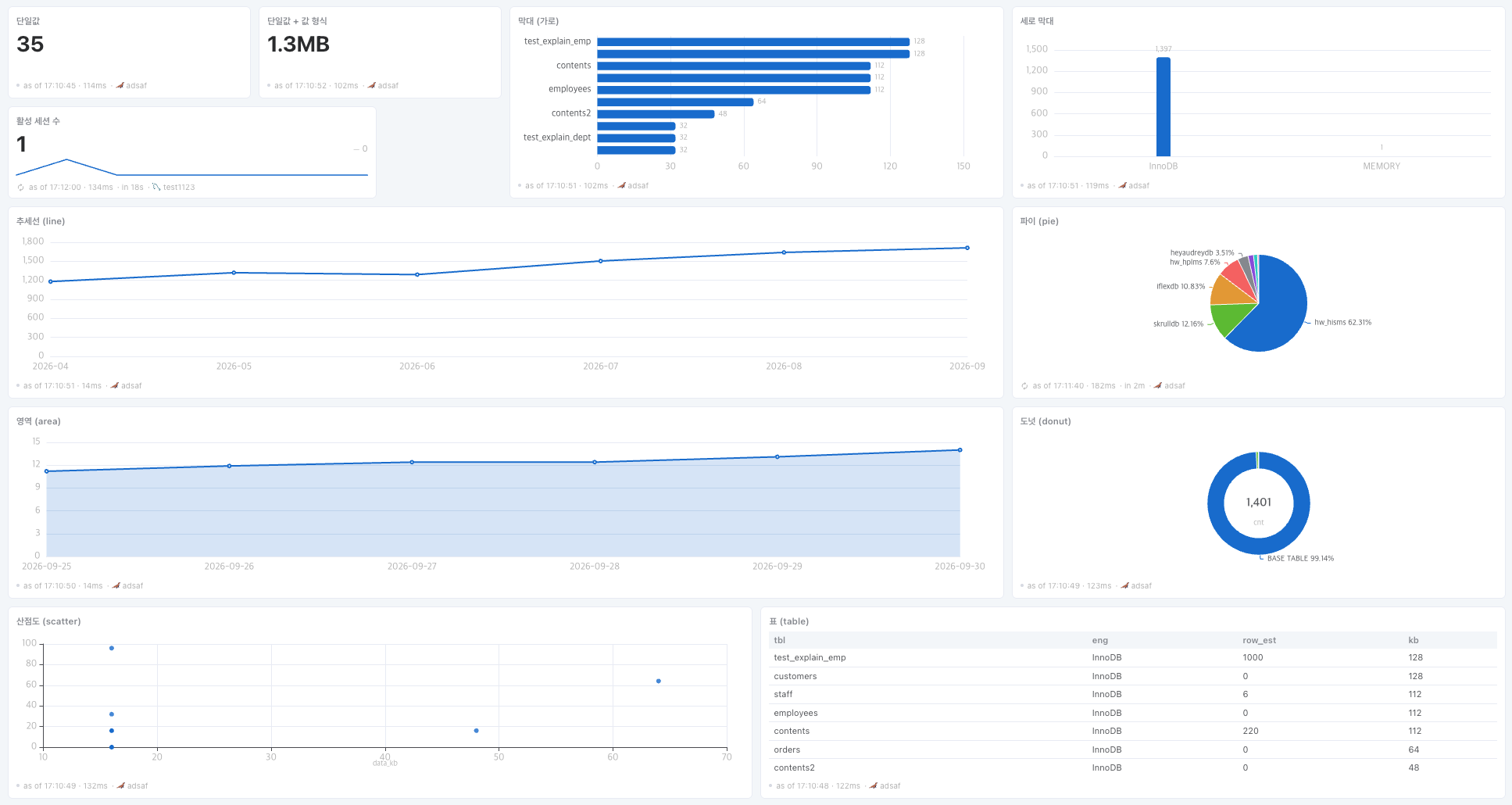
The display type decides what columns the result needs. The settings dialog also shows a one-line note for the type you picked.
| Display type | Result shape needed |
|---|---|
| Number (Value) | One row, one column becomes the value; a second column becomes the caption. |
| Bars · Column | First column is the item name, second is the number. ORDER BY decides the order. |
| Line · Area | First column is the time or sequence axis, second is the number. Use ORDER BY to set the axis order. |
| Pie | First column is the item name, second is the number. Labels overlap past about 8 slices. |
| Donut | First column is the item name, second is the number. The total is shown in the center. |
| Scatter | Both columns must be numeric — the first is x, the second is y. |
| Table | Any columns. Only the configured number of rows is drawn. |
A result that cannot be charted is not forced into one; the reason is shown instead — too many series (over 50), repeated label values so the roles are ambiguous, pie and donut cannot stack series, or no numeric column.
Preview and column roles
Press [Run query] and the result appears on the right; below it, [Chart preview] shows how it will actually be drawn.
Column roles are detected automatically by default. Use Columns to pick the label axis, series and value (X and Y for scatter) only when they cannot be told apart automatically. Pick a category column for series — a numeric column turns its values into series names.
If the query uses :from and :to, a Preview period appears in the header of the preview panel. It is used only in this dialog and does not change the dashboard period.
Changing the period or the timezone basis re-runs the preview automatically.
Display options
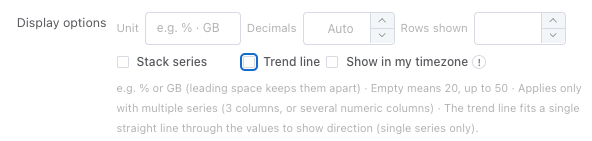
Only the options that apply to the chosen display type appear.
| Option | Applies to | Description |
|---|---|---|
| Unit | Numbers | Appended after the value (for example % or GB). A leading space keeps them apart. |
| Decimals | Numbers | Fixes the number of digits. Empty means automatic, and the maximum is 6. |
| Rows shown | Bars · Line · Table | Empty means 20 rows, up to 50. |
| Stack series | Charts | Applies only with multiple series (3 columns, or several numeric columns). |
| Trend line | Charts | Fits a single straight line through the values to show direction only (single series only). |
| Show in my timezone | When there is a time column | Reads zone-less columns (TIMESTAMP · DATETIME) in the DB timezone and shows them in yours. Off shows the stored value as-is. |
Show in my timezone changes only how values are displayed — the queried window is unchanged. What changes the query basis is [Query in my timezone], and the two are different settings.
Size and schedule
Width is 1–12 columns and height is 1–4 rows. The minimum and maximum differ per display type, and the dialog states them as ‘min 4×2 · max 12×4’. Changing the type clamps the current size into that range.
Follow the Dashboard default, or choose This tile only and enter the seconds. The minimum is 30 seconds.
Auto run only happens while the app is open and this dashboard tab is visible. A tile with auto run off runs only from the refresh button.