
Opening & Layout
Learn how to open the SQL Editor, check DB connection status, and manage schemas.
Add SQL Editor Tab
You can open the SQL Editor in two ways.
Open from the Left Sidebar
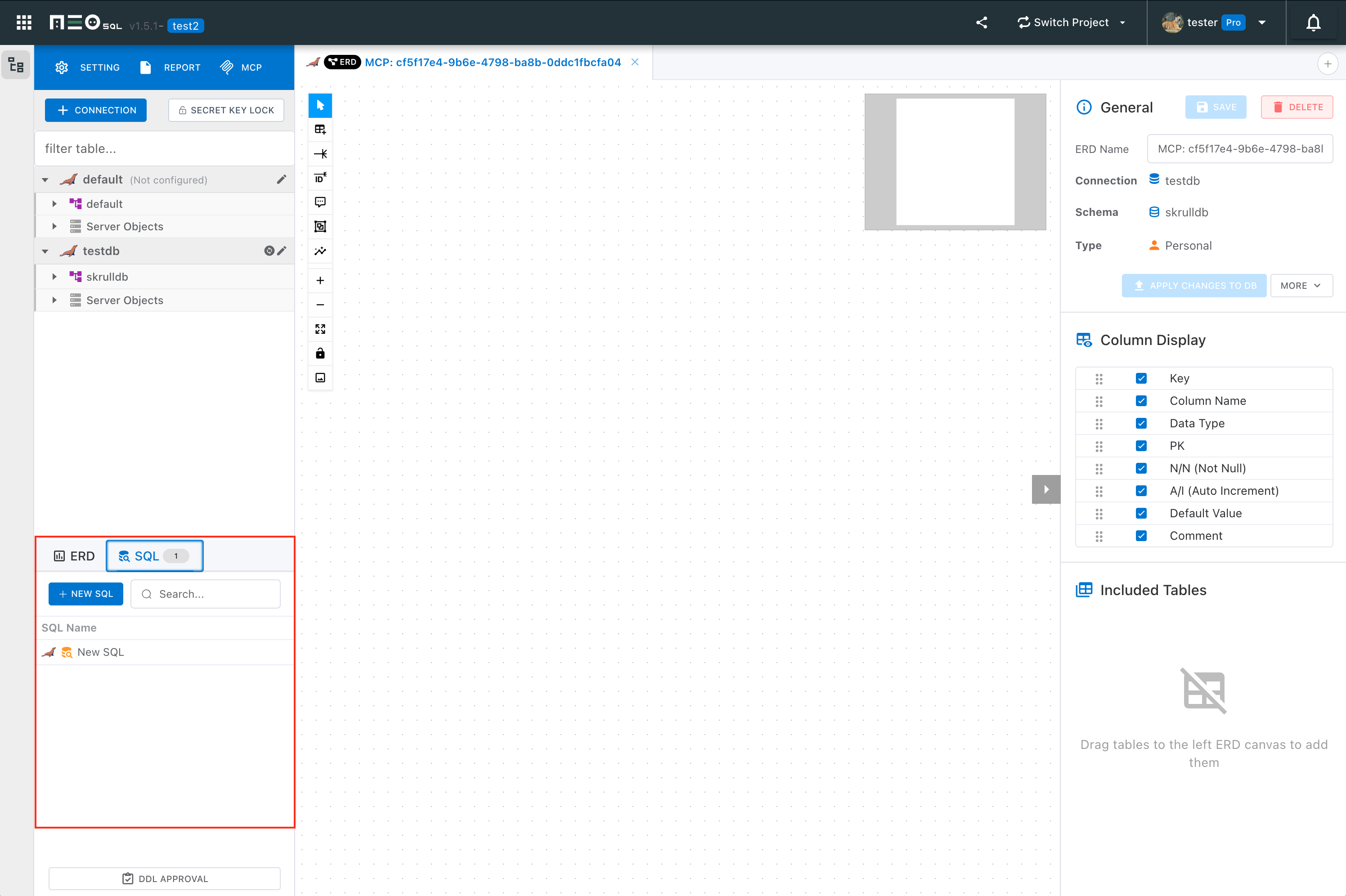
Select the SQL tab in the left sidebar, then click the New SQL button to add a new SQL Editor tab.
"+" Button in the Top Tab Area
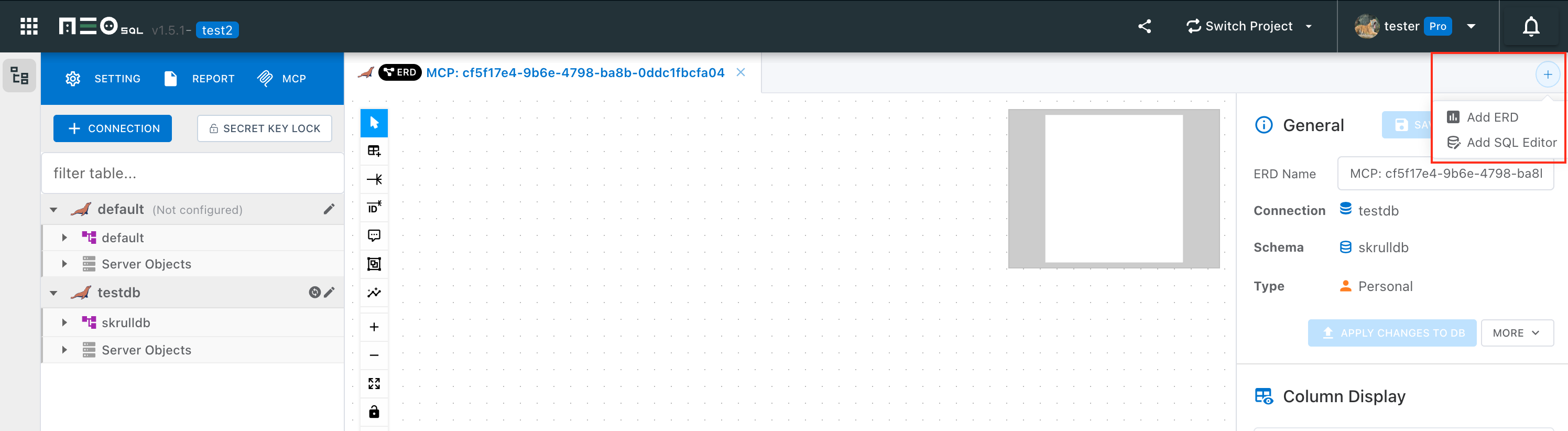
Click the + button next to the top tabs to open a dropdown menu. Select SQL Editor to add a new tab. Each tab operates as an independent session, allowing you to work on multiple queries simultaneously.
You must select a DB connection when creating a SQL Editor. If no connections exist, add one in DB Connection Settings first.
DB Connection Display / Change
The toolbar displays the currently connected DB name and schema, making it easy to see which database your queries run against.
There are two ways to change the connection.
Connection Info Area in the Toolbar
Click the connection info area (pencil icon next to the connection name) in the Toolbar.
"Settings" Button in the Left Sidebar SQL List
Hover over an item in the left sidebar SQL list and click the Settings (gear) button.
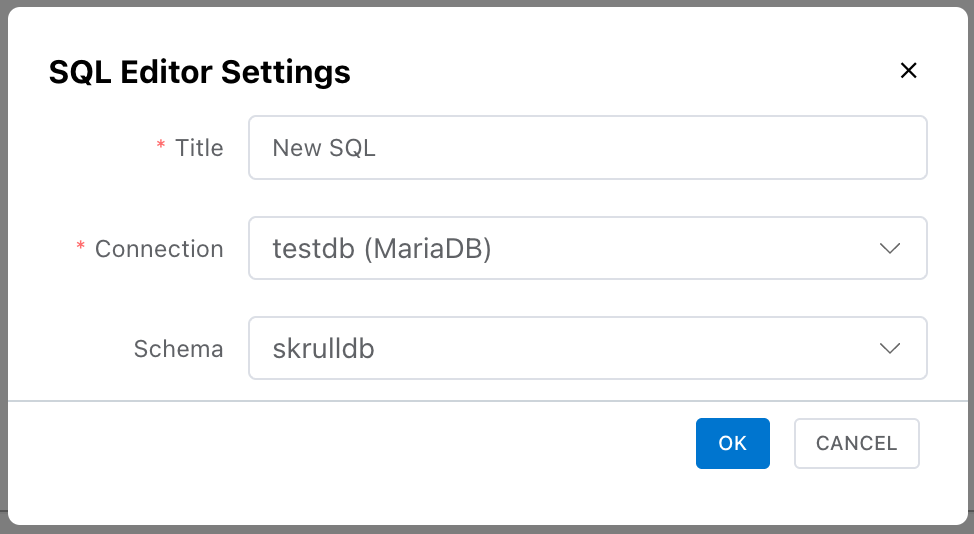
Both methods open a settings modal where you can change the connection and schema.
If a color is assigned to the connection profile, a colored bar appears at the top of the editor to visually distinguish production/development environments.
Change Schema / Database
The schema (or database) for query execution can be changed in the settings modal. Click the connection info in the Toolbar or the gear button in the sidebar to open the modal and select a schema.
| DBMS | Schema Display | Description |
|---|---|---|
| MySQL / MariaDB | Database | Same effect as the USE statement |
| PostgreSQL | Schema | Changes search_path |
| Oracle | Schema | Changes the current schema |
| SQL Server | Schema | Changes the default schema |
| SQLite / H2 | - | Single schema, so schema selection is disabled |
After changing the schema, the autocomplete list reflects the tables and columns of the selected schema.
Session Status Badge
Badges displayed in the Toolbar let you quickly see the current session status.
| Badge | Meaning |
|---|---|
Session Active | Auto Commit is off and a manual commit session is active. |
Uncommitted | There are uncommitted DML changes in the manual commit session. Commit or Rollback is required. |

When you see the